Turn a normal or magic item into a rare

Updated
Tier 1 Craft or higher.

Turn a normal or magic item into a rare

Read the written guide

Follow each step in the app. Numbered markers show the real controls. To connect nodes, drag from output marker 1 to input marker 2. Connection maps show the completed route. Steps outside the app name where to continue.

  1. At a glance

    1. Read the scope

    Read the practice target and changes from the saved sample.

    The scope and limits are clear.

    Read and complete this step before continuing.

  2. Before you start

    2. Prepare the setup and test item

    Complete [setup](setup-first-run.md), configure Scour and Alchemy, and enable [Orb stock guard](orb-stock-guard.md). Prepare ordinary, identified, uncorrupted equipment you are willing to modify. The magic route erases its existing explicit modifiers. Use **Current item** for these tests. The internal Learn helper is hidden; the steps below recreate its branches using **+**.

    Local captures, materials and input suitability are checked.

    Read and complete this step before continuing.

  3. 1. Define the accepted starting items

    3. Create a personal tree

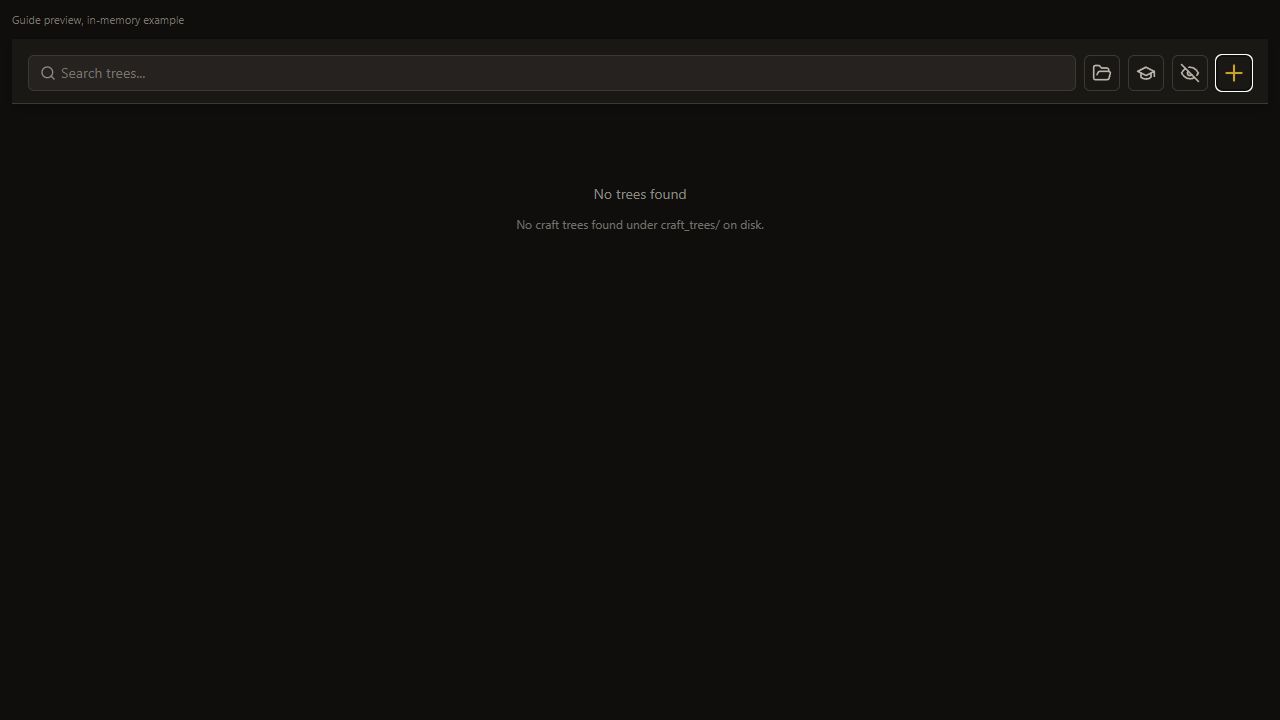
    Choose + on the Hub.

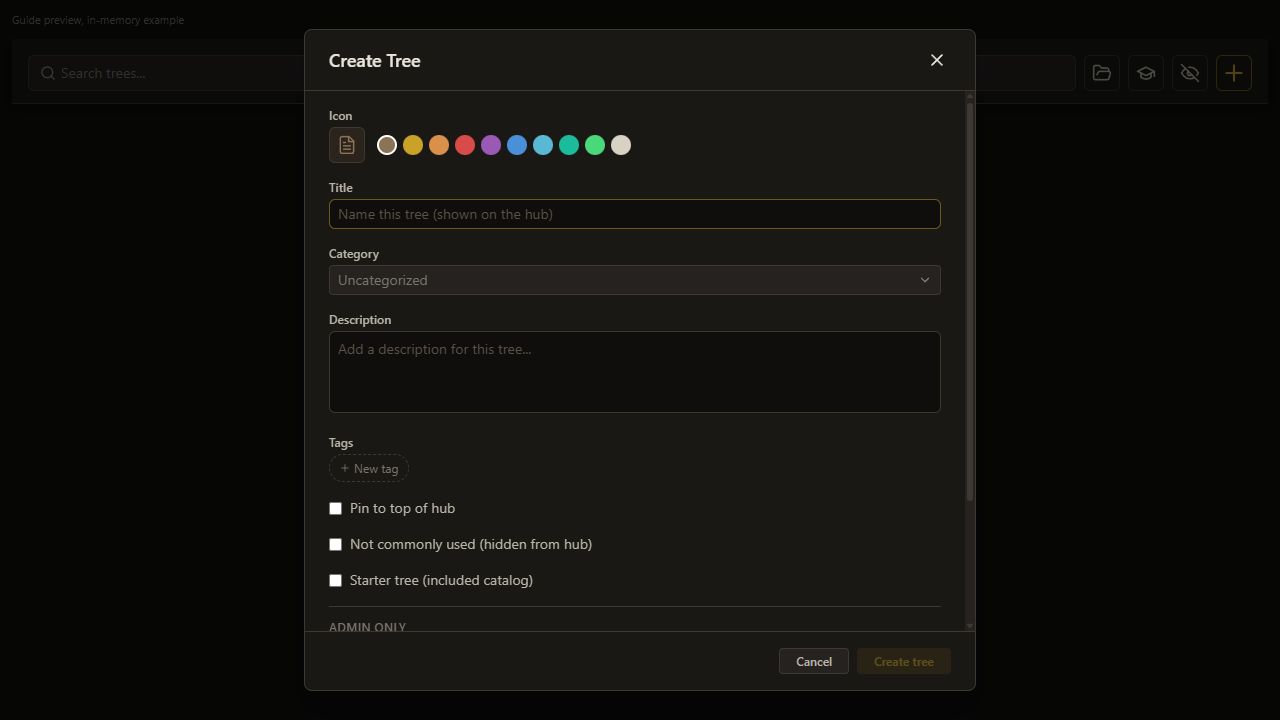
    Create Tree opens.

    Open full-size screenshot
  4. 1. Define the accepted starting items

    4. Name the tree

    Set Name this tree (shown on the hub) to Prepare rare item.

    Name this tree (shown on the hub) keeps the selected value.

    Open full-size screenshot
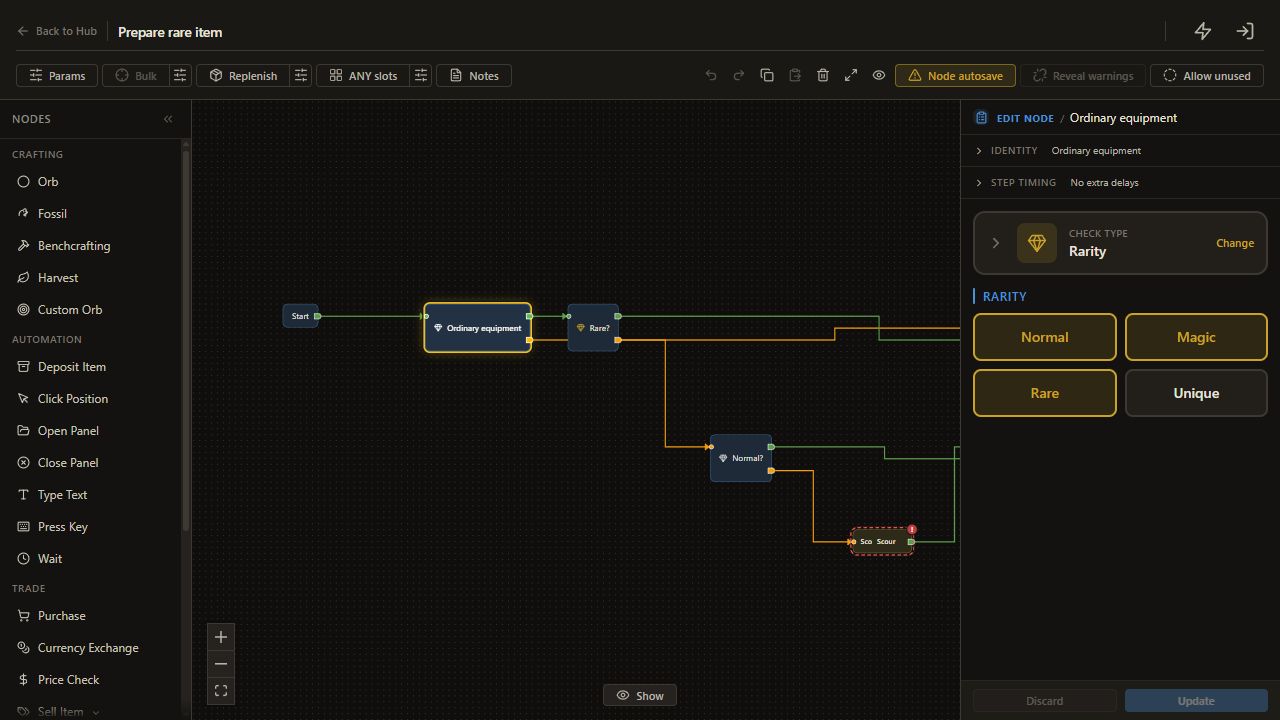
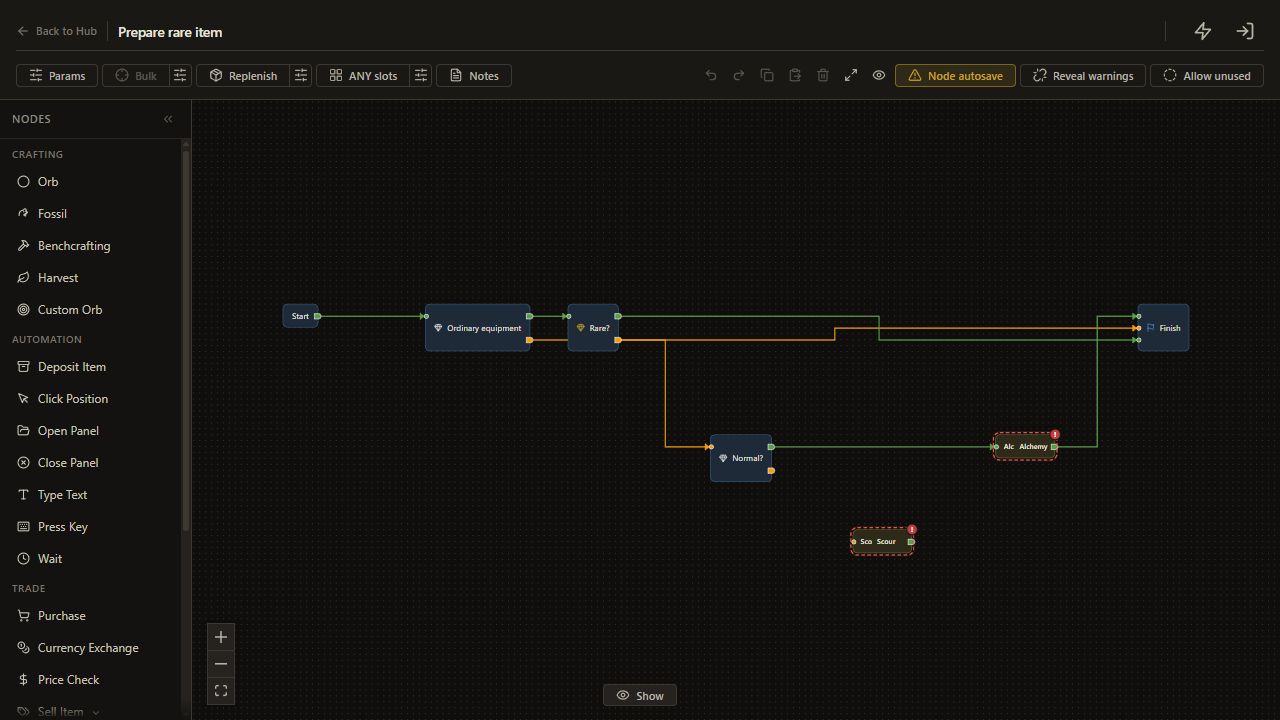
  5. 1. Define the accepted starting items

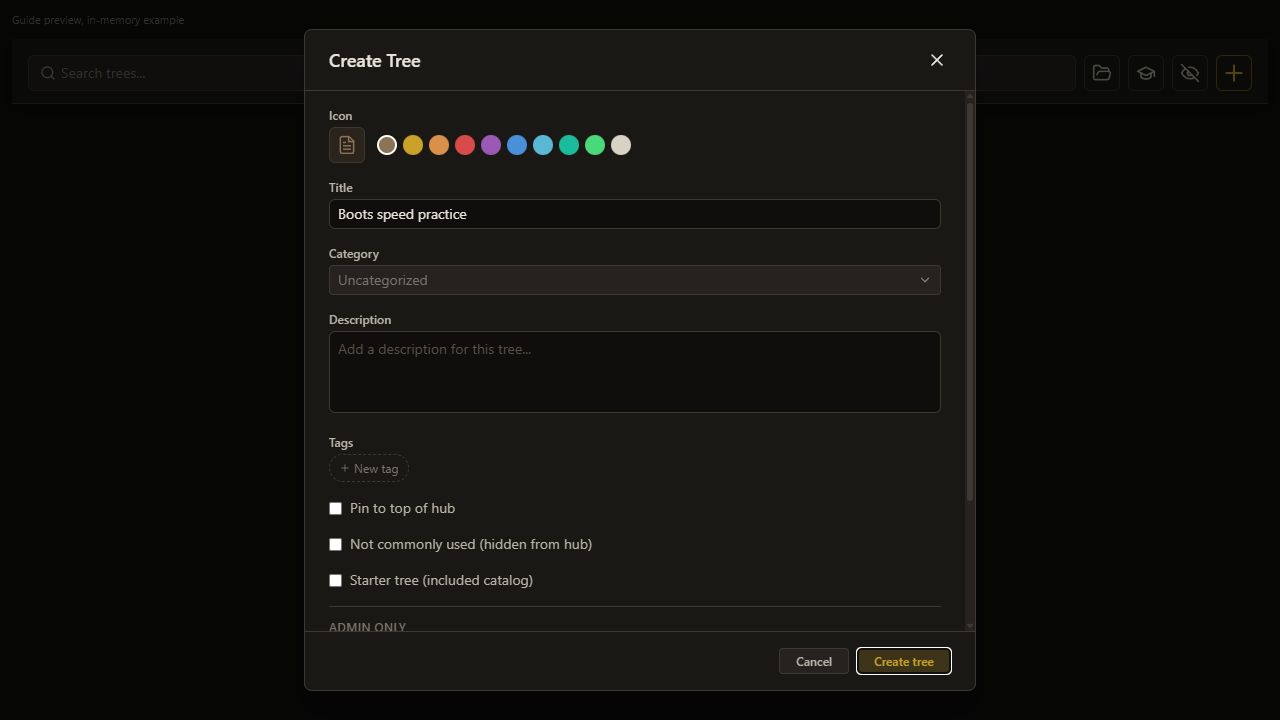
    5. Create the tree

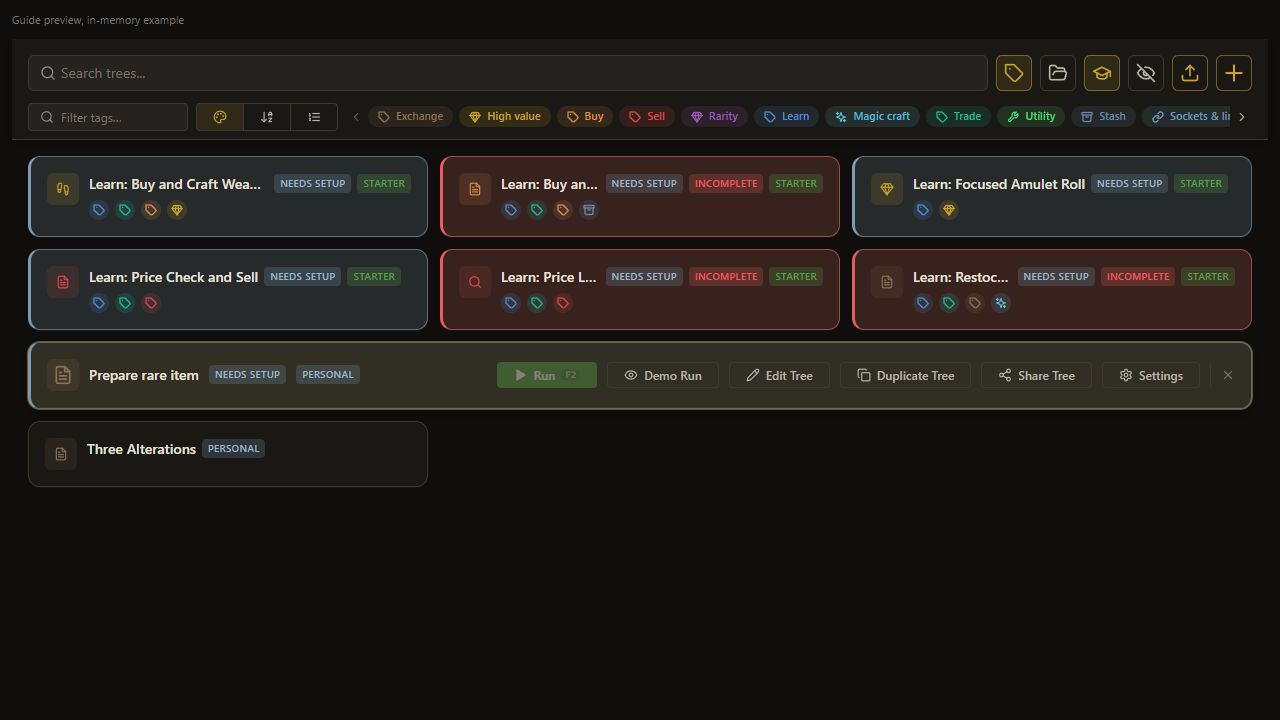
    Choose Create tree.

    The personal tree appears on the Hub.

    Open full-size screenshot
  6. 1. Define the accepted starting items

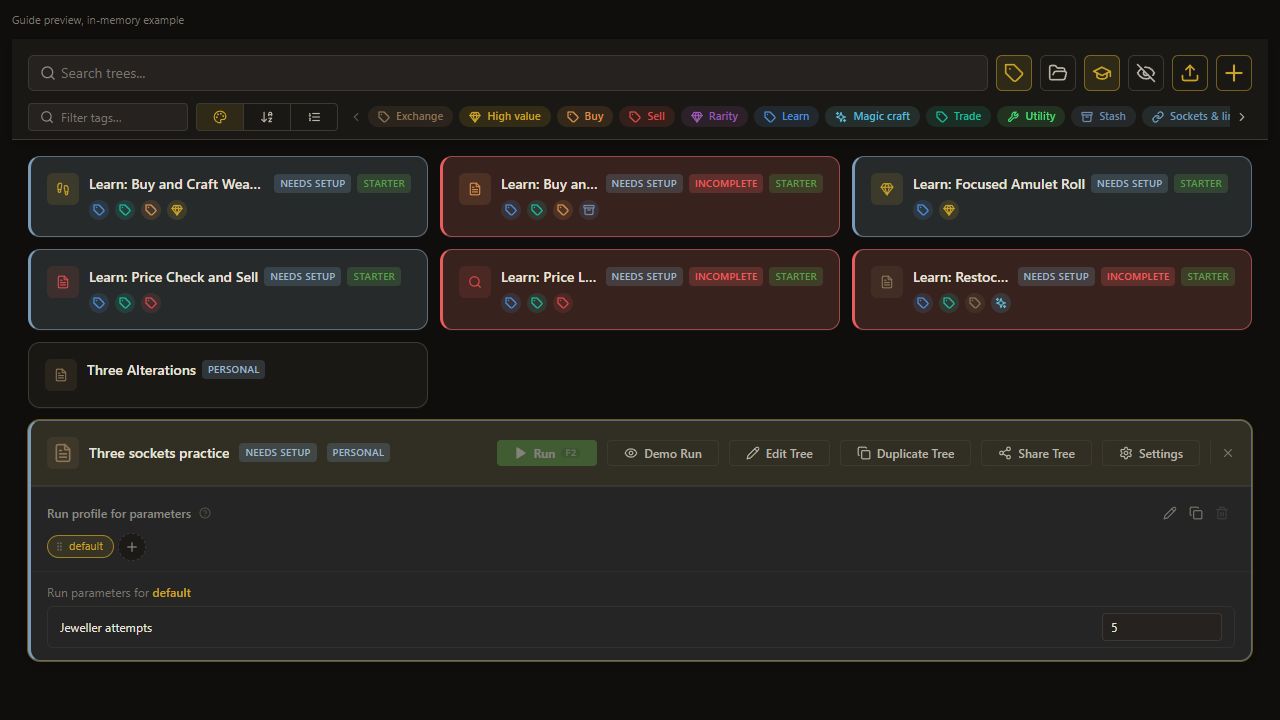
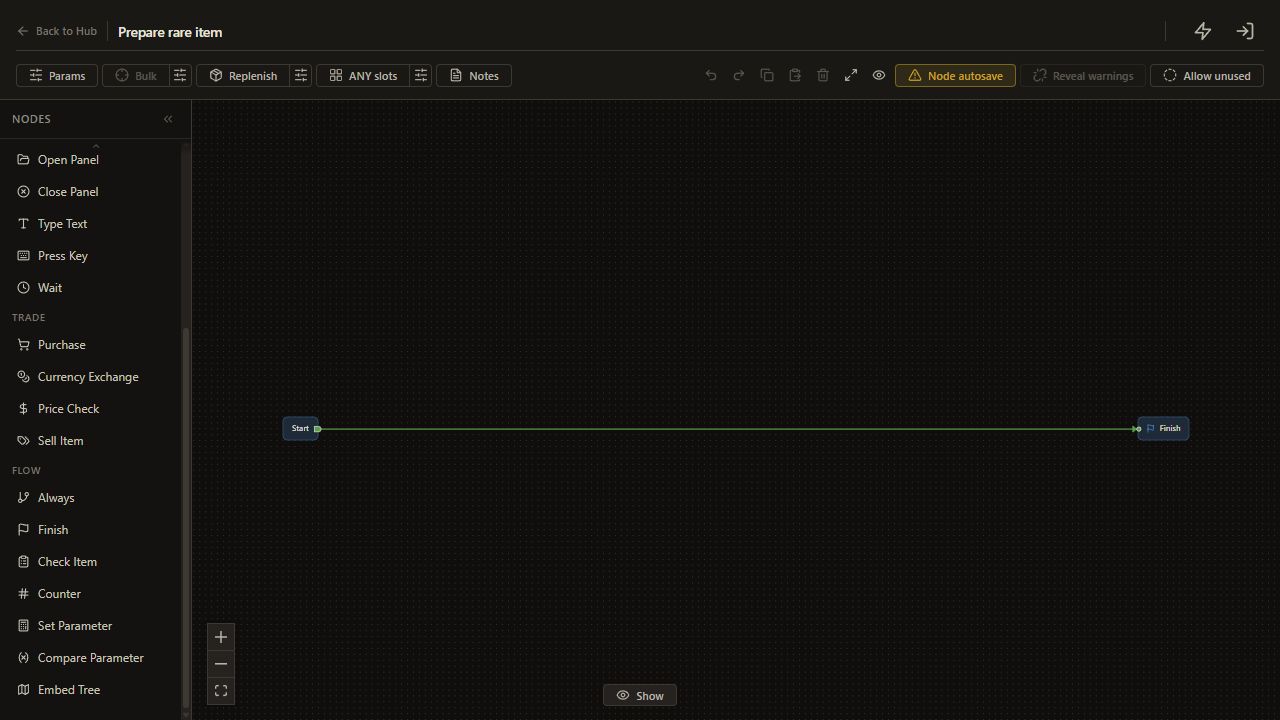
    6. Open the editor

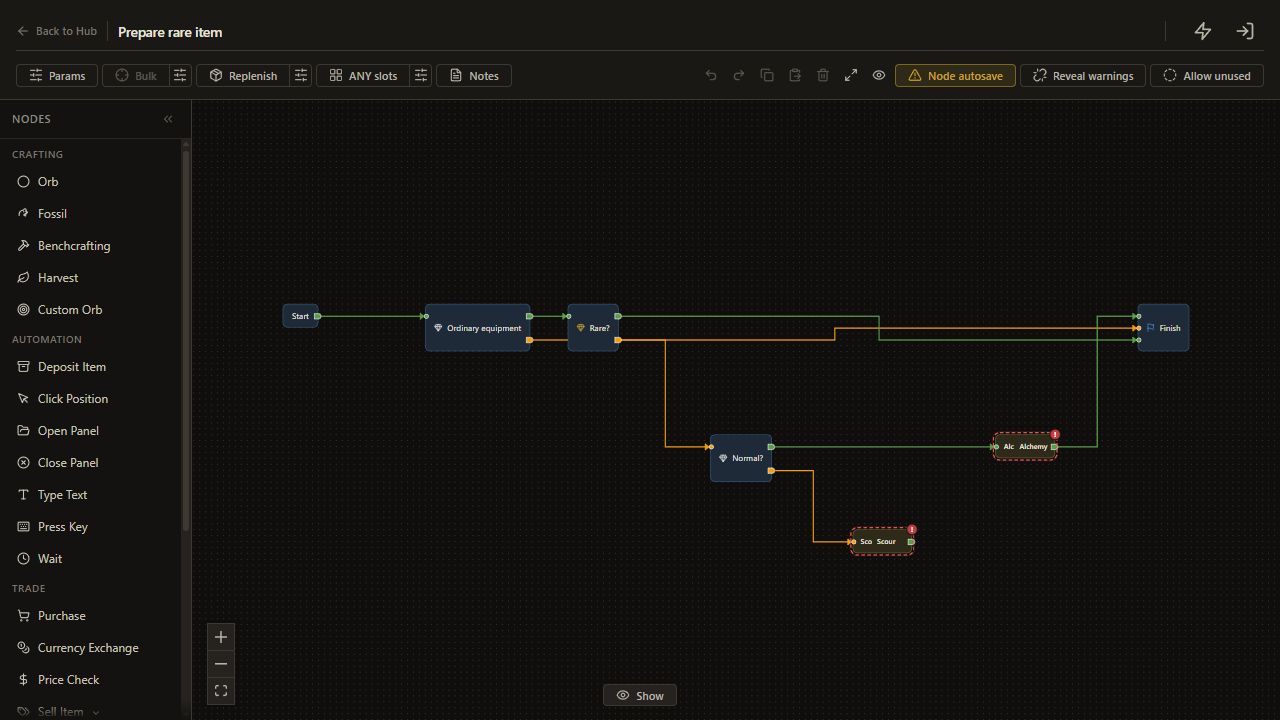
    Choose Edit Tree.

    The production editor opens.

    Open full-size screenshot
  7. 1. Define the accepted starting items

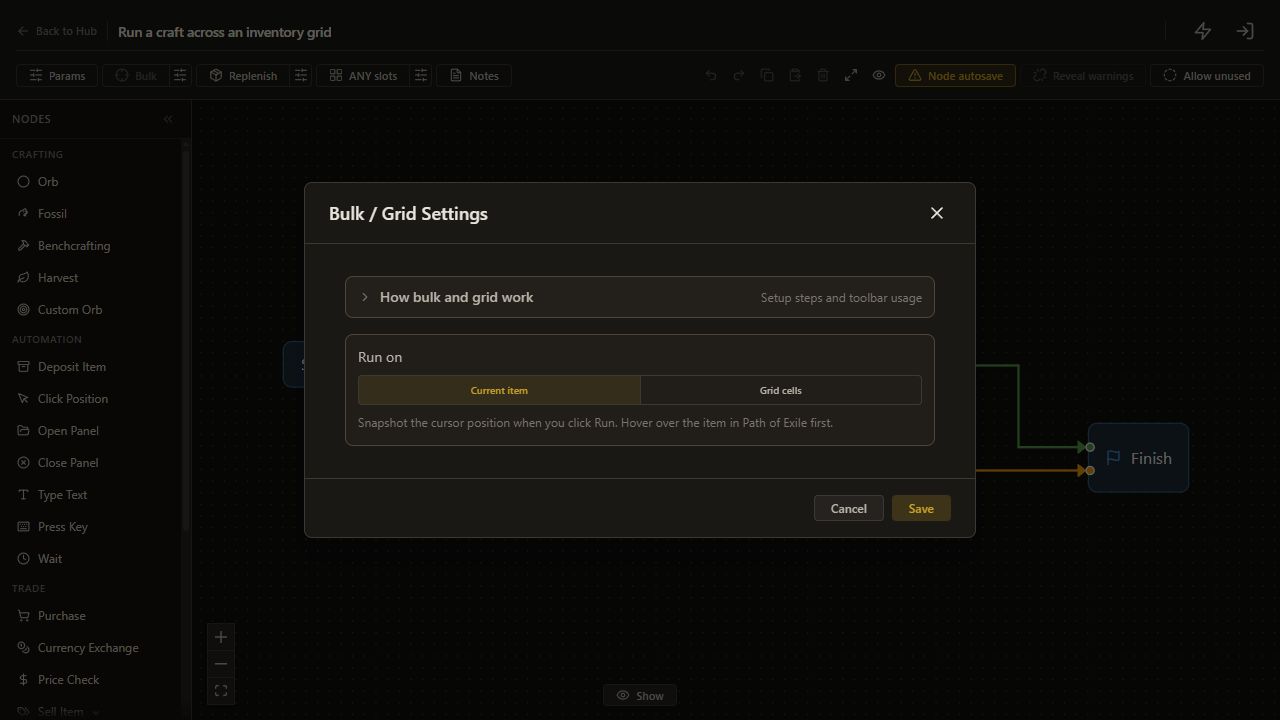
    7. Open Bulk settings

    Click the sliders button beside Bulk, labeled Configure bulk / grid settings.

    The Bulk settings dialog opens.

    Open full-size screenshot
  8. 1. Define the accepted starting items

    8. Use one item

    Click Current item in the Bulk settings dialog.

    Current item is selected in the dialog; click Save next.

    Open full-size screenshot
  9. 1. Define the accepted starting items

    9. Save one-item mode

    Click Save in the Bulk settings dialog.

    Current item is saved and the dialog closes.

    Open full-size screenshot
  10. 1. Define the accepted starting items

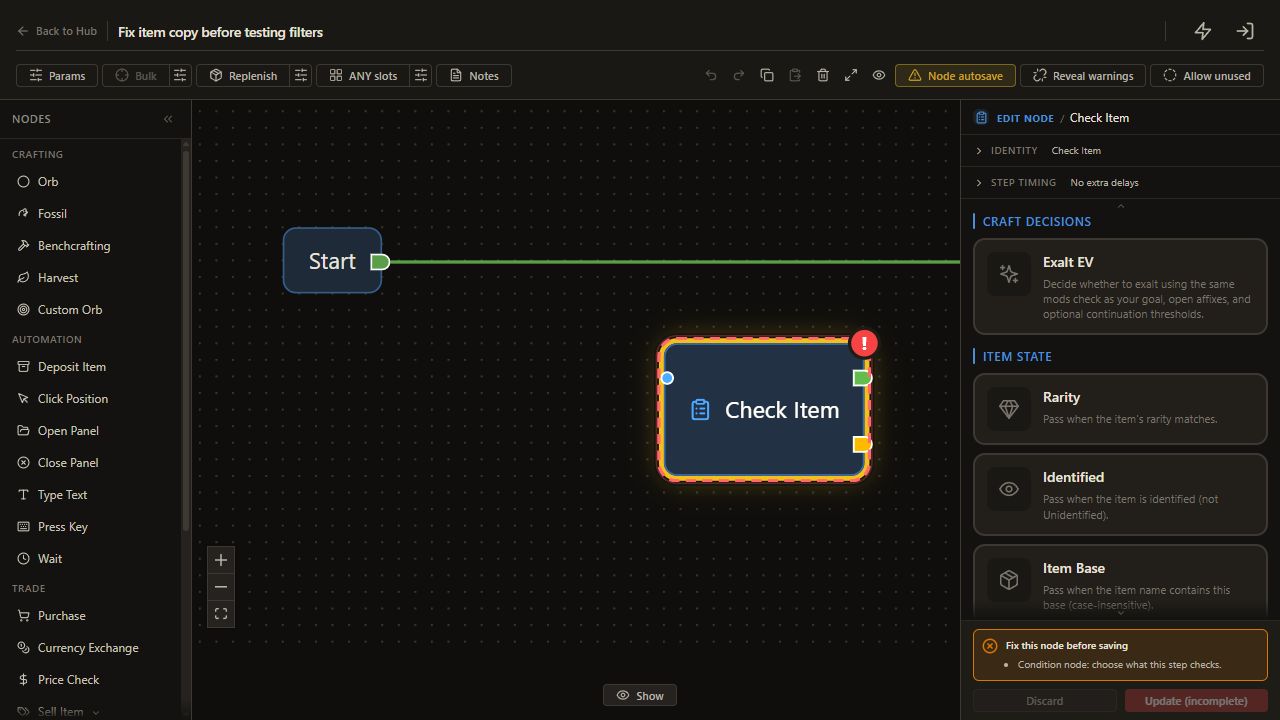
    10. Add Ordinary equipment

    Choose Check Item.

    The node appears on the canvas and its settings open.

    Open full-size screenshot
  11. 1. Define the accepted starting items

    11. Choose Rarity

    Choose Rarity.

    The Check Item template is Rarity.

    Open full-size screenshot
  12. 1. Define the accepted starting items

    12. Select Normal

    Ensure Normal is selected; click its button only if its state needs changing.

    Normal is selected.

    Open full-size screenshot
  13. 1. Define the accepted starting items

    13. Select Magic

    Ensure Magic is selected; click its button only if its state needs changing.

    Magic is selected.

    Open full-size screenshot
  14. 1. Define the accepted starting items

    14. Select Rare

    Ensure Rare is selected; click its button only if its state needs changing.

    Rare is selected.

    Open full-size screenshot
  15. 1. Define the accepted starting items

    15. Deselect Unique

    Ensure Unique is not selected; click its button only if its state needs changing.

    Unique is not selected.

    Open full-size screenshot
  16. 1. Define the accepted starting items

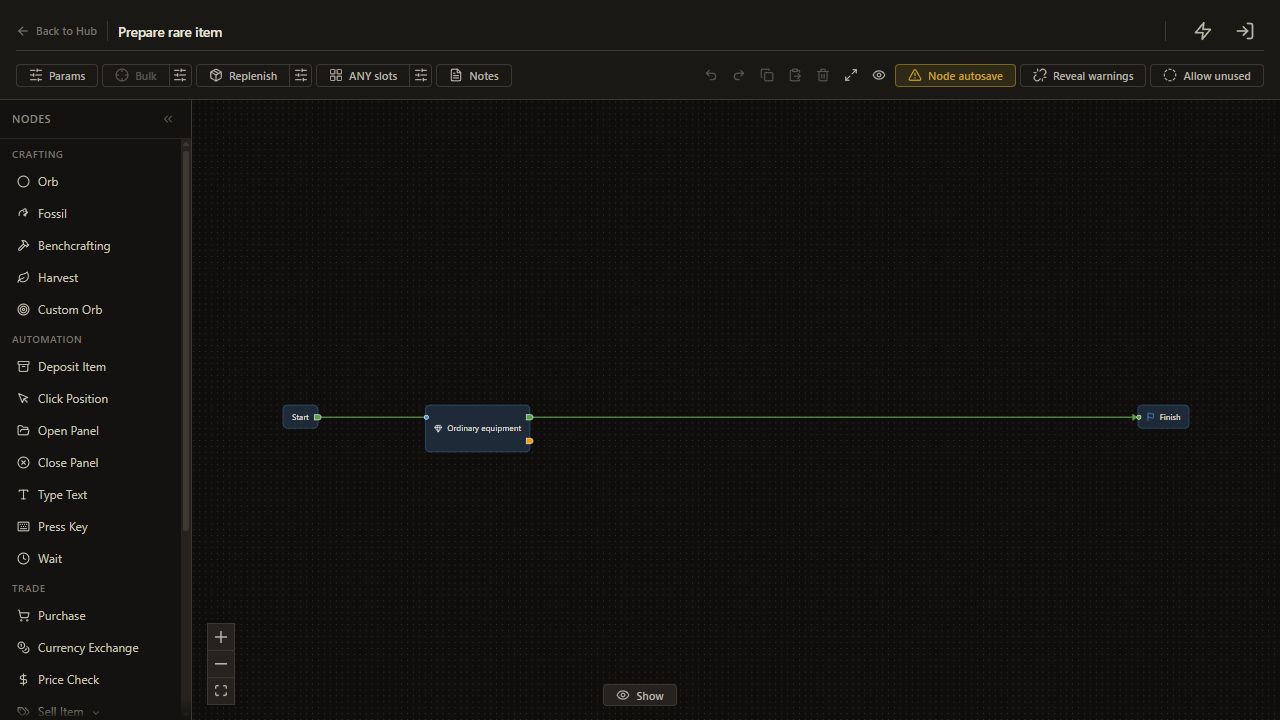
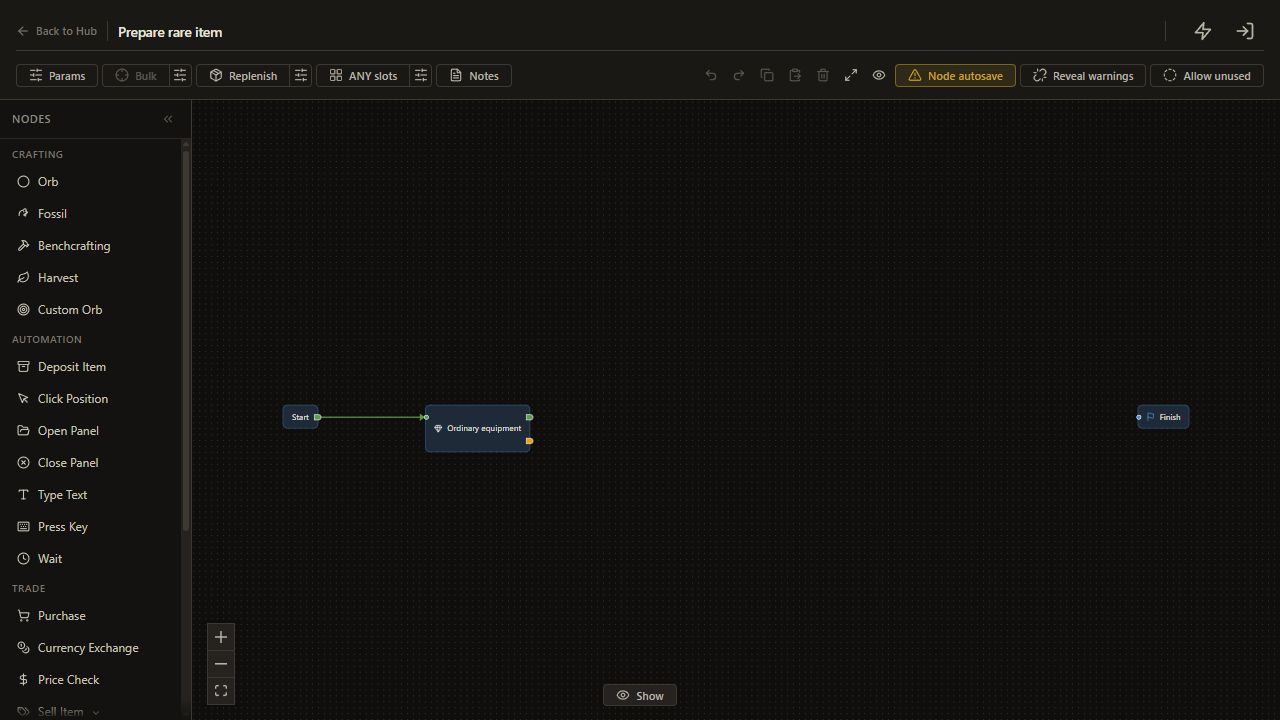
    16. Connect Start output to Ordinary equipment

    Drag from Start's unnamed output to an input on Ordinary equipment.

    The next route reaches Ordinary equipment. The former Start to Finish connection is replaced automatically.

    Open full-size screenshot
  17. 1. Define the accepted starting items

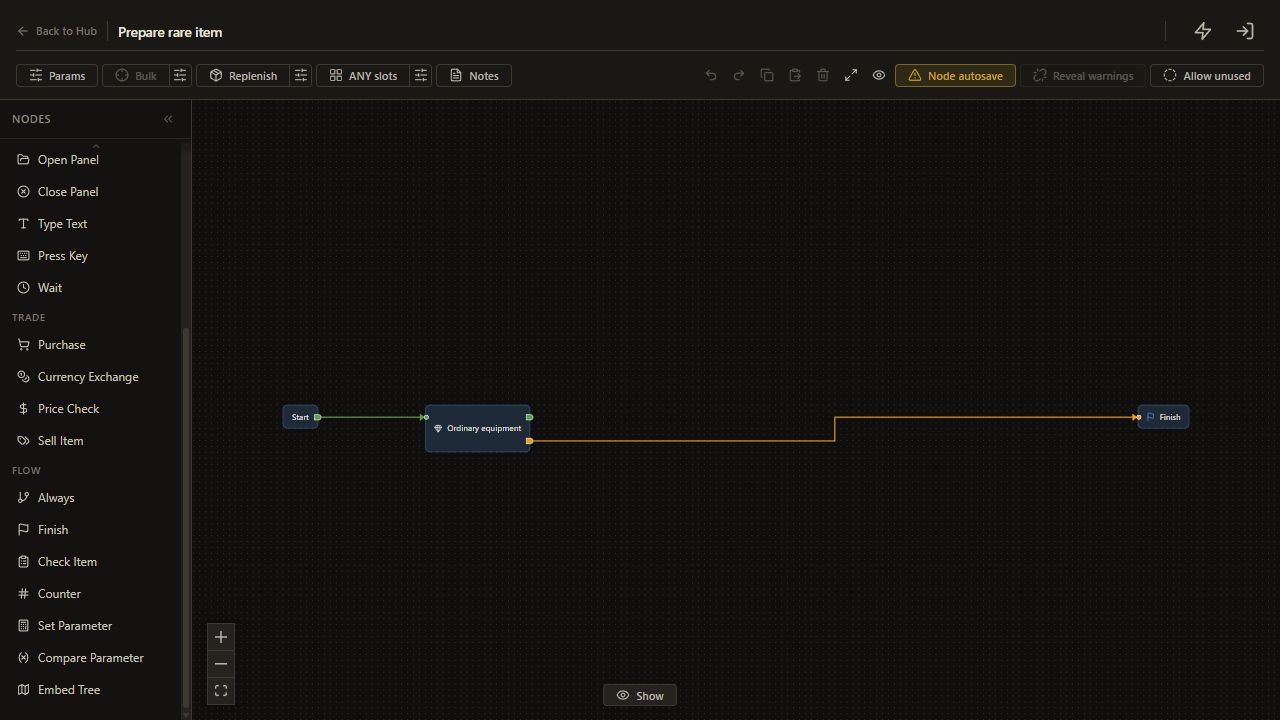
    17. Connect Ordinary equipment unmet to Finish

    Drag from Ordinary equipment's unmet output to an input on Finish.

    The unmet route reaches Finish.

    Open full-size screenshot
  18. 2. Keep an existing rare

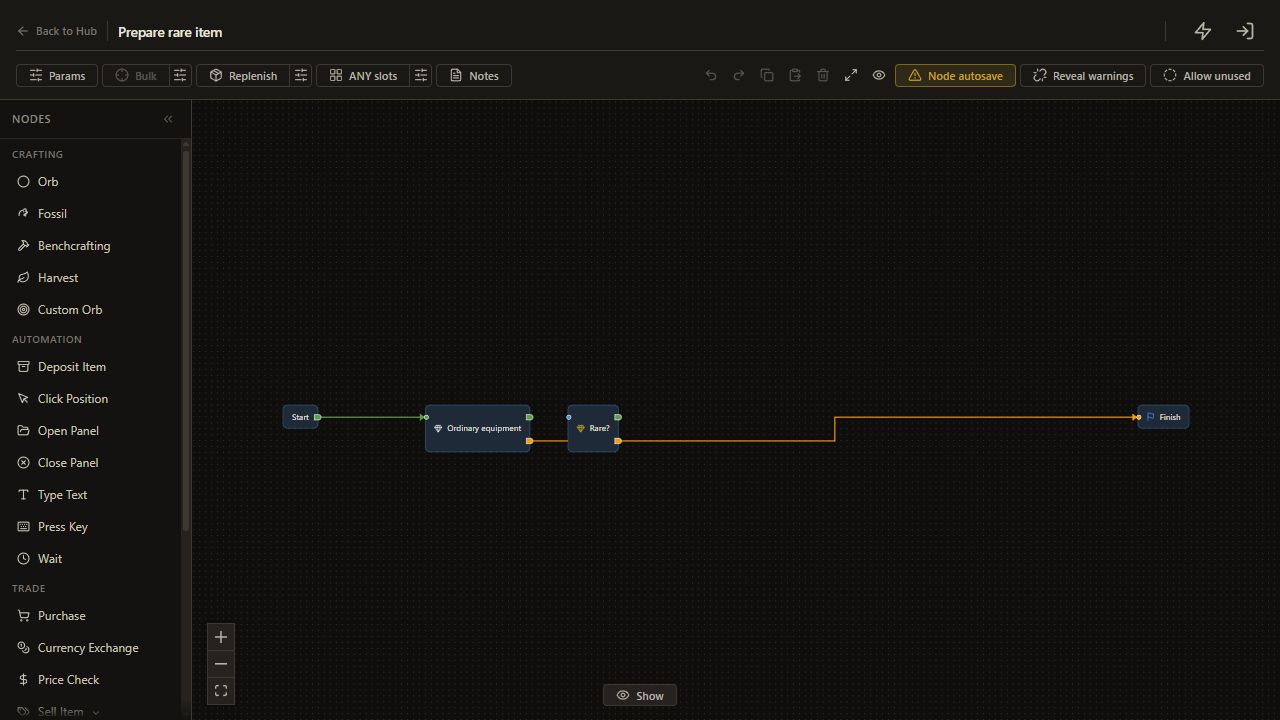
    18. Add Rare?

    Choose Check Item.

    The node appears on the canvas and its settings open.

    Open full-size screenshot
  19. 2. Keep an existing rare

    19. Choose Rarity

    Choose Rarity.

    The Check Item template is Rarity.

    Open full-size screenshot
  20. 2. Keep an existing rare

    20. Select accepted rarities

    Select exactly Rare; deselect other rarities.

    The check accepts only Rare.

    Open full-size screenshot
  21. 2. Keep an existing rare

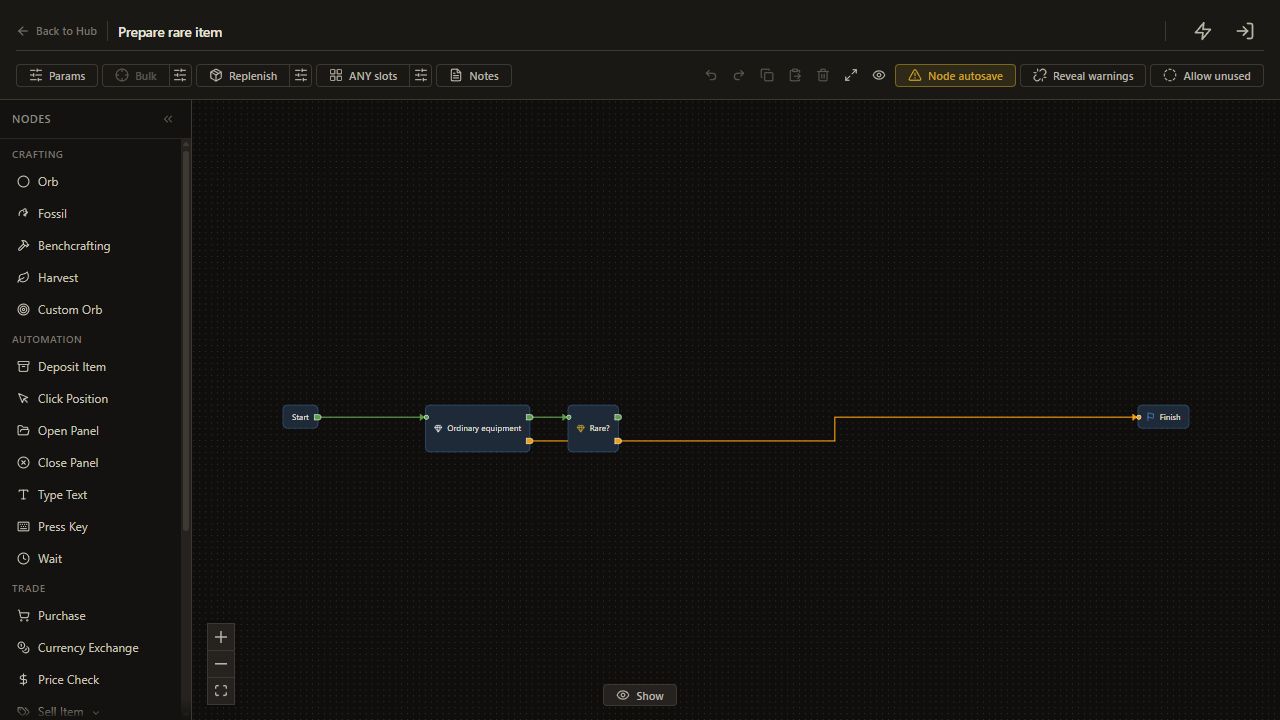
    21. Connect Ordinary equipment met to Rare?

    Drag from Ordinary equipment's met output to an input on Rare?.

    The met route reaches Rare?.

    Open full-size screenshot
  22. 2. Keep an existing rare

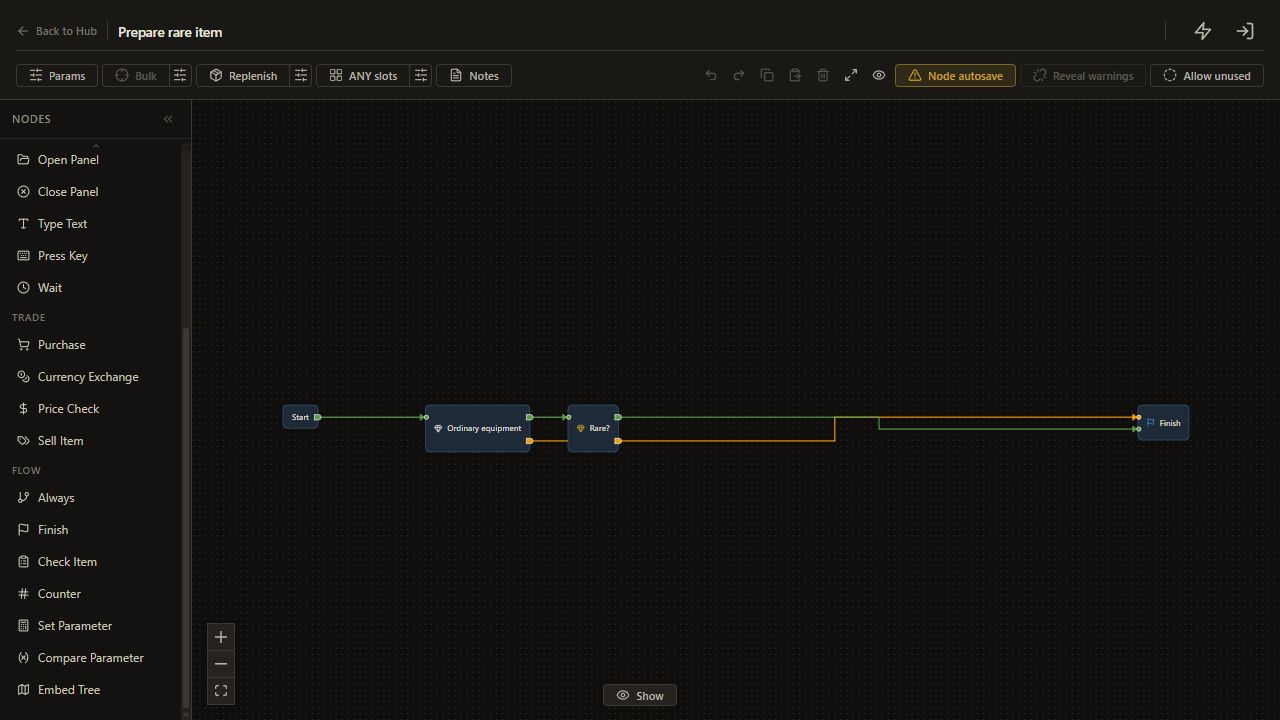
    22. Connect Rare? met to Finish

    Drag from Rare?'s met output to an input on Finish.

    The met route reaches Finish.

    Open full-size screenshot
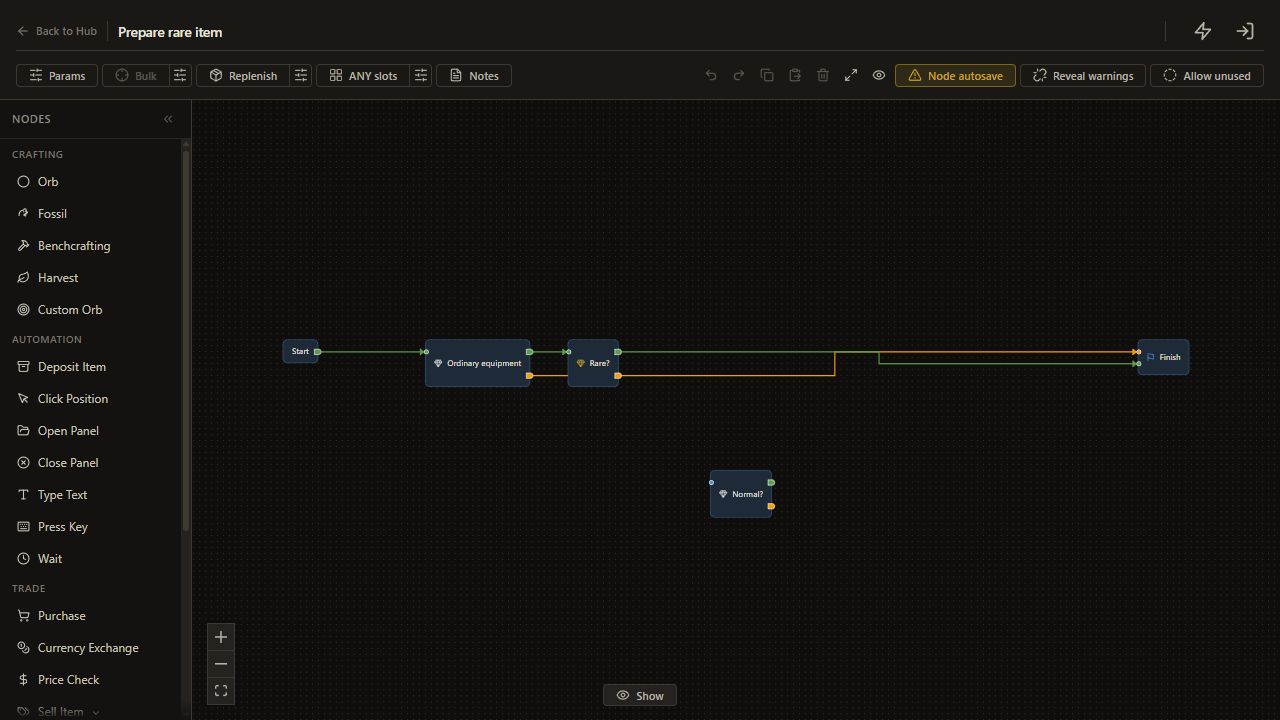
  23. 3. Give normal items a direct route

    23. Add Normal?

    Choose Check Item.

    The node appears on the canvas and its settings open.

    Open full-size screenshot
  24. 3. Give normal items a direct route

    24. Choose Rarity

    Choose Rarity.

    The Check Item template is Rarity.

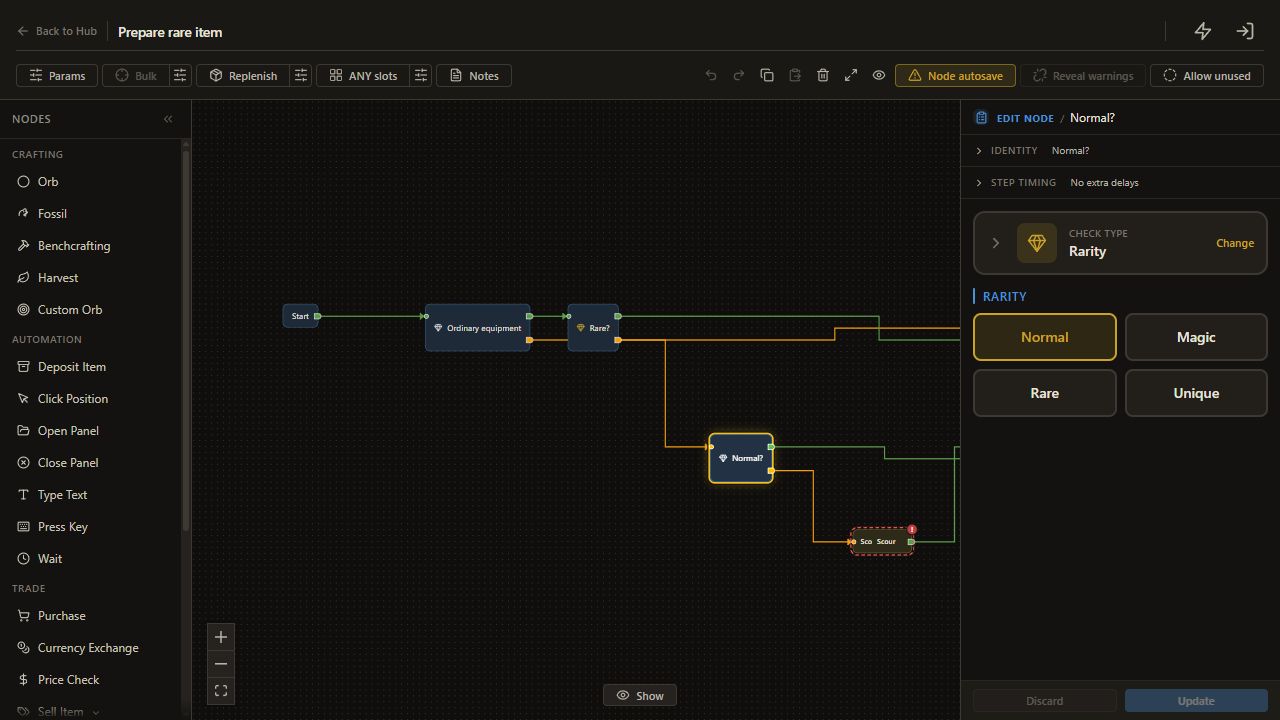
    Open full-size screenshot
  25. 3. Give normal items a direct route

    25. Select accepted rarities

    Select exactly Normal; deselect other rarities.

    The check accepts only Normal.

    Open full-size screenshot
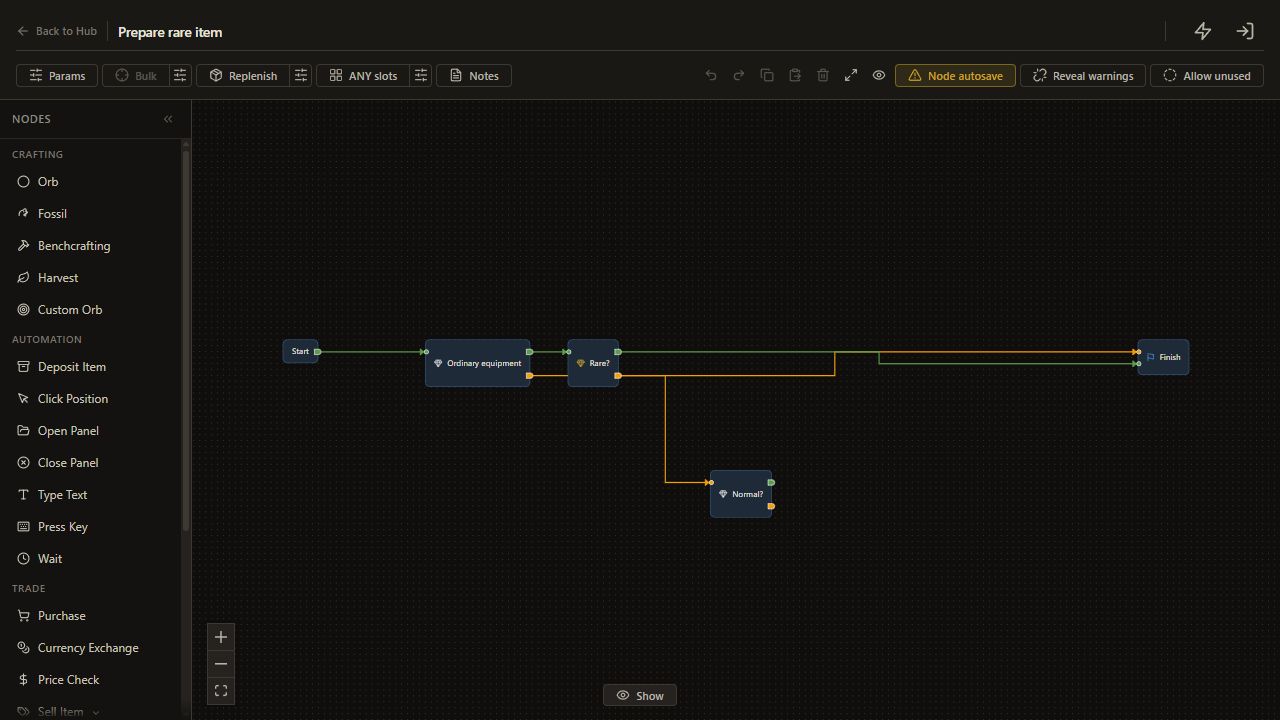
  26. 3. Give normal items a direct route

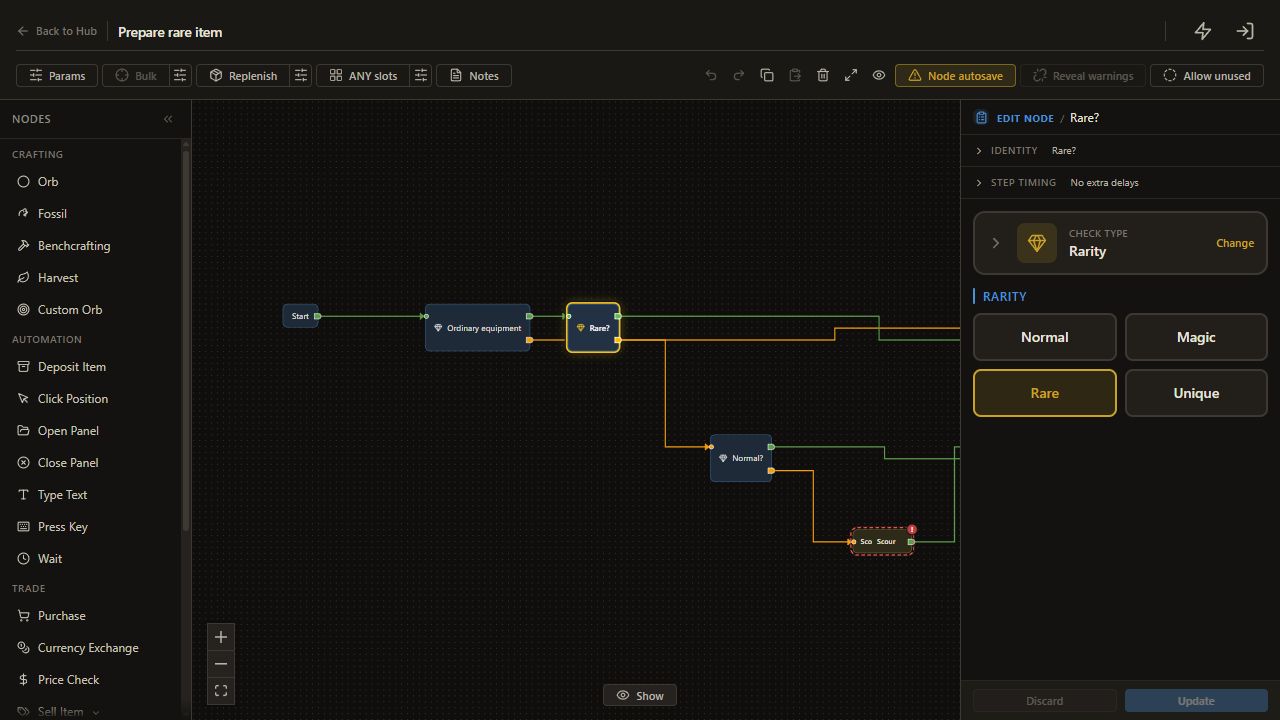
    26. Connect Rare? unmet to Normal?

    Drag from Rare?'s unmet output to an input on Normal?.

    The unmet route reaches Normal?.

    Open full-size screenshot
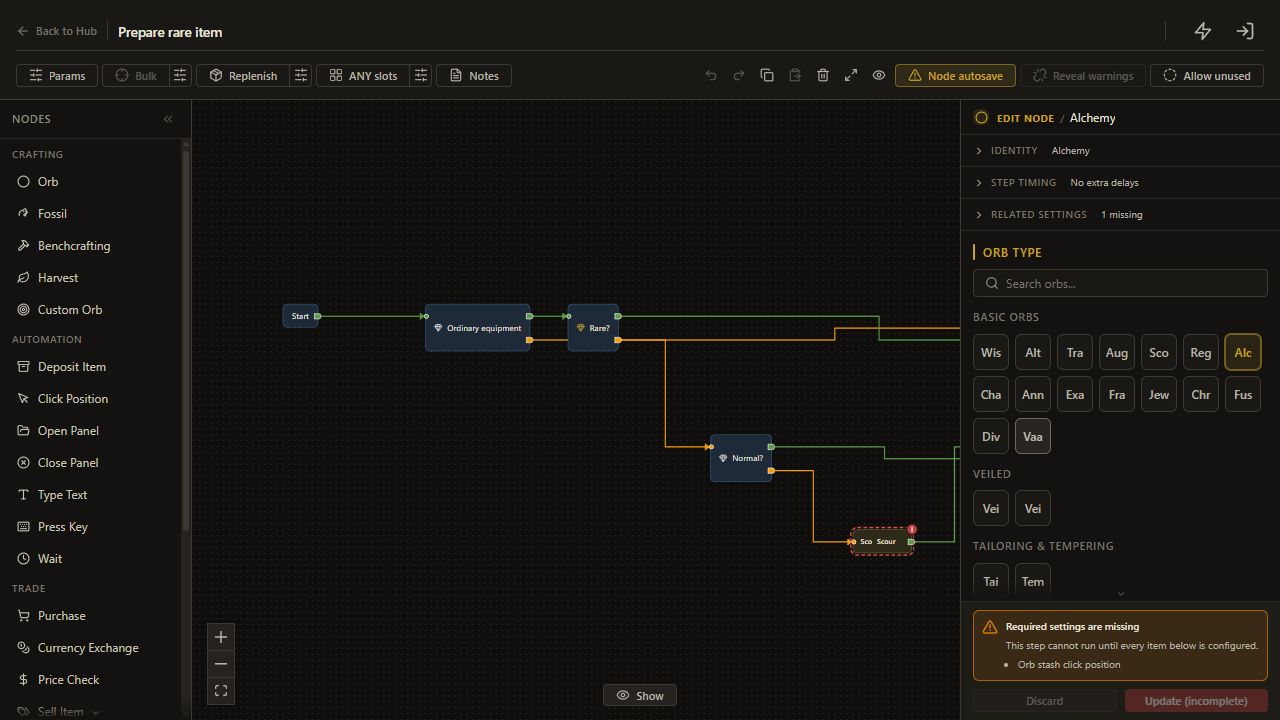
  27. 3. Give normal items a direct route

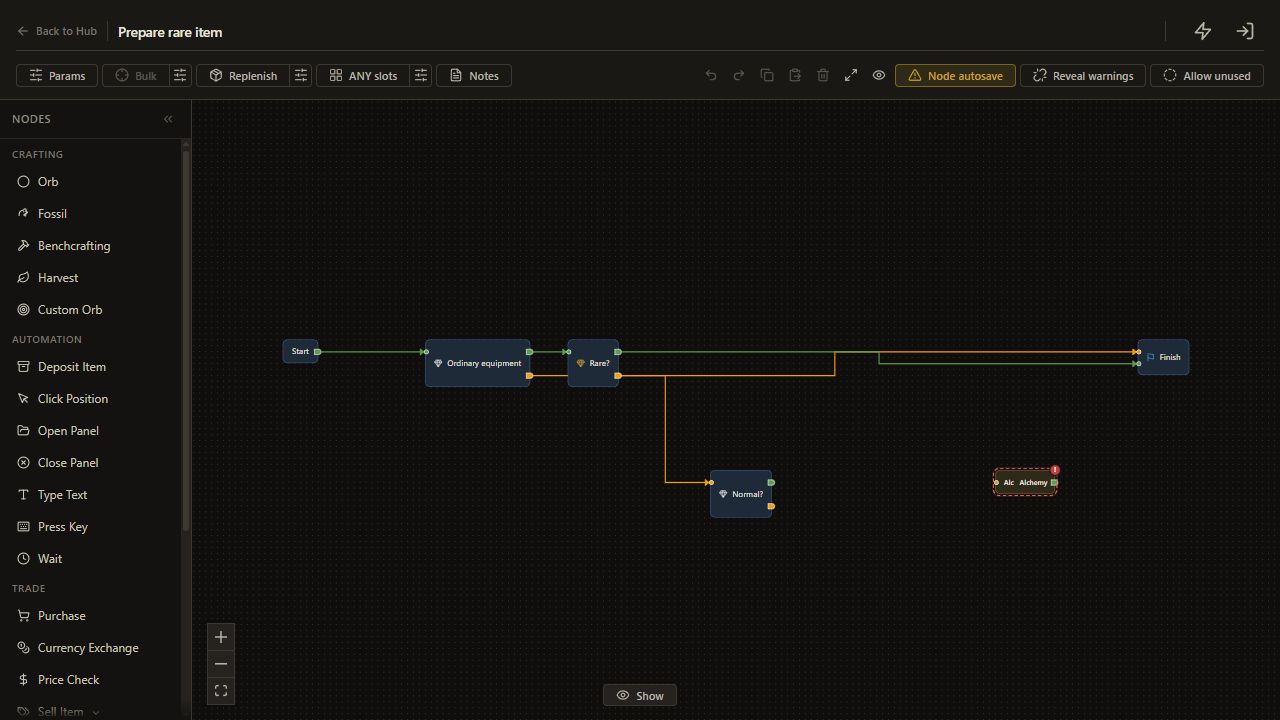
    27. Add Alchemy

    Choose Orb.

    The node appears on the canvas and its settings open.

    Open full-size screenshot
  28. 3. Give normal items a direct route

    28. Choose Alchemy

    Choose Alchemy.

    The Orb node uses Alchemy.

    Open full-size screenshot
  29. 3. Give normal items a direct route

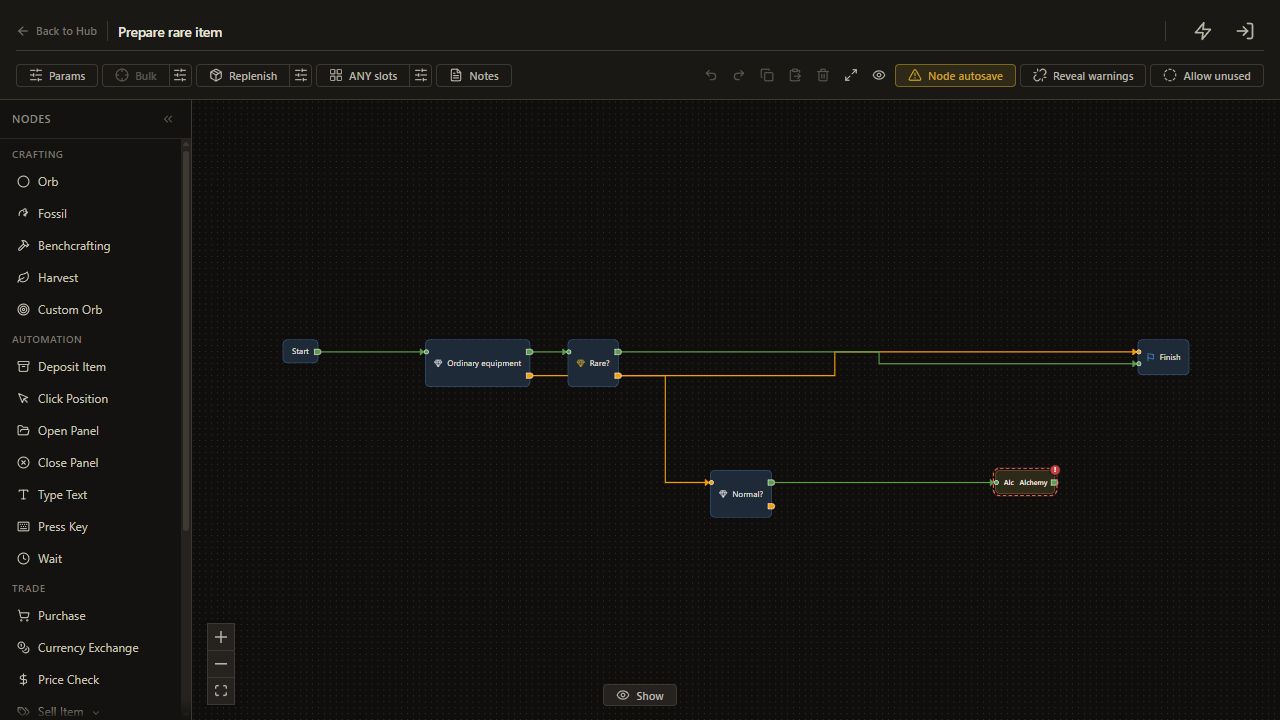
    29. Connect Normal? met to Alchemy

    Drag from Normal?'s met output to an input on Alchemy.

    The met route reaches Alchemy.

    Open full-size screenshot
  30. 3. Give normal items a direct route

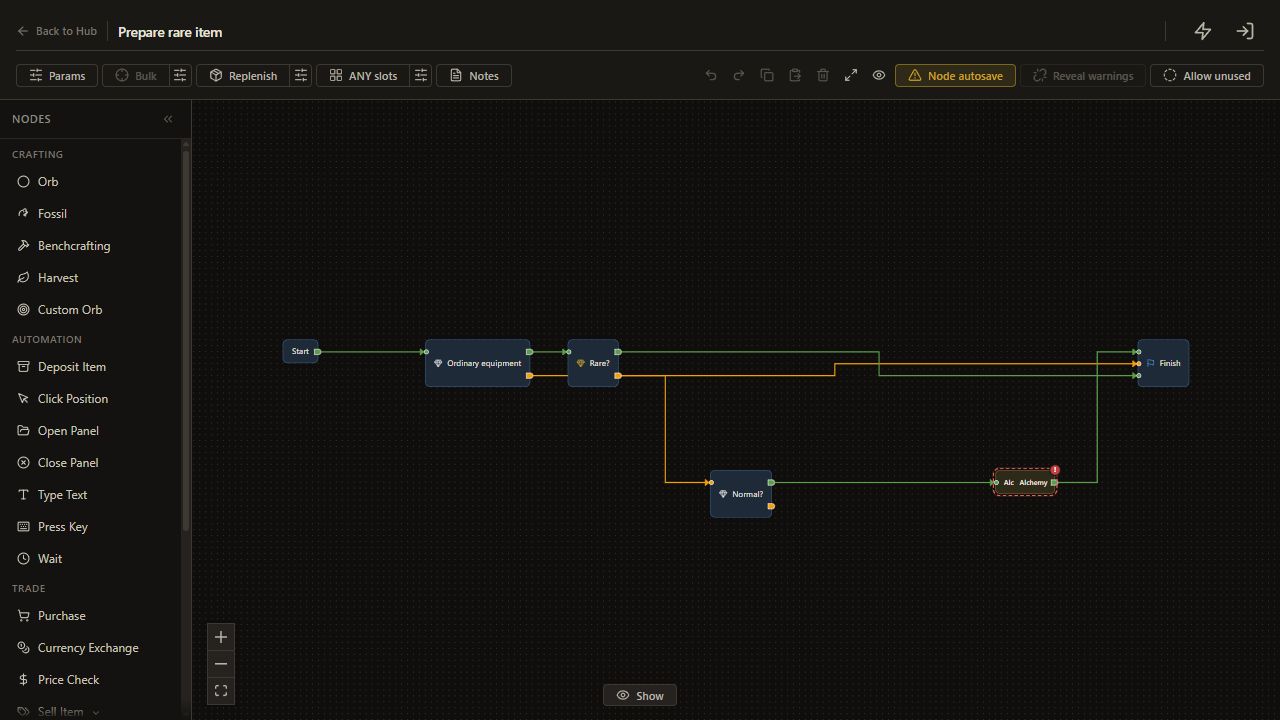
    30. Connect Alchemy output to Finish

    Drag from Alchemy's unnamed output to an input on Finish.

    The next route reaches Finish.

    Open full-size screenshot
  31. 4. Prepare a magic item before Alchemy

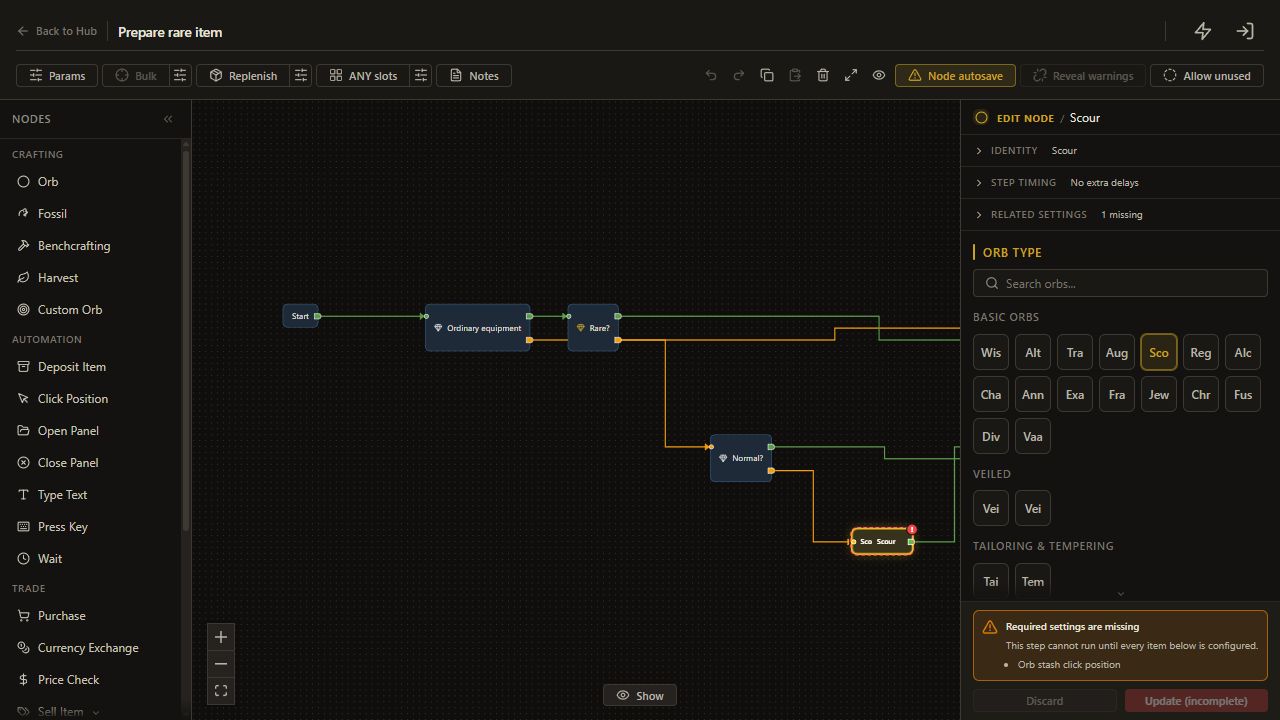
    31. Add Scour

    Choose Orb.

    The node appears on the canvas and its settings open.

    Open full-size screenshot
  32. 4. Prepare a magic item before Alchemy

    32. Choose Scour

    Choose Scour.

    The Orb node uses Scour.

    Open full-size screenshot
  33. 4. Prepare a magic item before Alchemy

    33. Connect Normal? unmet to Scour

    Drag from Normal?'s unmet output to an input on Scour.

    The unmet route reaches Scour.

    Open full-size screenshot
  34. 4. Prepare a magic item before Alchemy

    34. Connect Scour output to Alchemy

    Drag from Scour's unnamed output to an input on Alchemy.

    The next route reaches Alchemy.

    Open full-size screenshot
  35. 5. Run three small checks

    35. Check the node settings

    With Node autosave on, check the settings on the canvas. Switching nodes or using Back to Hub saves pending edits. If Node autosave is off, use Add to Tree for new nodes and Update for edits.

    The graph contains the configured nodes.

    Read and complete this step before continuing.

  36. 5. Run three small checks

    36. Return to the Hub

    Choose Back to Hub.

    The personal tree is shown.

    Open full-size screenshot
  37. 5. Run three small checks

    37. Start the test

    On the selected Hub card, choose Run after checking the real setup.

    The configured run can begin on the prepared item.

    Open full-size screenshot
  38. 5. Run three small checks

    38. Test the normal route

    Run on disposable identified, uncorrupted normal equipment. Inspect the actual rarity.

    The normal route reaches rare.

    Complete and verify this step in the stated app or game.

  39. 5. Run three small checks

    39. Test the magic route

    Run separately on a disposable magic item; compare Logs and the tooltip.

    The magic route uses Scour then Alchemy.

    Complete and verify this step in the stated app or game.

  40. 5. Run three small checks

    40. Test the rare route

    Run separately on disposable rare equipment; inspect Logs and the actual tooltip.

    The rare route preserves the rare item without an orb.

    Complete and verify this step in the stated app or game.

  41. Check the result

    41. Open Logs

    Choose Logs.

    The actual sequence and exit can be inspected.

    Open full-size screenshot
  42. Check the result

    42. Inspect the actual result

    Compare all actual rarities and orb sequences with the selected branches.

    The final item is rare and the keep route spends no currency.

    Complete and verify this step in the stated app or game.

  43. If it does not work

    43. Review if it does not work

    - Alchemy is attempted on a magic item: reconnect Normal's unmet output through Scour. - A rare item is changed: inspect the Rare check's selected buttons and met connection. - Finish is reached but rarity is wrong: inspect the item, stock and orb coordinates before another run.

    The section context and checks are preserved.

    Read and complete this step before continuing.

  44. Next guide

    44. Review next guide

    [Identify an item and put it in a chosen stash tab](case-identify-and-stash.md).

    The section context and checks are preserved.

    Read and complete this step before continuing.

On this page

At a glance

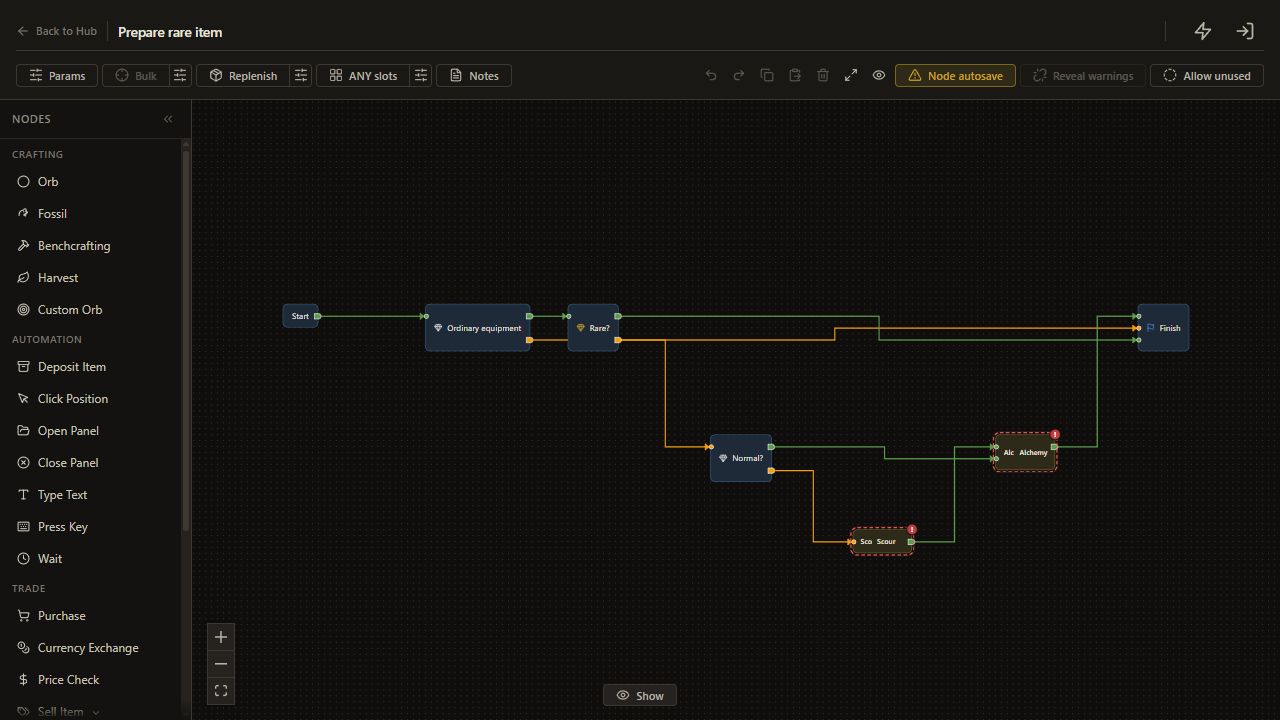
The saved RarityForcerRare pattern keeps an existing rare, applies Alchemy to a normal item, and uses Scour then Alchemy on a magic item. Its Alchemy routes finish after the action, so checking the game item is part of the result check.

Build a personal version with an entry guard, then test one starting rarity at a time.

Before you start

Complete setup, configure Scour and Alchemy, and enable Orb stock guard. Prepare ordinary, identified, uncorrupted equipment you are willing to modify. The magic route erases its existing explicit modifiers.

Use Current item for these tests. The internal Learn helper is hidden; the steps below recreate its branches using +.

1. Define the accepted starting items

Create Prepare rare item and open Edit Tree.

Click the sliders button beside Bulk in the editor toolbar, labeled Configure bulk / grid settings. Choose Current item, then click Save. The dialog closes and the tree uses one item.

Add Check Item > Rarity with Normal, Magic and Rare selected.

Connect Start to this check. Connect its unmet output to Finish. This stops an input outside those three rarities before the orb routes. Also inspect the item's actual eligibility before running.

Set the rarity buttons one at a time: Normal selected, Magic selected, Rare selected and Unique deselected. Click a button only when its current state differs from that setting.

2. Keep an existing rare

Add a second Rarity check with only Rare selected. Connect the entry check's met output to it.

Connect Rare's met output to Finish. An already rare item now takes the shortest path and keeps its current explicit modifiers.

3. Give normal items a direct route

Add a Rarity check with only Normal selected. Connect Rare's unmet output to it.

Add Orb > Alchemy. Connect Normal's met output to Alchemy, then Alchemy to Finish. This branch uses one Alchemy application when the starting item is normal.

4. Prepare a magic item before Alchemy

Add Orb > Scour. Connect Normal's unmet output to Scour, and Scour to the same Alchemy node.

The entry guard makes this the magic-item branch. The complete route is Magic input → Scour → Alchemy → Finish. The saved pattern has no loop that retries a failed conversion.

5. Run three small checks

Save, then test a disposable normal item. It should receive Alchemy and become rare. Test a disposable magic item separately: it should receive Scour and then Alchemy.

Finally, start on an already rare item. It should finish without reaching either orb node. Compare Logs with each actual tooltip; reaching Finish alone does not prove that an orb changed the item successfully.

Check the result

Normal and magic test inputs become rare through their respective routes. An already rare input remains unchanged. There should be no repeated crafting cycle in this tree.

If it does not work

  • Alchemy is attempted on a magic item: reconnect Normal's unmet output through Scour.
  • A rare item is changed: inspect the Rare check's selected buttons and met connection.
  • Finish is reached but rarity is wrong: inspect the item, stock and orb coordinates before another run.

Next guide

Identify an item and put it in a chosen stash tab.

Keep learning

Browse all guides

For setup help, the installer or license keys, join the official Discord. Sales and key issues: DM PathOfRolling. Check the account before paying; watch for impostors.