Roll magic boots for a movement speed target

Updated
Tier 1 Craft or higher for the bounded example.

Roll magic boots for a movement speed target

Read the written guide

Follow each step in the app. Numbered markers show the real controls. To connect nodes, drag from output marker 1 to input marker 2. Connection maps show the completed route. Steps outside the app name where to continue.

  1. At a glance

    1. Read the scope

    Read the practice target and changes from the saved sample.

    The scope and limits are clear.

    Read and complete this step before continuing.

  2. Before you start

    2. Prepare the setup and test item

    Complete [setup](setup-first-run.md) and [item-copy checks](item-copy-troubleshooting.md). Prepare identified, uncorrupted magic boots you are willing to reroll. Configure Alteration and Augmentation stash locations, enable [Orb stock guard](orb-stock-guard.md), and know your Stop shortcut.

    Local captures, materials and input suitability are checked.

    Read and complete this step before continuing.

  3. 1. Create your practice version

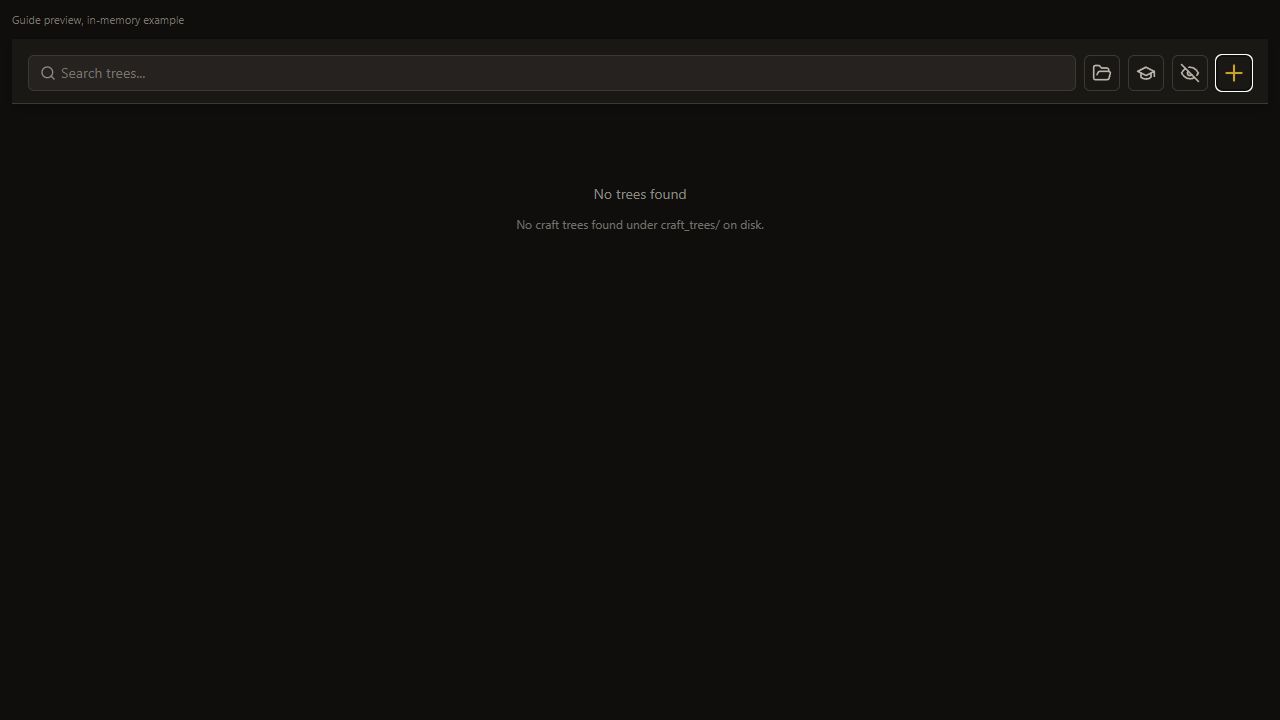
    3. Press + on the Hub

    In Path of Rolling, open the Hub and press the highlighted + button.

    Prepare identified magic boots and configured Alteration and Augmentation stash positions first.

    Open full-size screenshot
  4. 1. Create your practice version

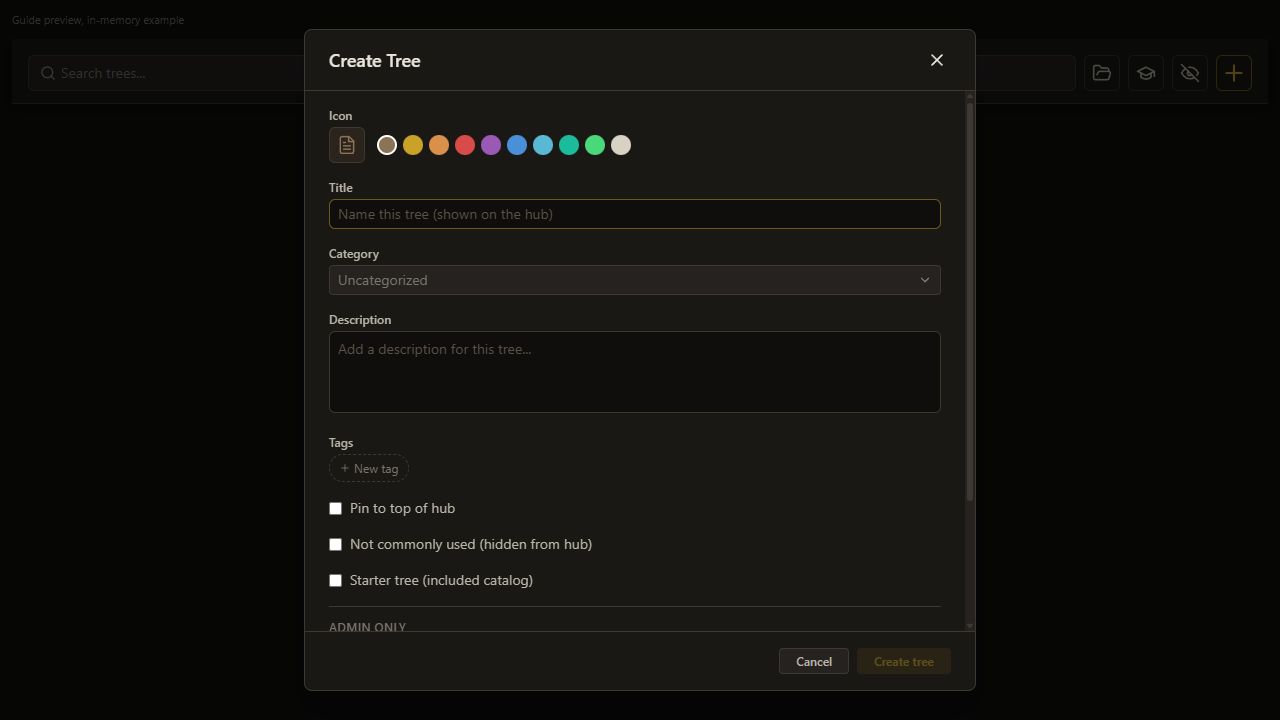
    4. Name your practice tree

    Click the title field and type Boots speed practice.

    Use your own tree so you can follow each change.

    Open full-size screenshot
  5. 1. Create your practice version

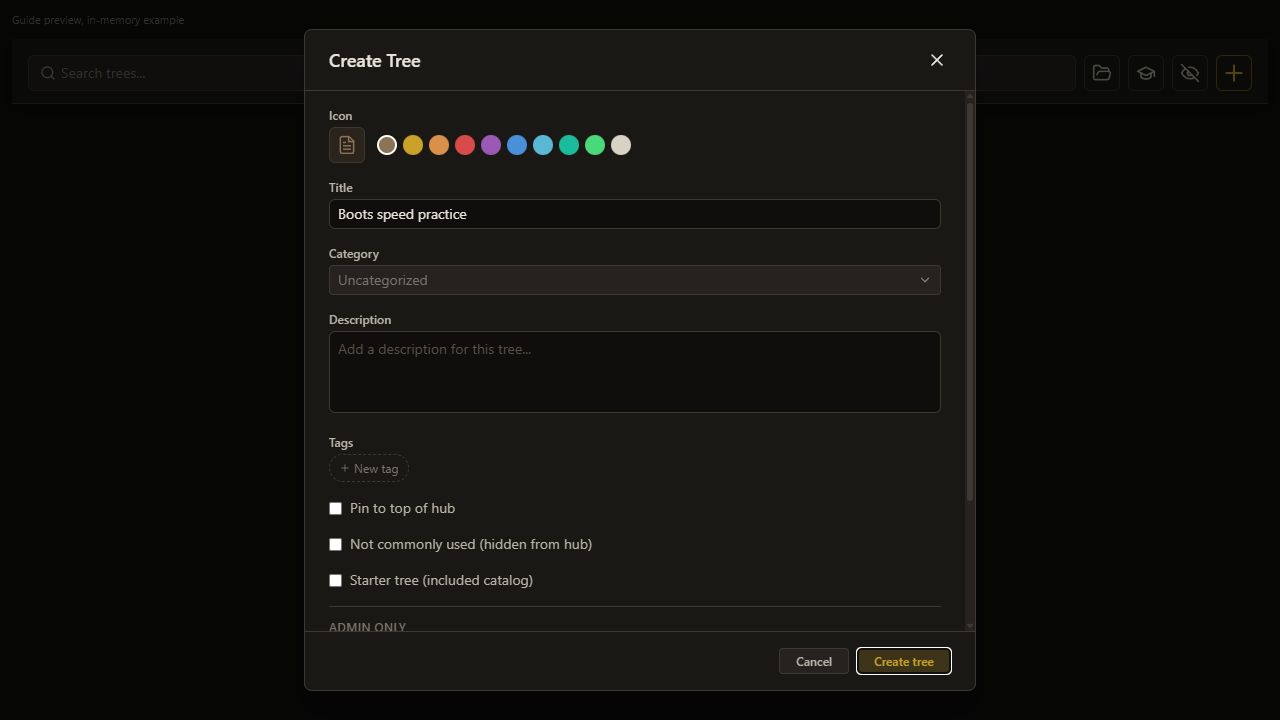
    5. Create the tree

    Press Create at the bottom of the dialog.

    Your tree appears on the Hub.

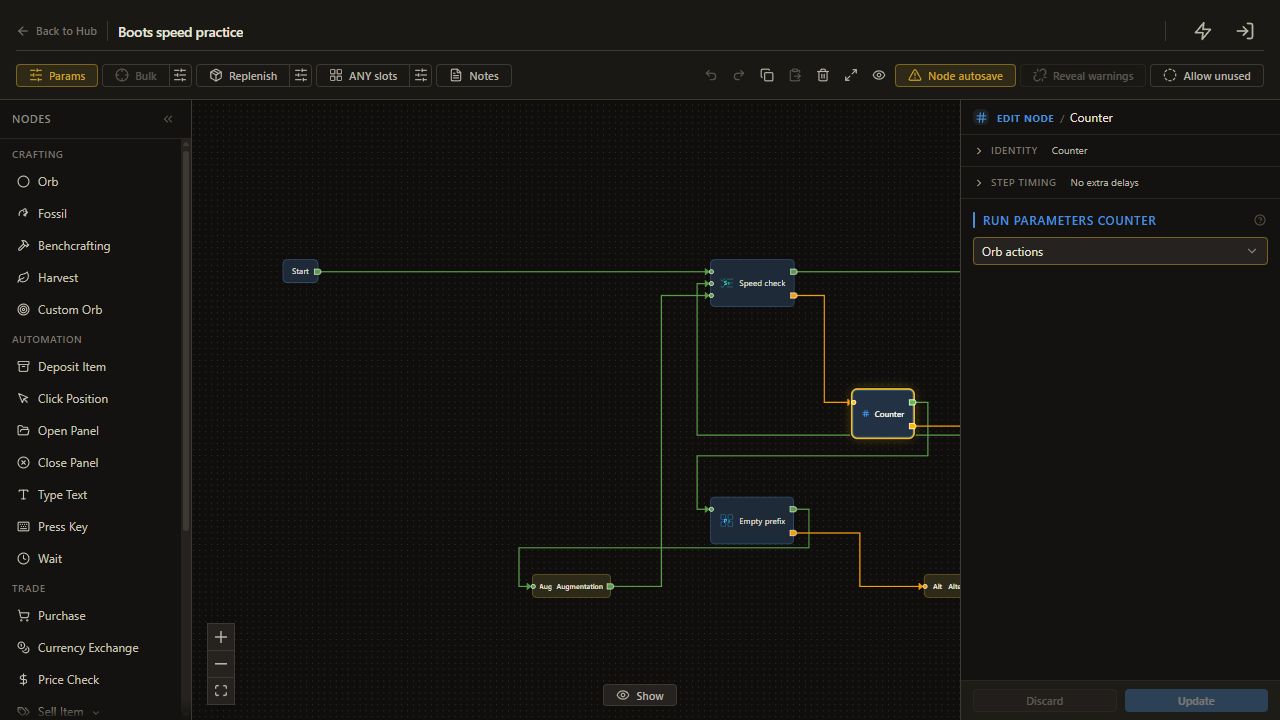
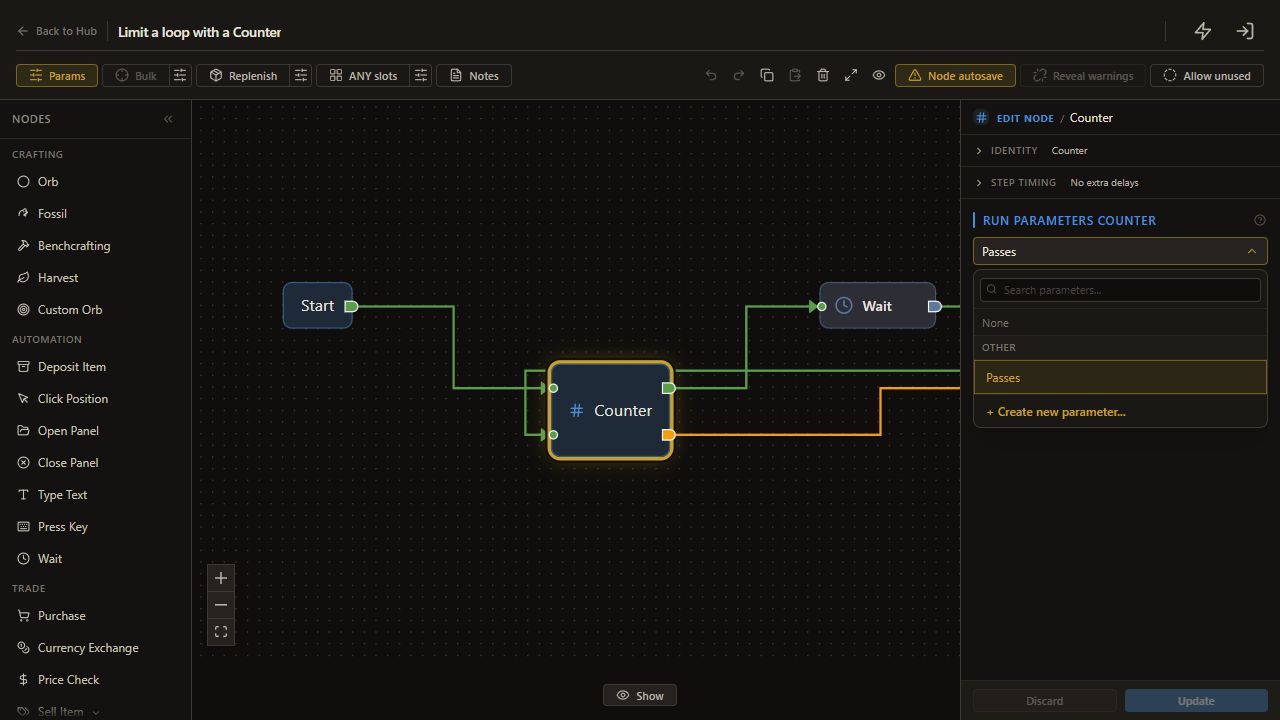
    Open full-size screenshot
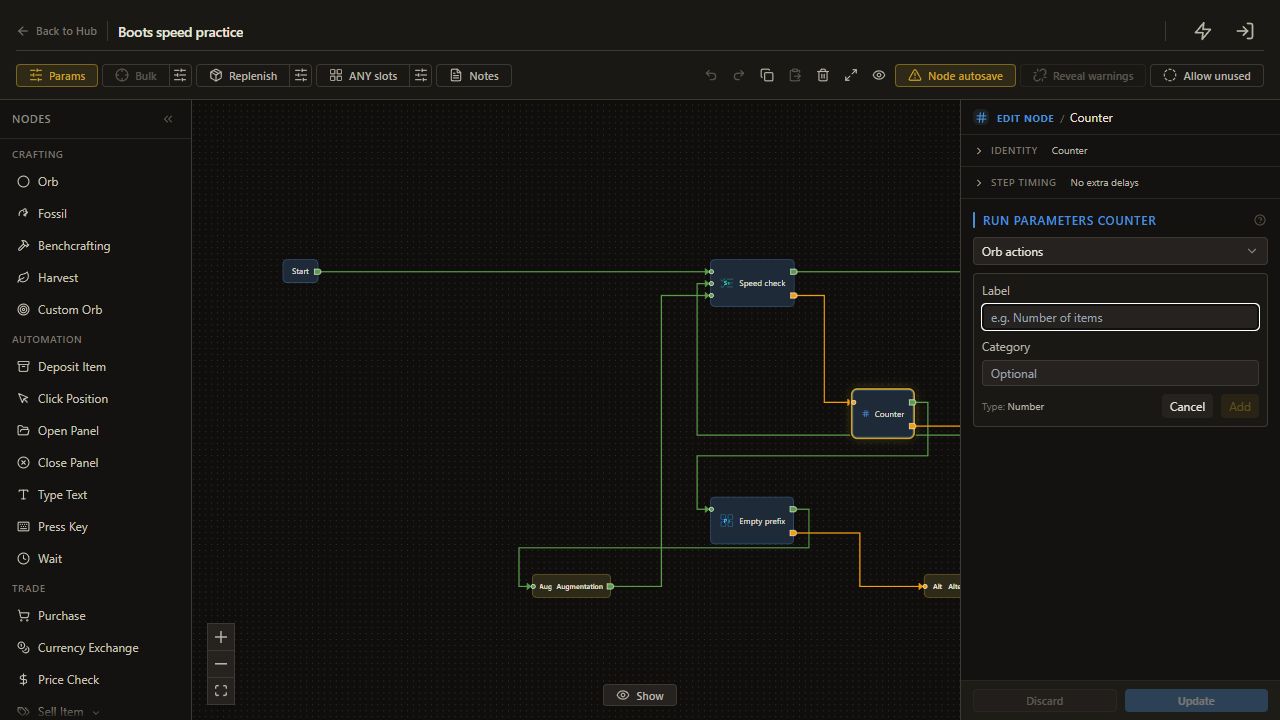
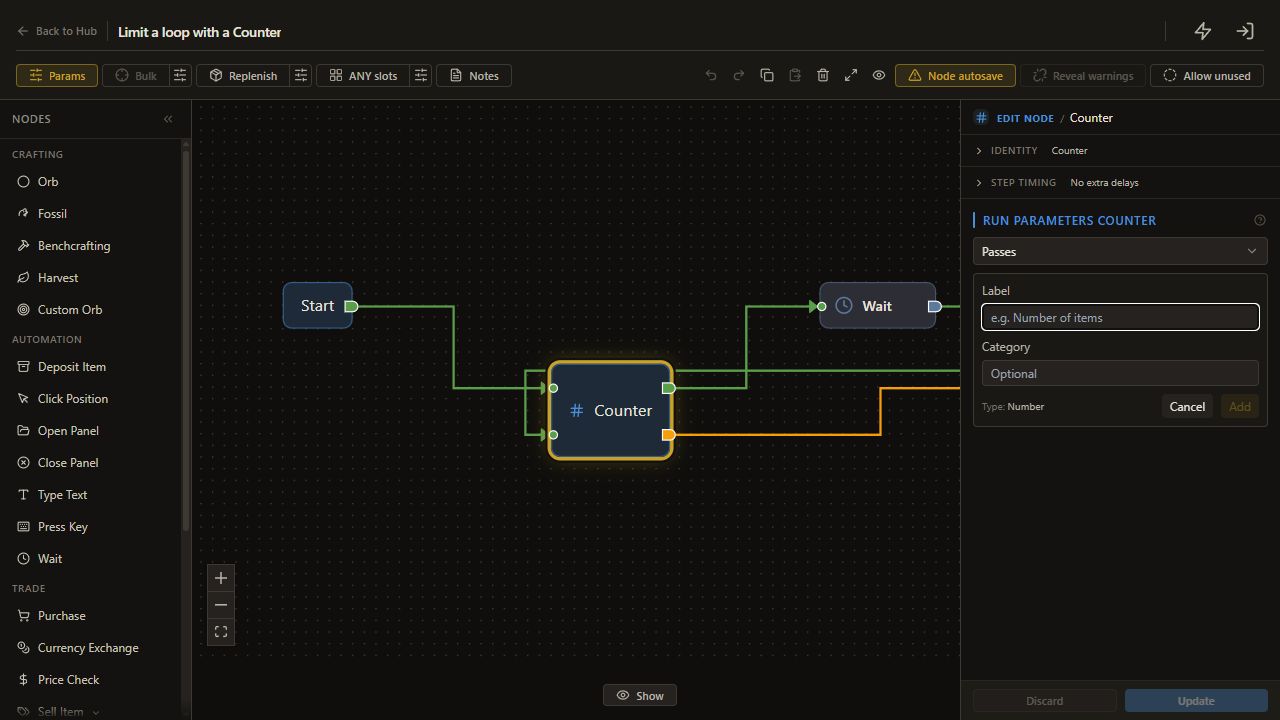
  6. 1. Create your practice version

    6. Open Edit Tree

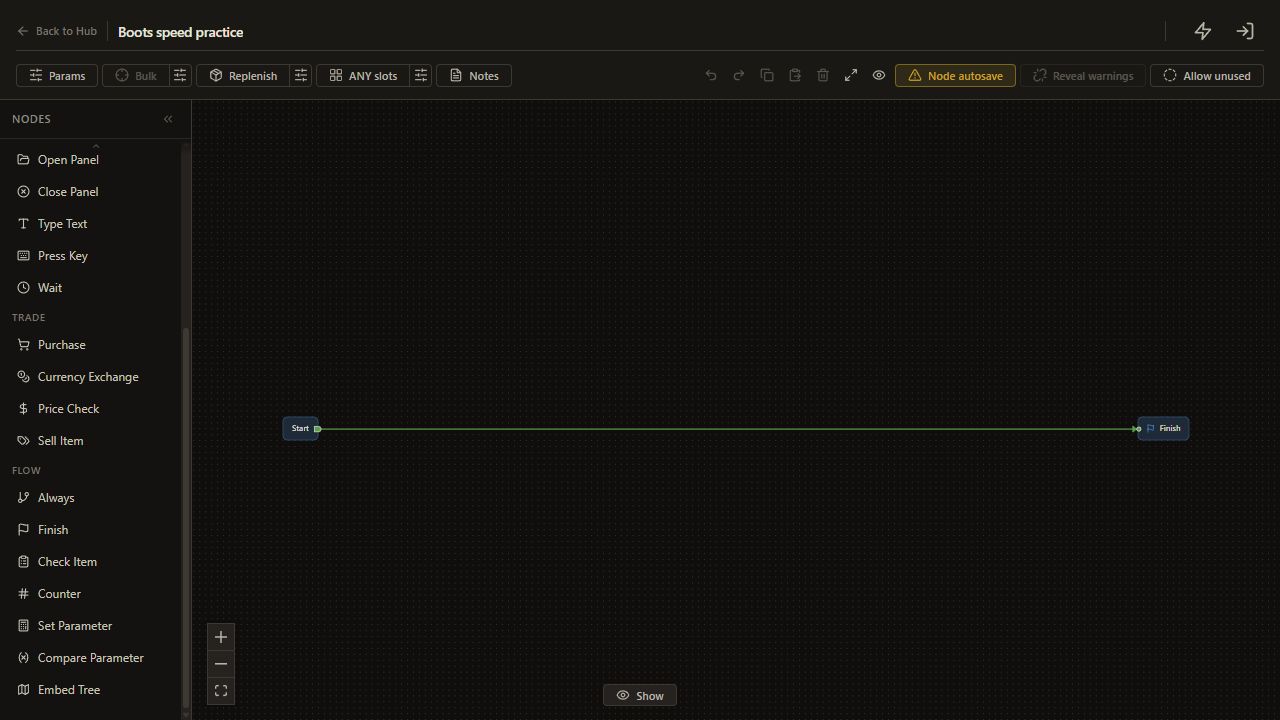
    Click Edit Tree for the newly created Boots speed practice tree. Keep Current item selected.

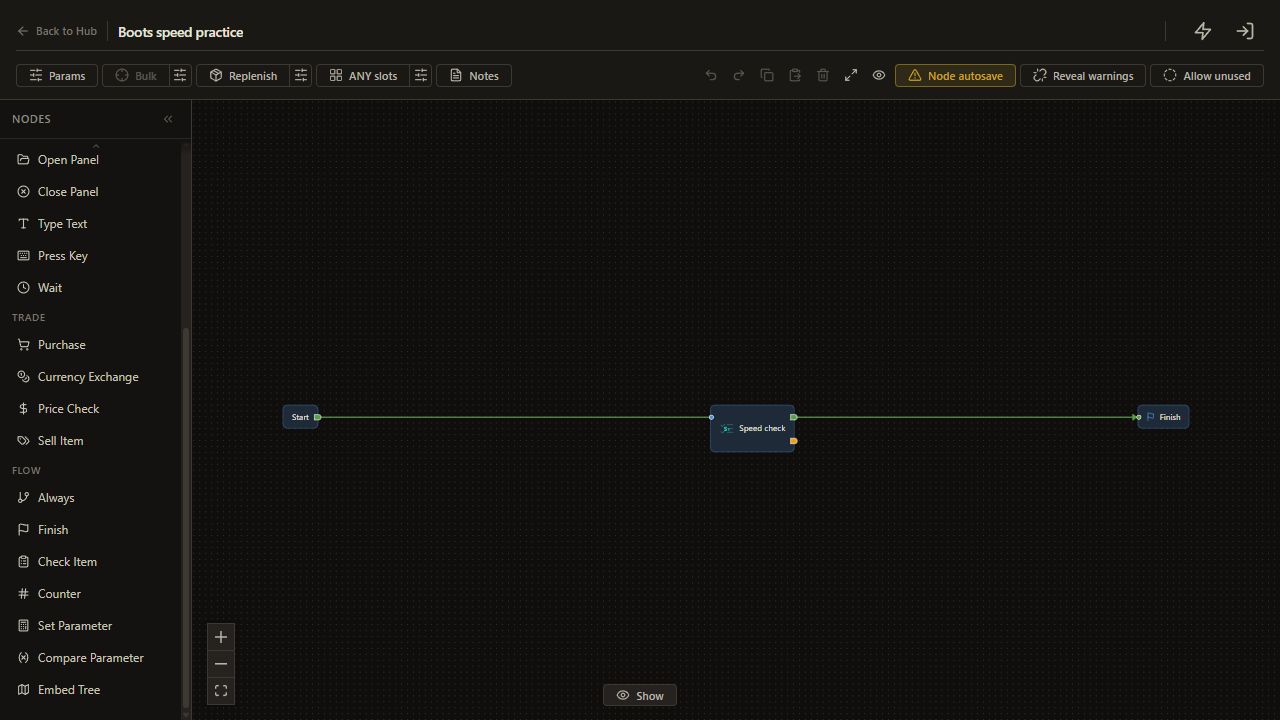
    The editor opens with Start and Finish.

    Open full-size screenshot
  7. 1. Create your practice version

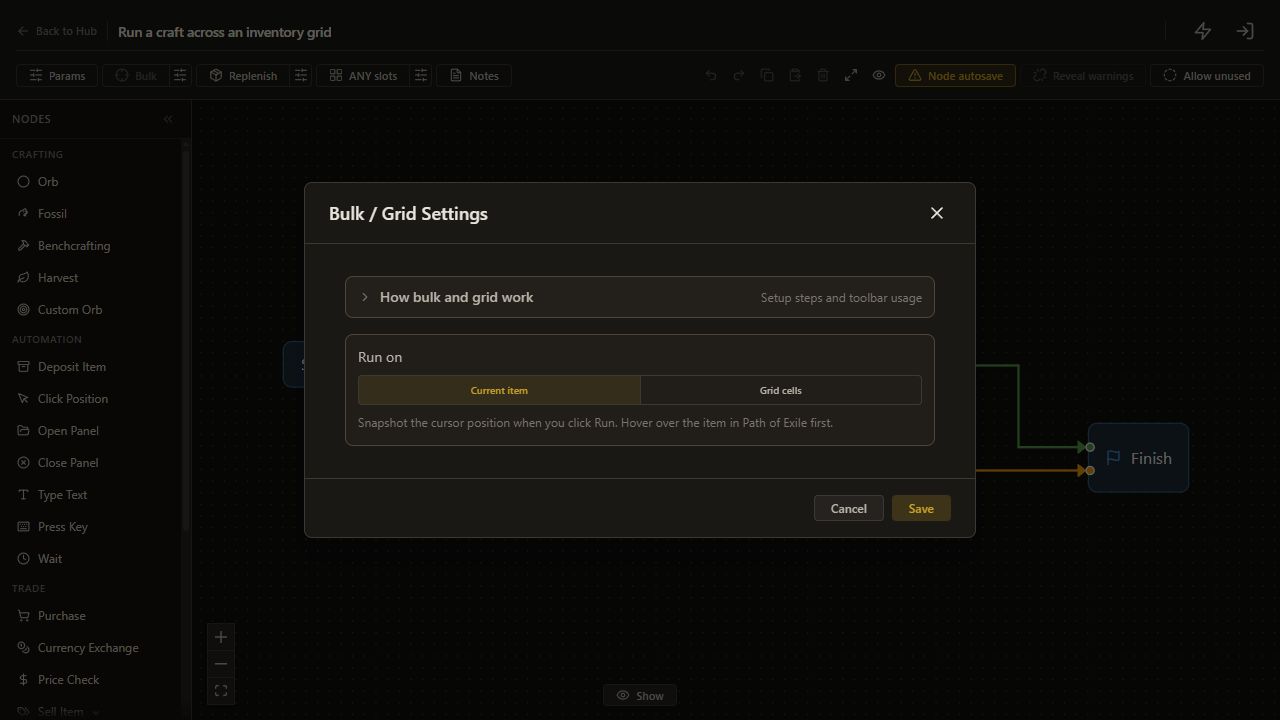
    7. Open Bulk settings

    Click the sliders button beside Bulk, labeled Configure bulk / grid settings.

    The Bulk settings dialog opens.

    Open full-size screenshot
  8. 1. Create your practice version

    8. Keep one-item mode

    Click Current item in the Bulk settings dialog.

    Current item is selected in the dialog; click Save next.

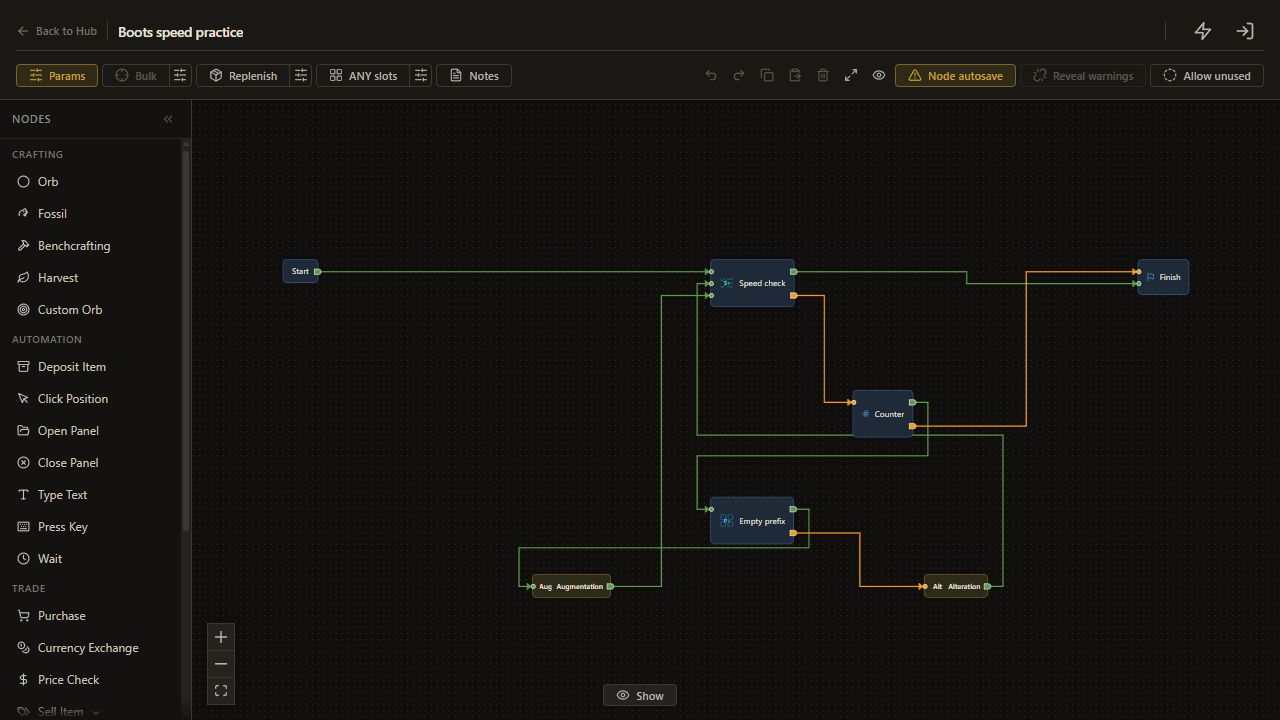
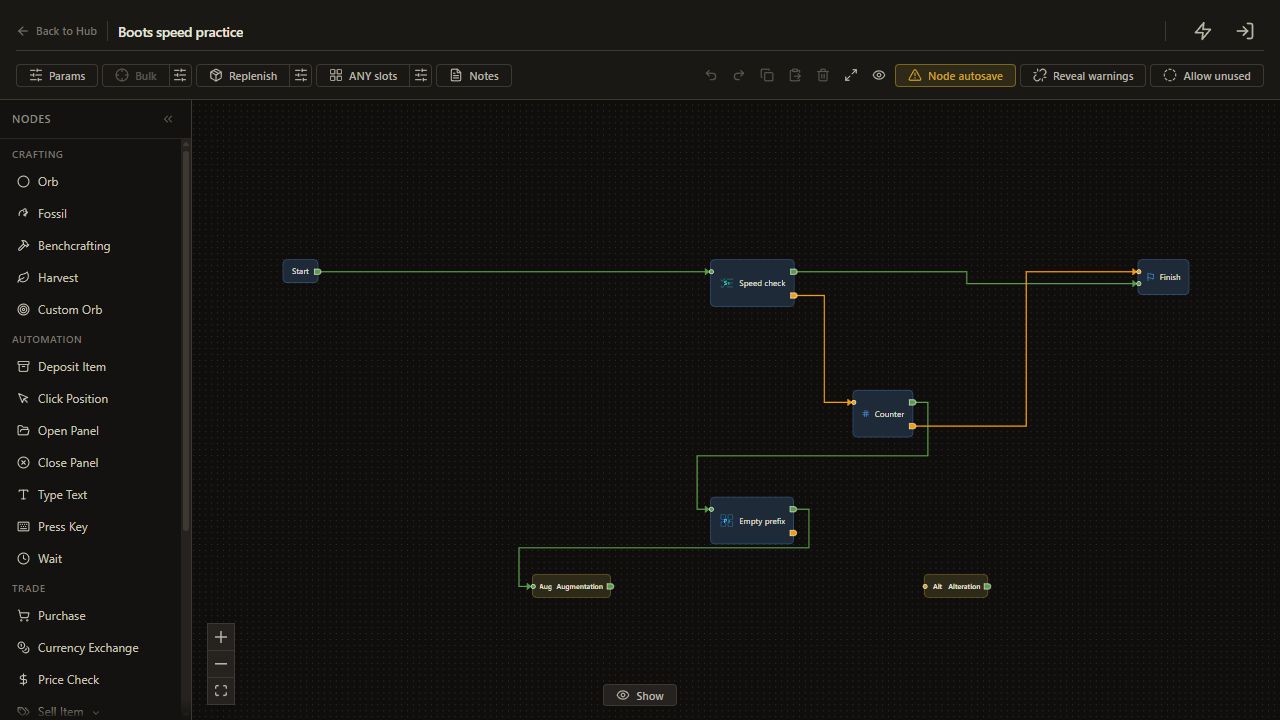
    Open full-size screenshot
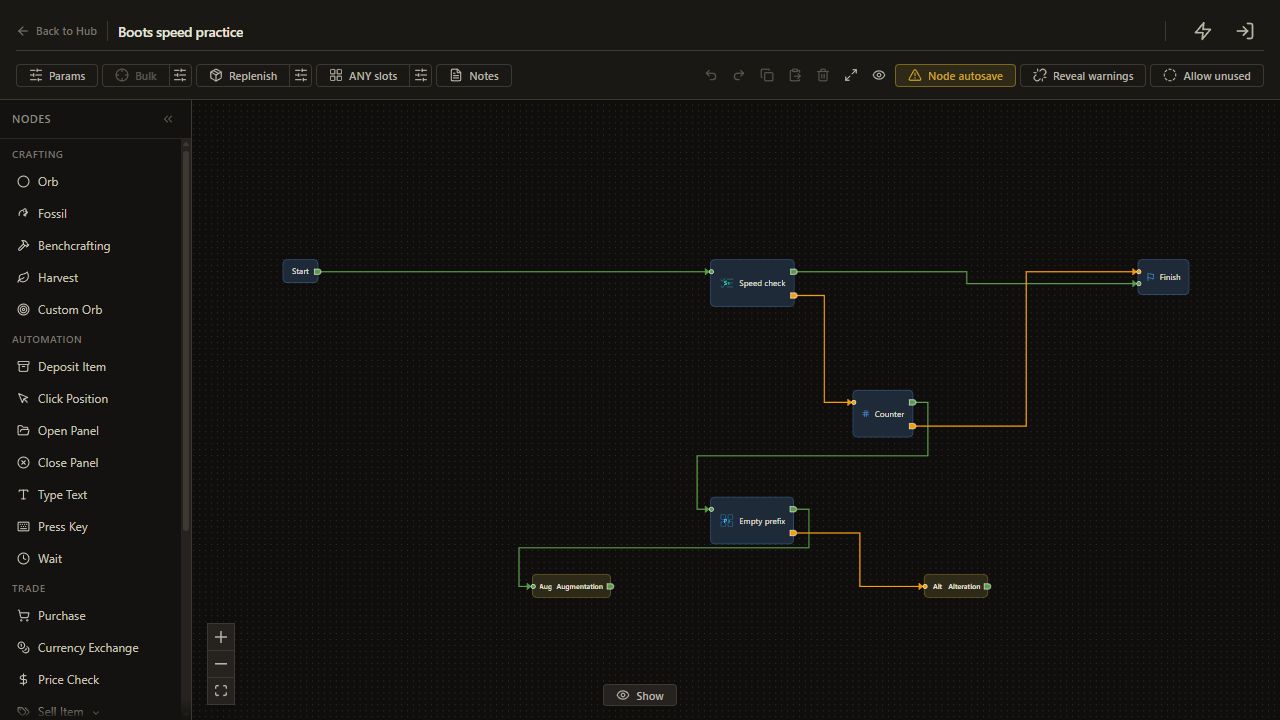
  9. 1. Create your practice version

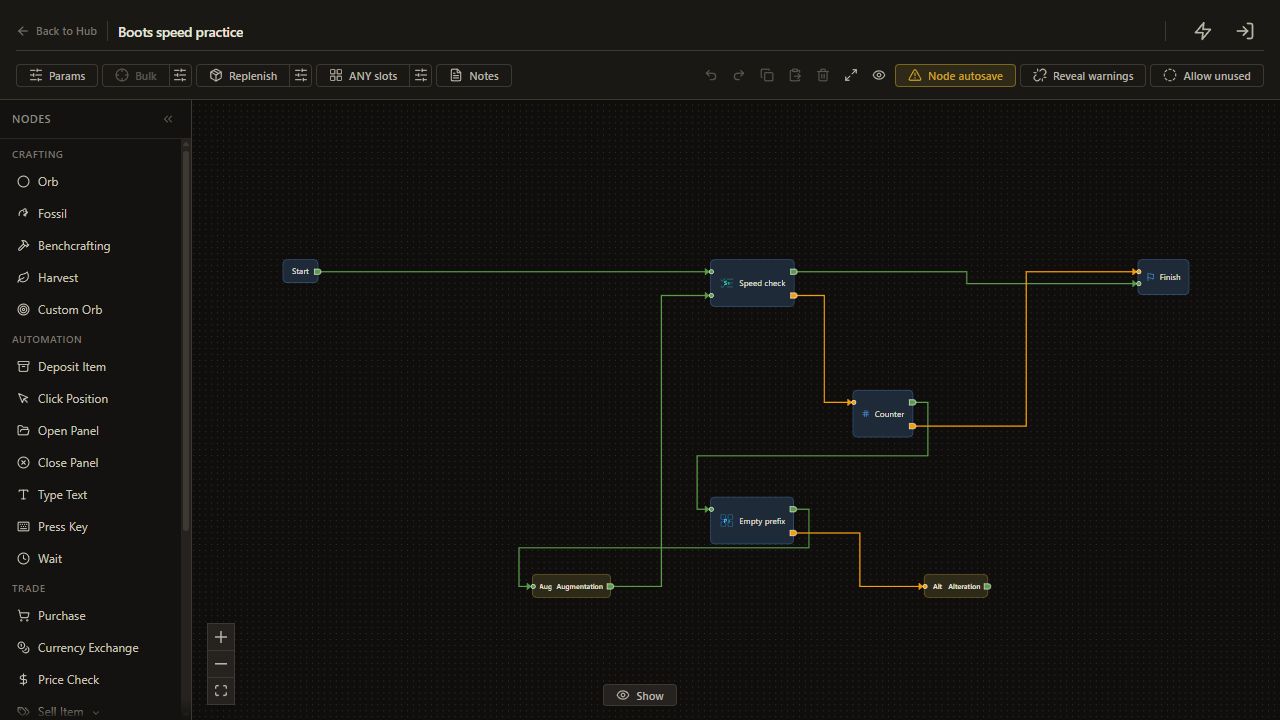
    9. Save one-item mode

    Click Save in the Bulk settings dialog.

    Current item is saved and the dialog closes.

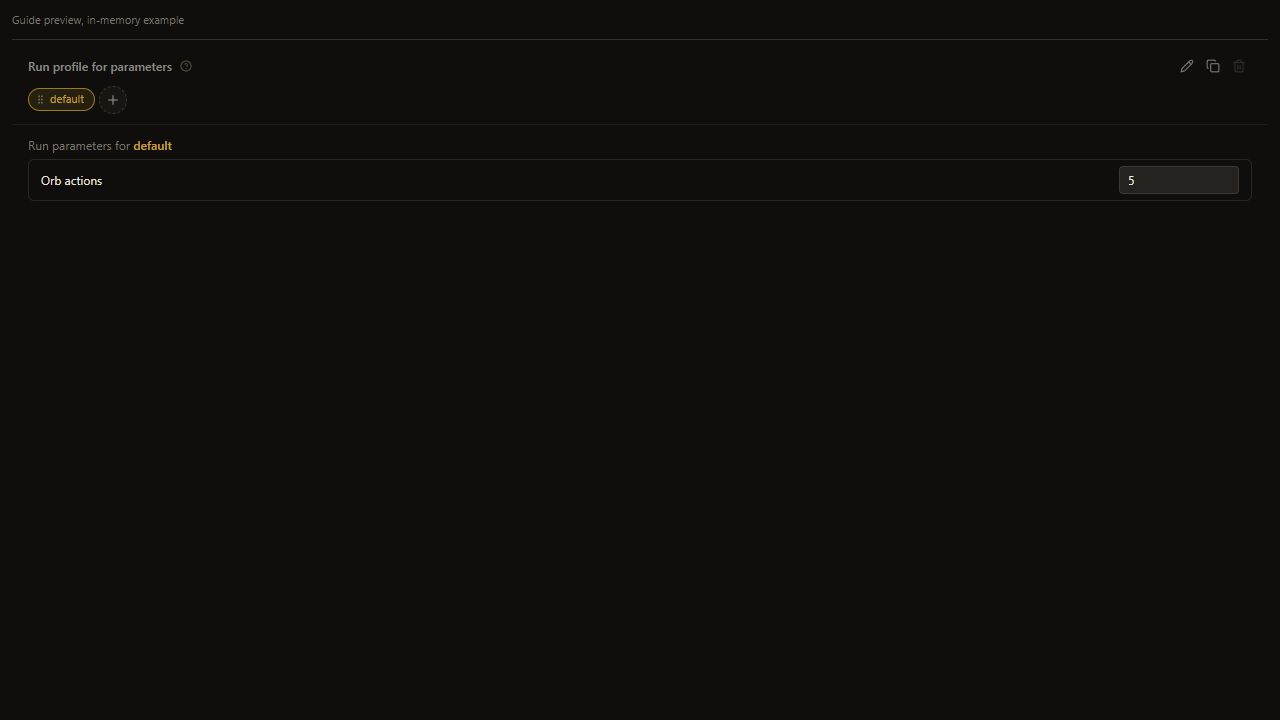
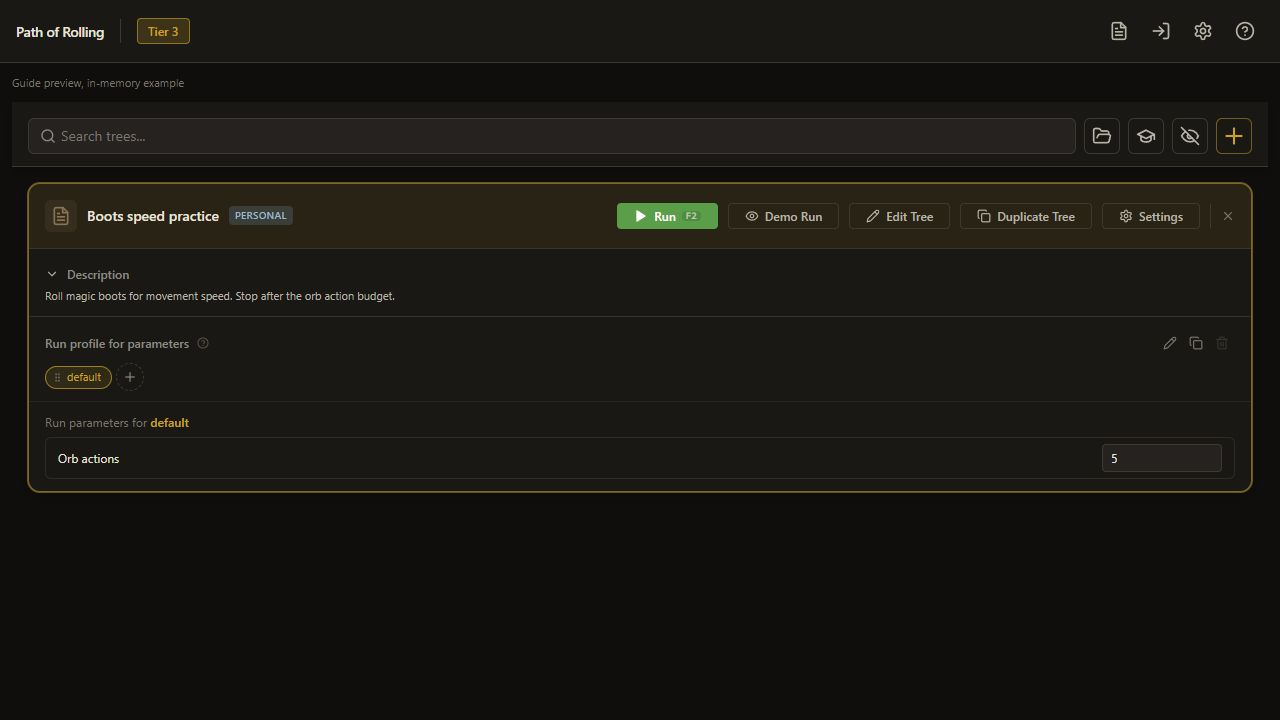
    Open full-size screenshot
  10. 2. Use one movement speed requirement

    10. Add your first Check Item

    Scroll the node list down to Flow. Click Check Item, then place or move it to the right of Start.

    This becomes the movement speed check. The layout can differ from the preview.

    Open full-size screenshot
  11. 2. Use one movement speed requirement

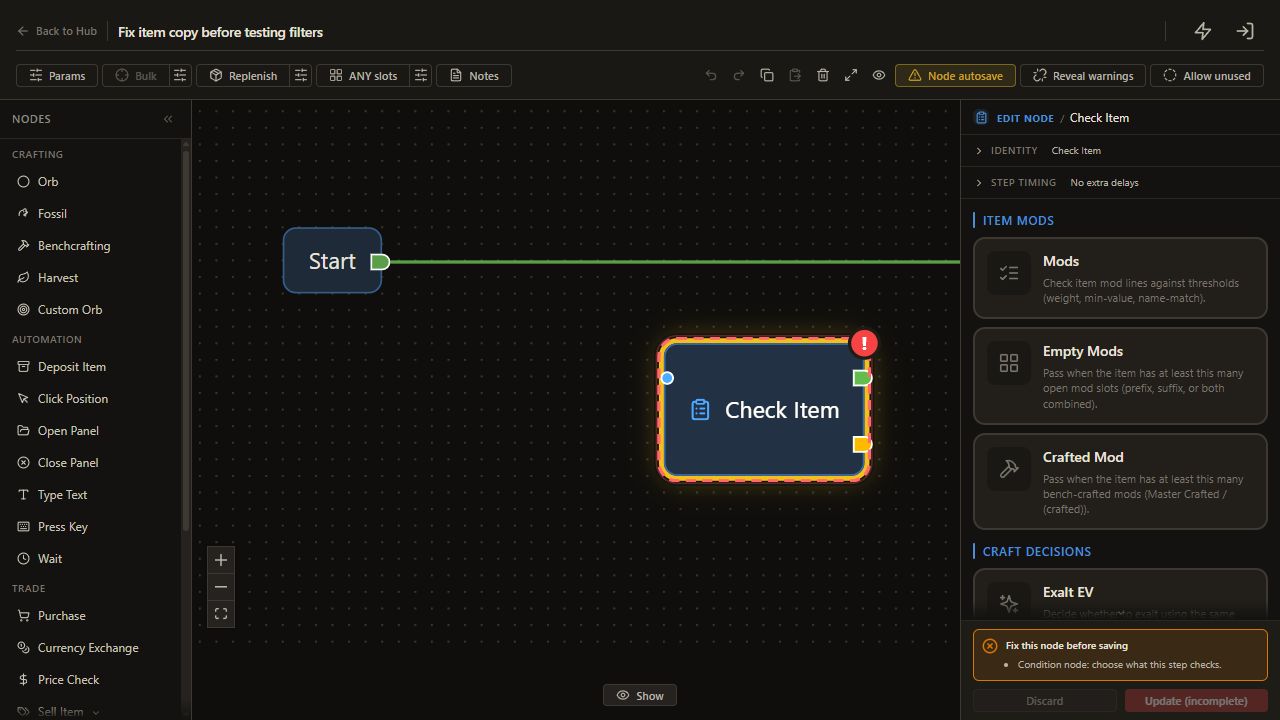
    11. Choose the Mods check

    In the new Check Item panel, select Mods from the visible check types.

    Mods checks the copied item against your chosen stat line.

    Open full-size screenshot
  12. 2. Use one movement speed requirement

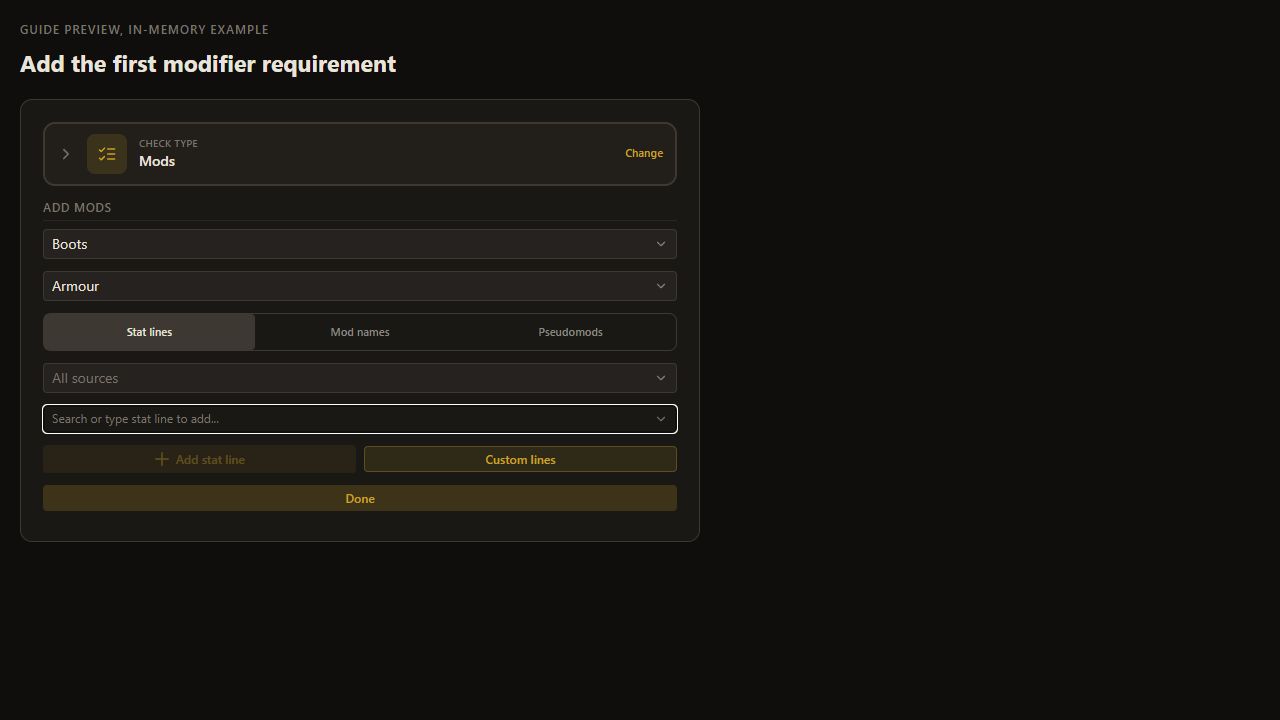
    12. Choose Boots

    Open the item type selector and choose Boots.

    A fresh Mods check opens directly in the add-mods view.

    Open full-size screenshot
  13. 2. Use one movement speed requirement

    13. Choose Armour boots

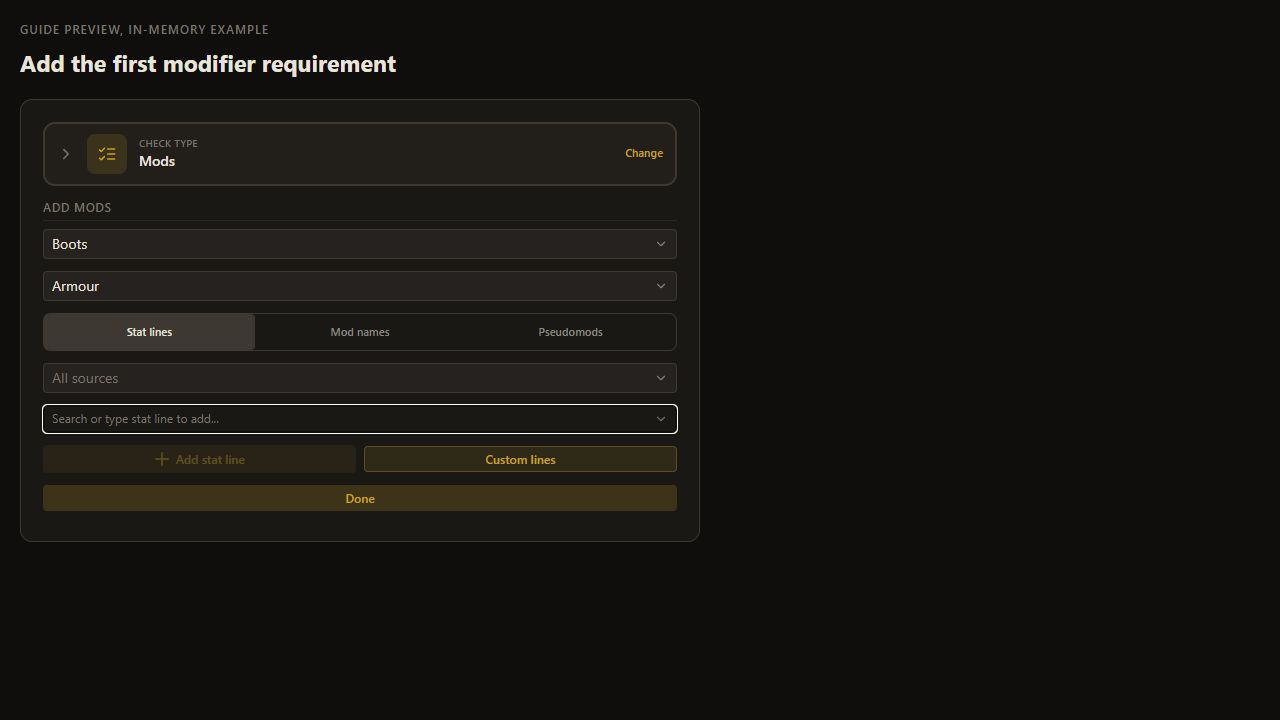
    Choose Armour in the subtype selector. Use the subtype that matches your own boots.

    A fresh Mods check opens directly in the add-mods view.

    Open full-size screenshot
  14. 2. Use one movement speed requirement

    14. Open the stat-line picker

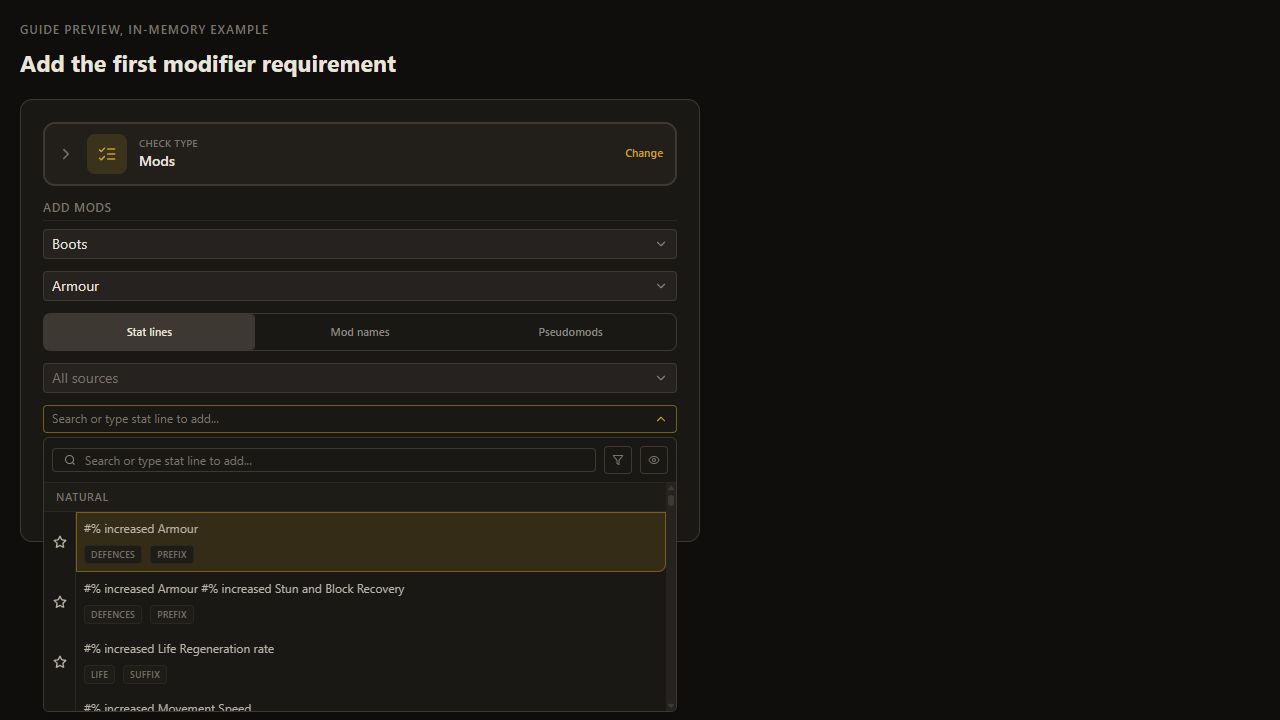
    Click Search or type stat line to add.

    The dropdown opens with its own search box.

    Open full-size screenshot
  15. 2. Use one movement speed requirement

    15. Search for movement speed

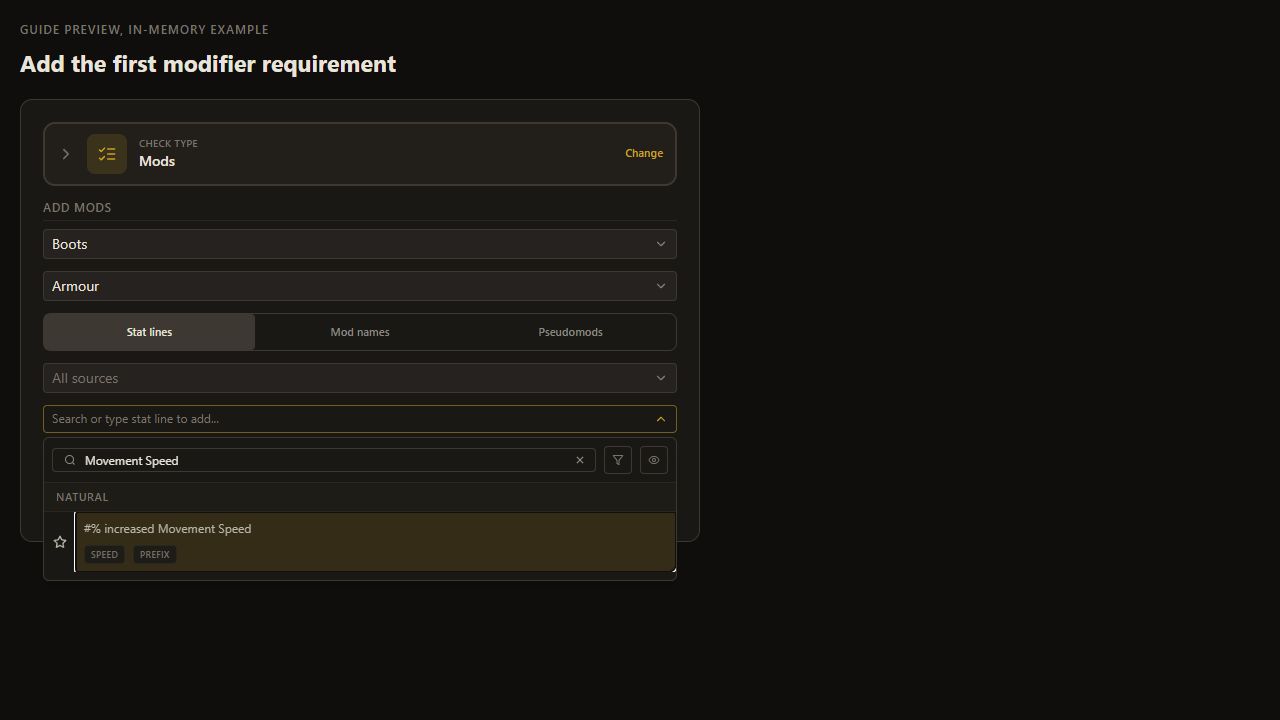
    Type Movement Speed in the dropdown search box.

    The movement speed result remains in the list.

    Open full-size screenshot
  16. 2. Use one movement speed requirement

    16. Select the movement speed result

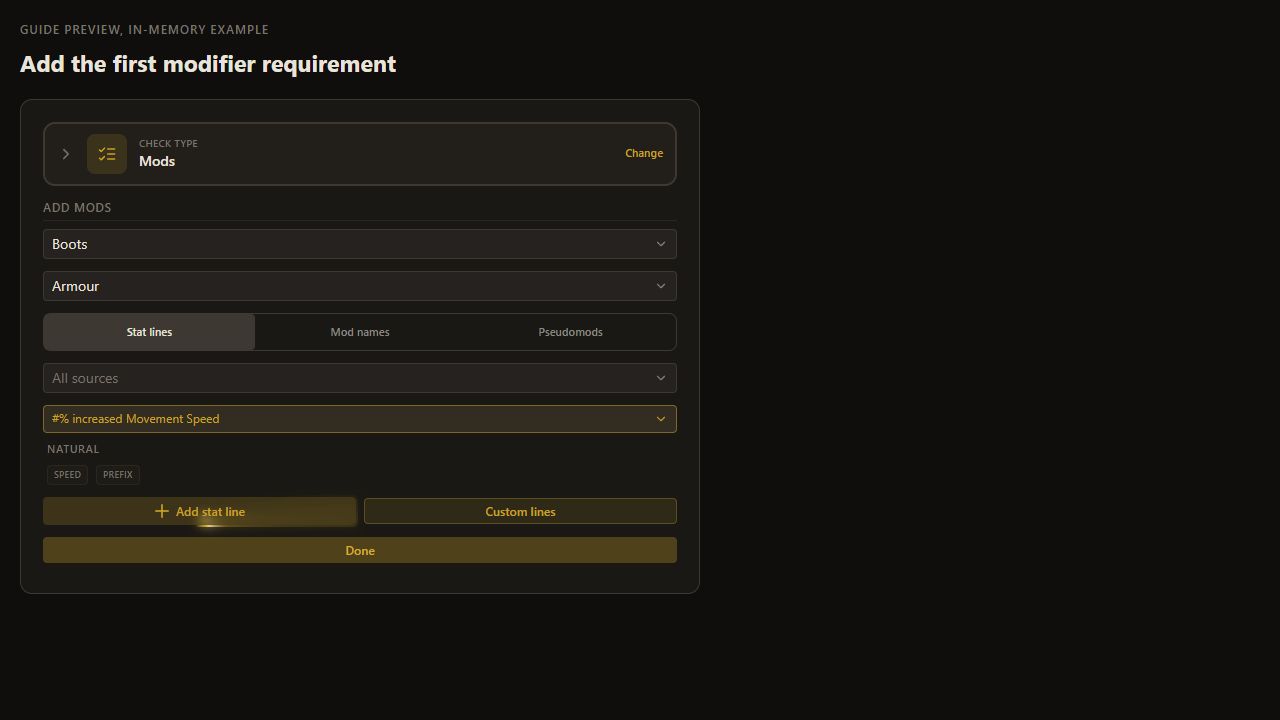
    Click #% increased Movement Speed in the results.

    This selects a draft. Add stat line becomes available.

    Open full-size screenshot
  17. 2. Use one movement speed requirement

    17. Add the selected stat line

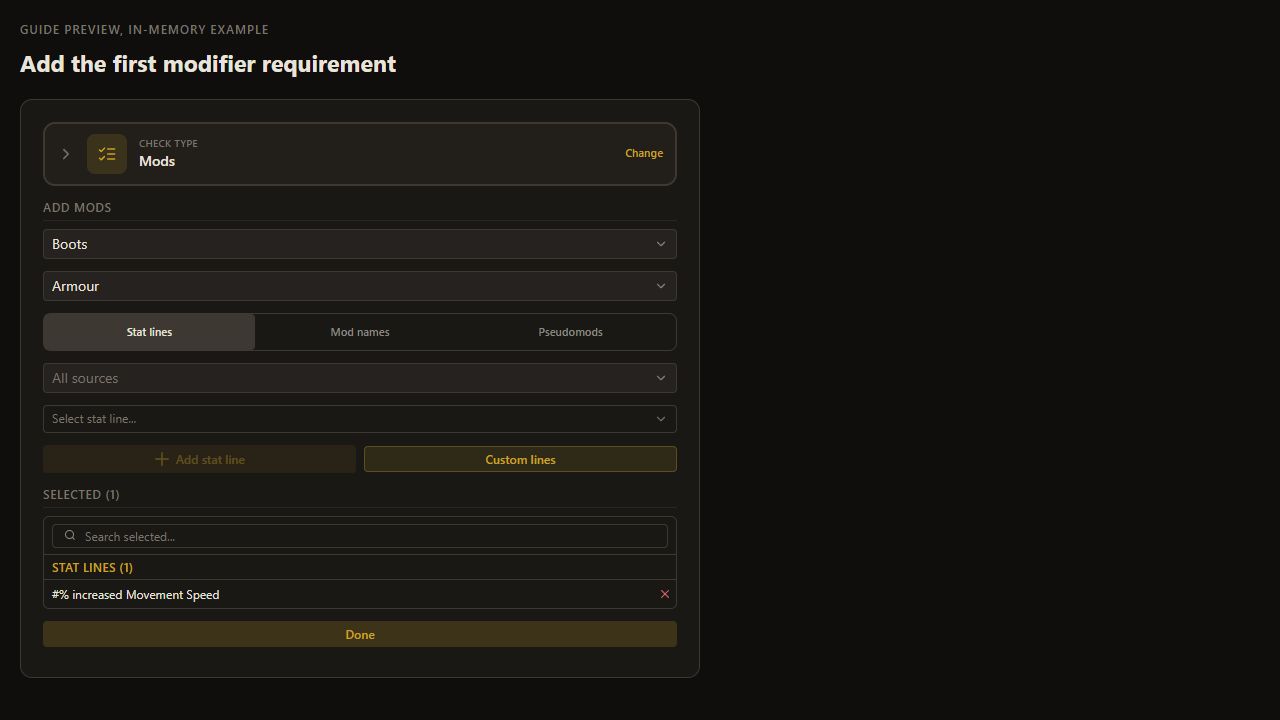
    Click Add stat line.

    Movement speed appears in Selected (1).

    Open full-size screenshot
  18. 2. Use one movement speed requirement

    18. Confirm the selected line

    Confirm Selected (1) contains movement speed, then click Done.

    The requirement settings replace the picker.

    Open full-size screenshot
  19. 2. Use one movement speed requirement

    19. Require at least 10 movement speed

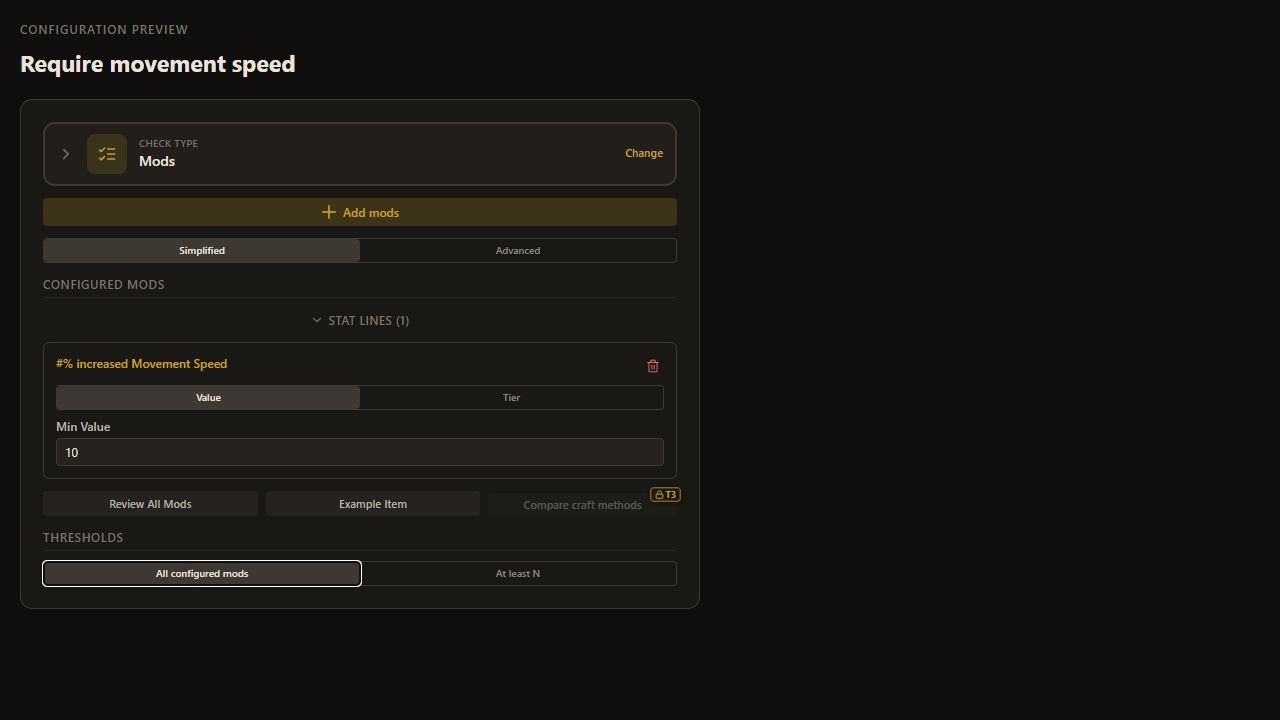
    Keep Mode set to Value. Enter 10 in Min Value.

    The fresh row starts at 0; changing it to 10 requires at least 10 movement speed.

    Open full-size screenshot
  20. 2. Use one movement speed requirement

    20. Require the configured line

    Select All configured mods. Click elsewhere in the editor to commit the panel changes.

    With one configured line, that line must pass every time this check is visited.

    Open full-size screenshot
  21. 3. Add the empty-prefix branch

    21. Add a second Check Item

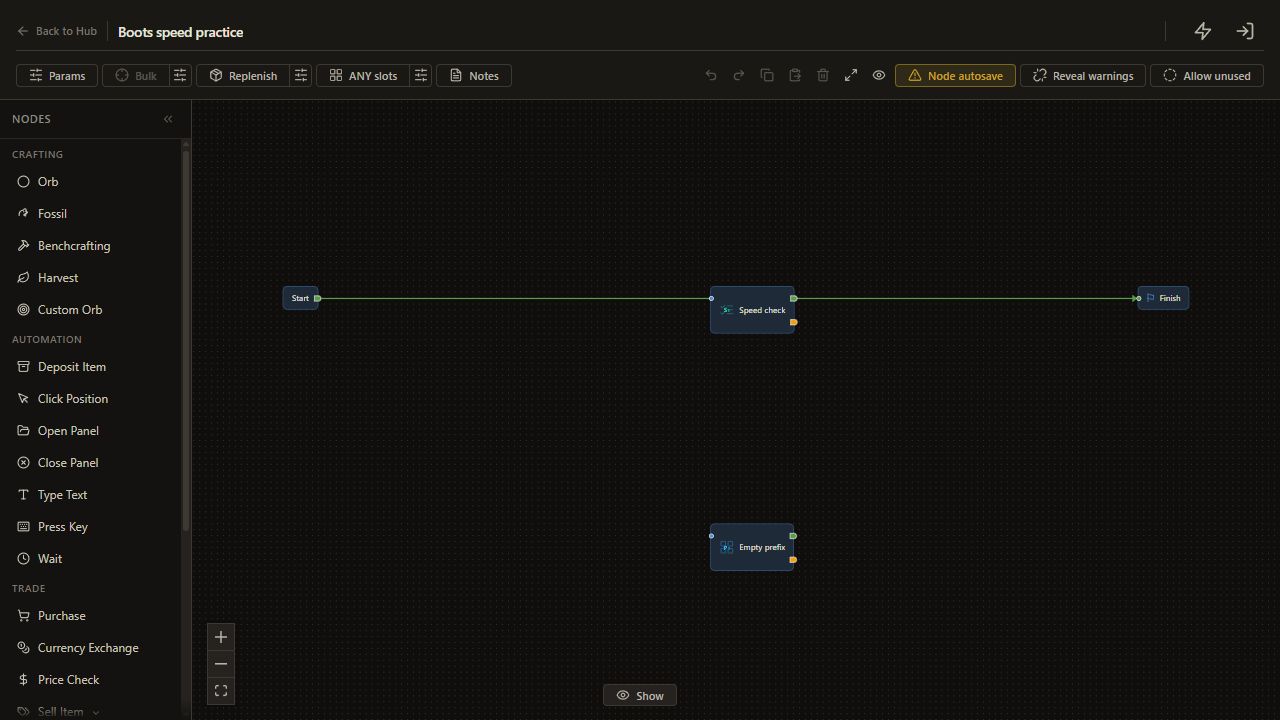
    Click Check Item in Flow again. Move the new node below and to the right of the speed check.

    Use this second check to decide whether a prefix is open.

    Open full-size screenshot
  22. 3. Add the empty-prefix branch

    22. Choose Empty Mods

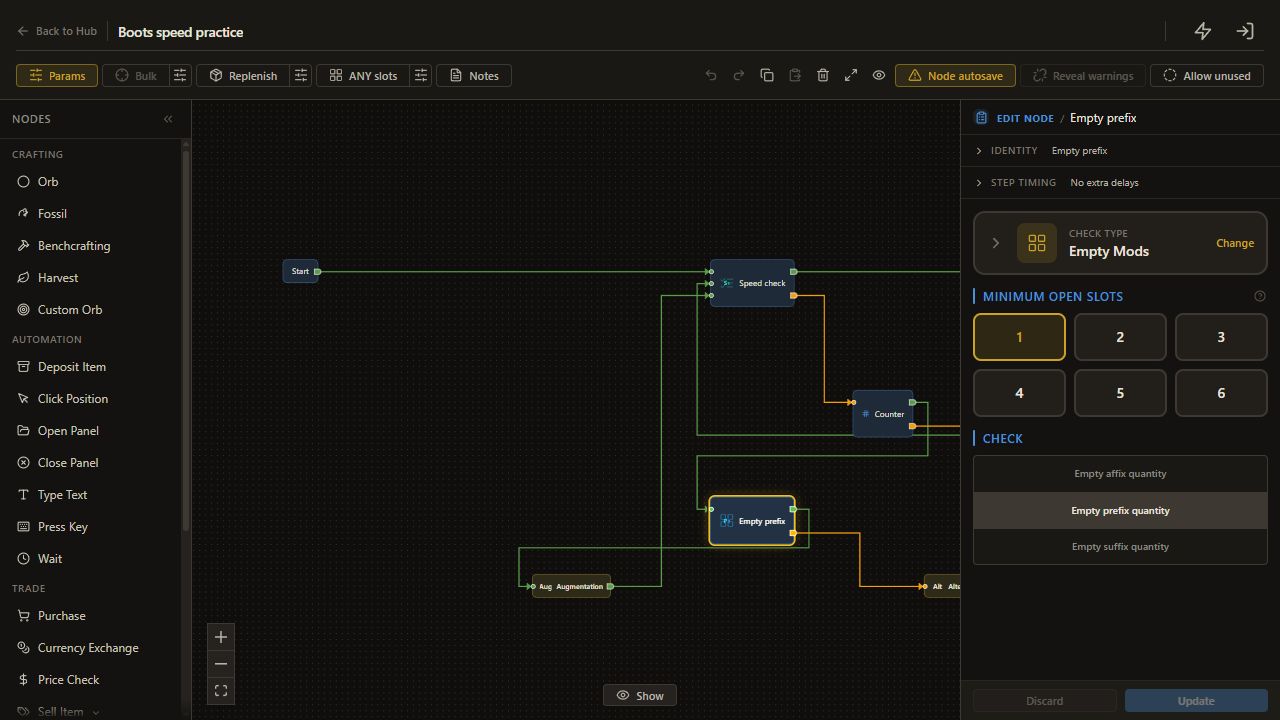
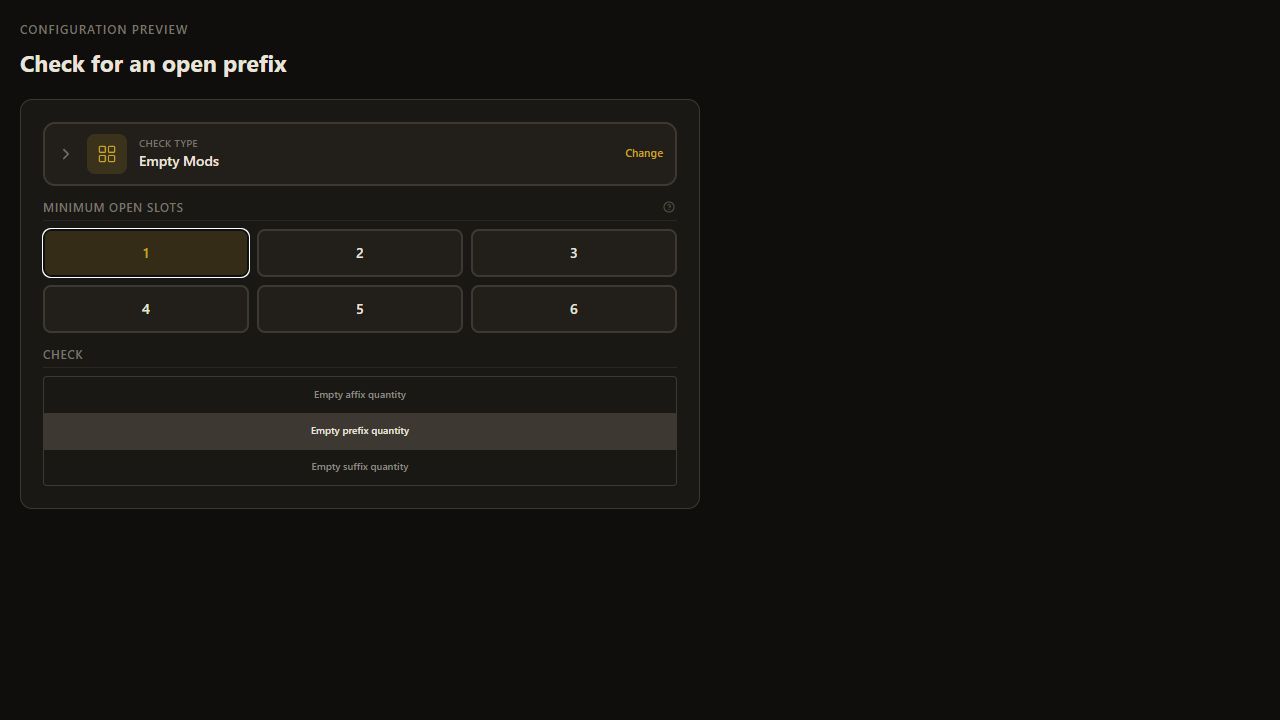
    In the new Check Item panel, select Empty Mods from the visible check types.

    This check counts open modifier slots.

    Open full-size screenshot
  23. 3. Add the empty-prefix branch

    23. Allow one open slot

    Set Minimum open slots to 1.

    Use the prefix count, because movement speed is a prefix.

    Open full-size screenshot
  24. 3. Add the empty-prefix branch

    24. Count empty prefixes

    Select Empty prefix quantity.

    Use the prefix count, because movement speed is a prefix.

    Open full-size screenshot
  25. 3. Add the empty-prefix branch

    25. Add an Orb node

    Scroll the node list back to Crafting. Click Orb to add your first currency action.

    The Orb settings panel opens. Choose the action in the next step.

    Open full-size screenshot
  26. 3. Add the empty-prefix branch

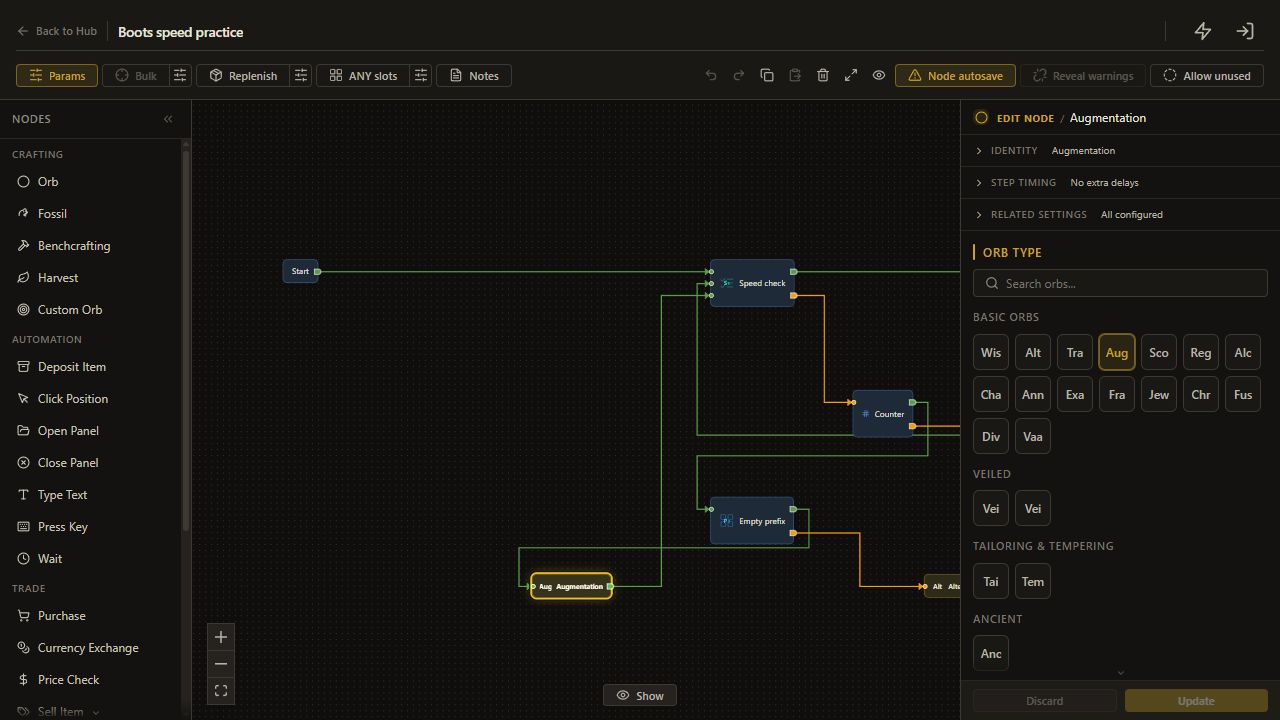
    26. Choose Augmentation

    In Orb type, click Aug (Augmentation). Click elsewhere in the editor to commit the node.

    Configure the Augmentation stash position in Setup before running.

    Open full-size screenshot
  27. 3. Add the empty-prefix branch

    27. 3. Add the empty-prefix branch

    Click Orb in the node palette to add the Alteration step.

    A new Orb node opens for configuration.

    Open full-size screenshot
  28. 3. Add the empty-prefix branch

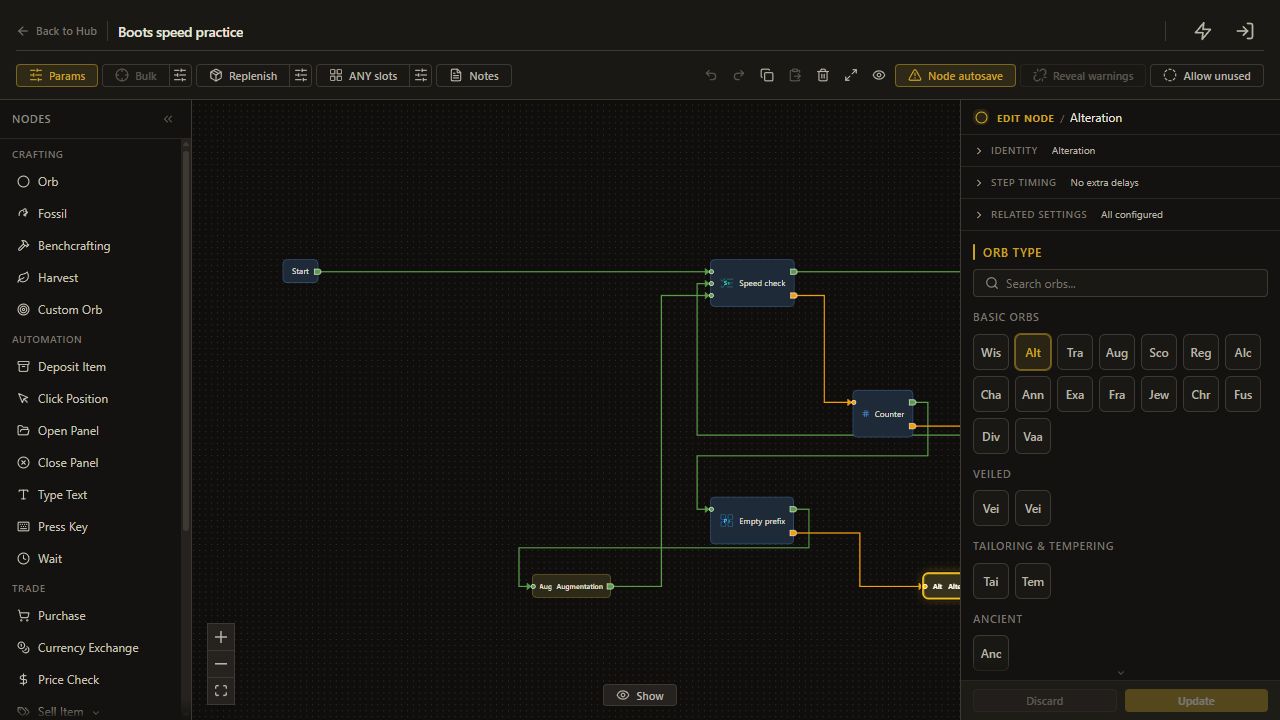
    28. Choose Alteration

    In Orb type, click Alt (Alteration). Click elsewhere to commit.

    Place both orb nodes to the right of the empty-prefix check.

    Open full-size screenshot
  29. 4. Bound the spending route

    29. Add a Counter

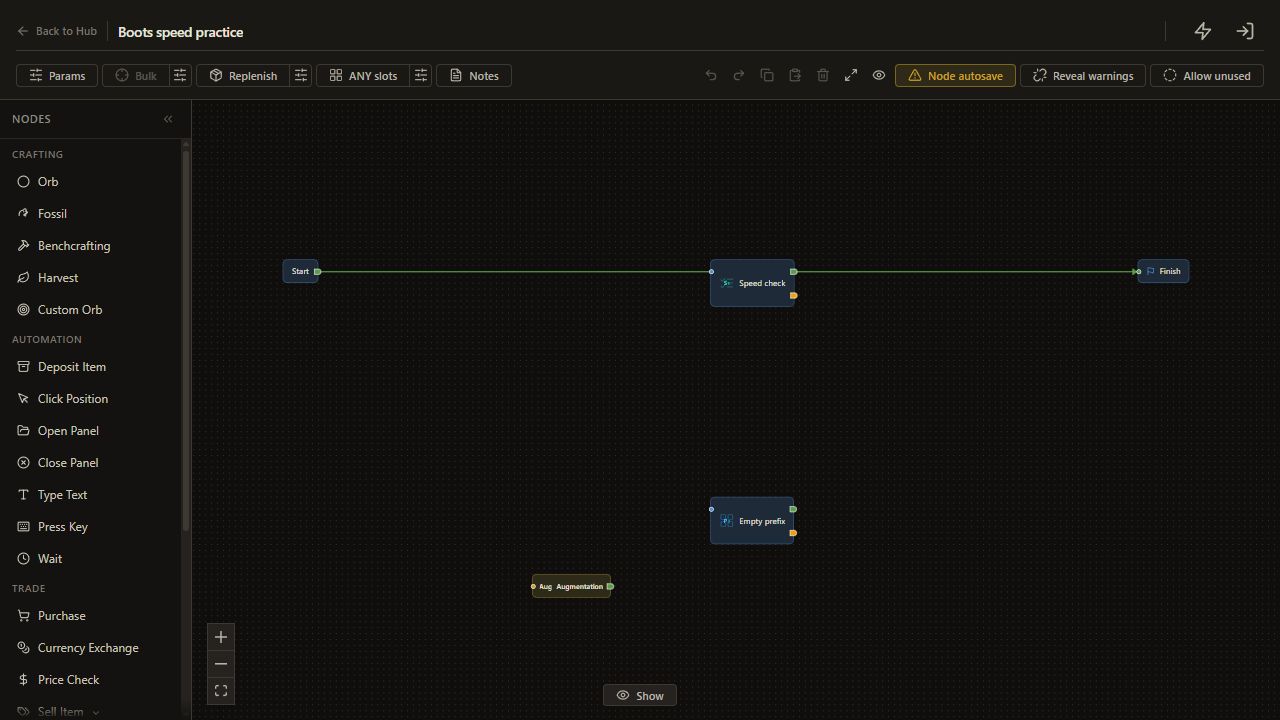
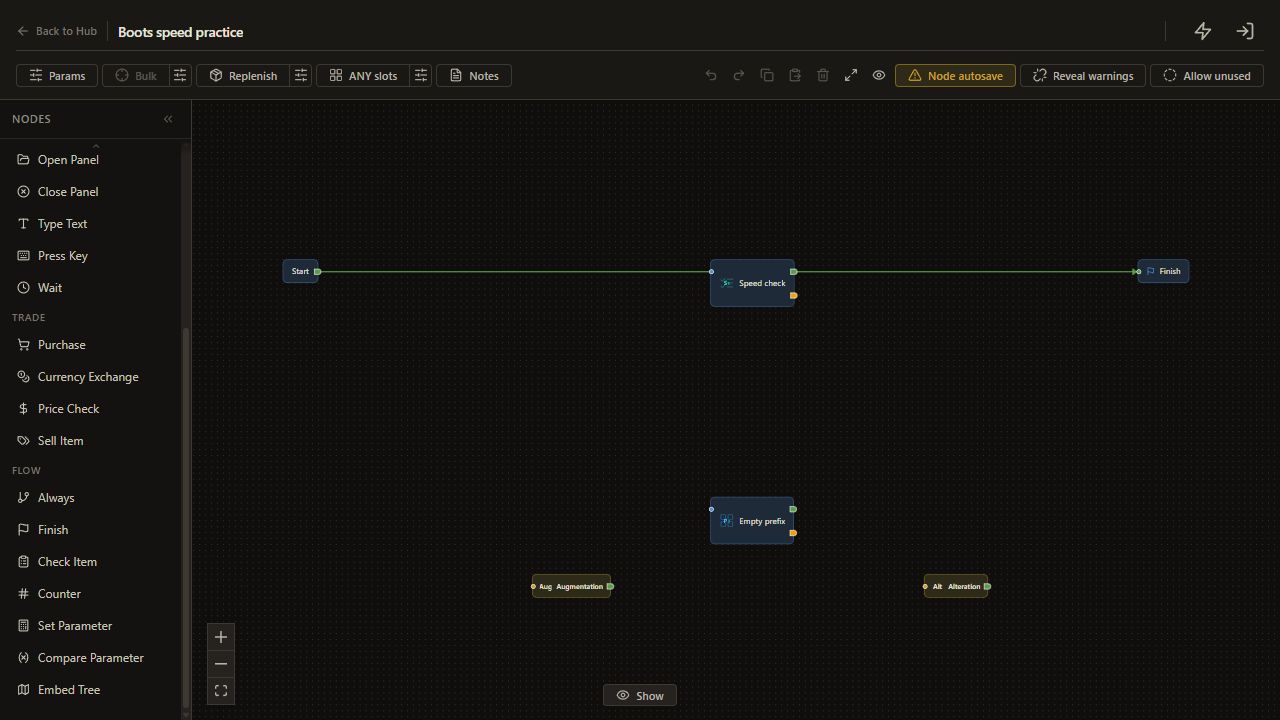
    Scroll down to Flow and click Counter. Move it between the speed and empty-prefix checks.

    Every currency action will pass through this spending limit.

    Open full-size screenshot
  30. 4. Bound the spending route

    30. Open the Run Parameters counter picker

    Open the Run Parameters counter picker.

    The parameter dropdown opens.

    Open full-size screenshot
  31. 4. Bound the spending route

    31. Click Create new

    Click Create new.

    The inline Label and Add form opens.

    Open full-size screenshot
  32. 4. Bound the spending route

    32. Enter Orb actions in Label

    Enter Orb actions in Label.

    The new parameter label is filled.

    Open full-size screenshot
  33. 4. Bound the spending route

    33. Click Add

    Click Add.

    The Number parameter is created and automatically selected for Counter.

    Open full-size screenshot
  34. 4. Bound the spending route

    34. Click Params in the editor toolbar

    Click Params in the editor toolbar.

    The parameter schema editor opens.

    Open full-size screenshot
  35. 4. Bound the spending route

    35. Expand Details for the Orb actions parameter

    Expand Details for the Orb actions parameter.

    The details for this parameter are visible.

    Open full-size screenshot
  36. 4. Bound the spending route

    36. Check that Orb actions has Type Number

    Check that Orb actions has Type Number.

    The parameter is a Number; Counter fixes this type during inline creation.

    Open full-size screenshot
  37. 4. Bound the spending route

    37. Set Kind to Run setting (with fallback default)

    Set Kind to Run setting (with fallback default).

    The budget remains editable before a run.

    Open full-size screenshot
  38. 4. Bound the spending route

    38. Enter 5 in Fallback default

    Enter 5 in Fallback default.

    The parameter has the stated fallback value.

    Open full-size screenshot
  39. 4. Bound the spending route

    39. Click Save in the parameter schema editor

    Click Save in the parameter schema editor.

    The schema is saved and the tree editor is visible.

    Open full-size screenshot
  40. 4. Bound the spending route

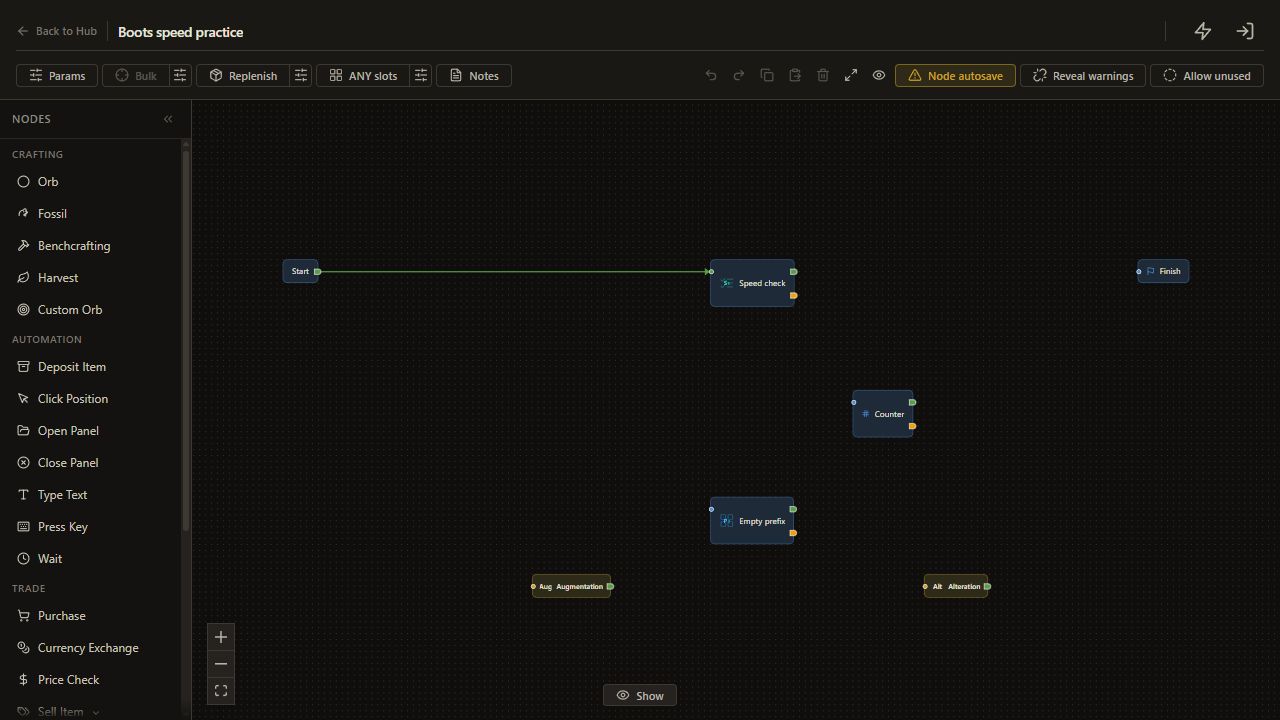
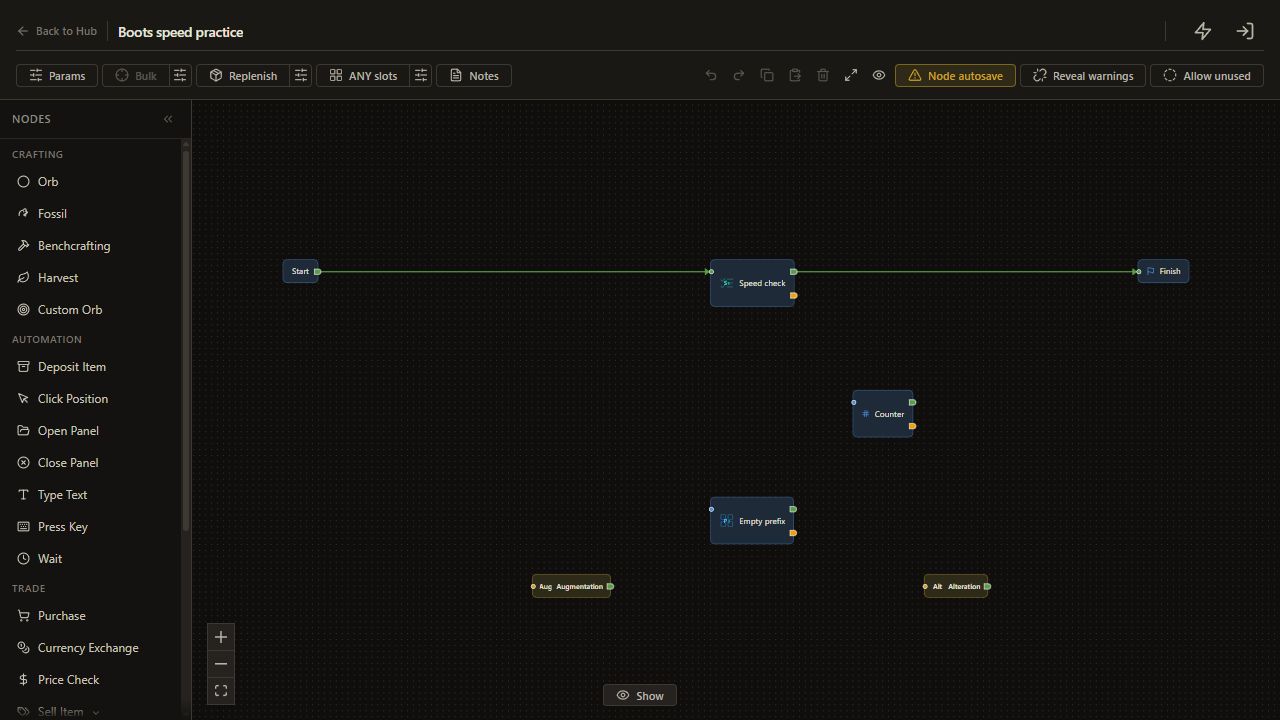
    40. Connect Start to the speed check

    Drag from Start output to the speed check input. The editor replaces the initial Start to Finish connection automatically.

    The current item is checked before any spending.

    Open full-size screenshot
  41. 4. Bound the spending route

    41. Connect speed met to Finish

    Use the green met output of the speed check. Drag from marker 1 to marker 2 in the app.

    A matching item finishes immediately.

    Open full-size screenshot
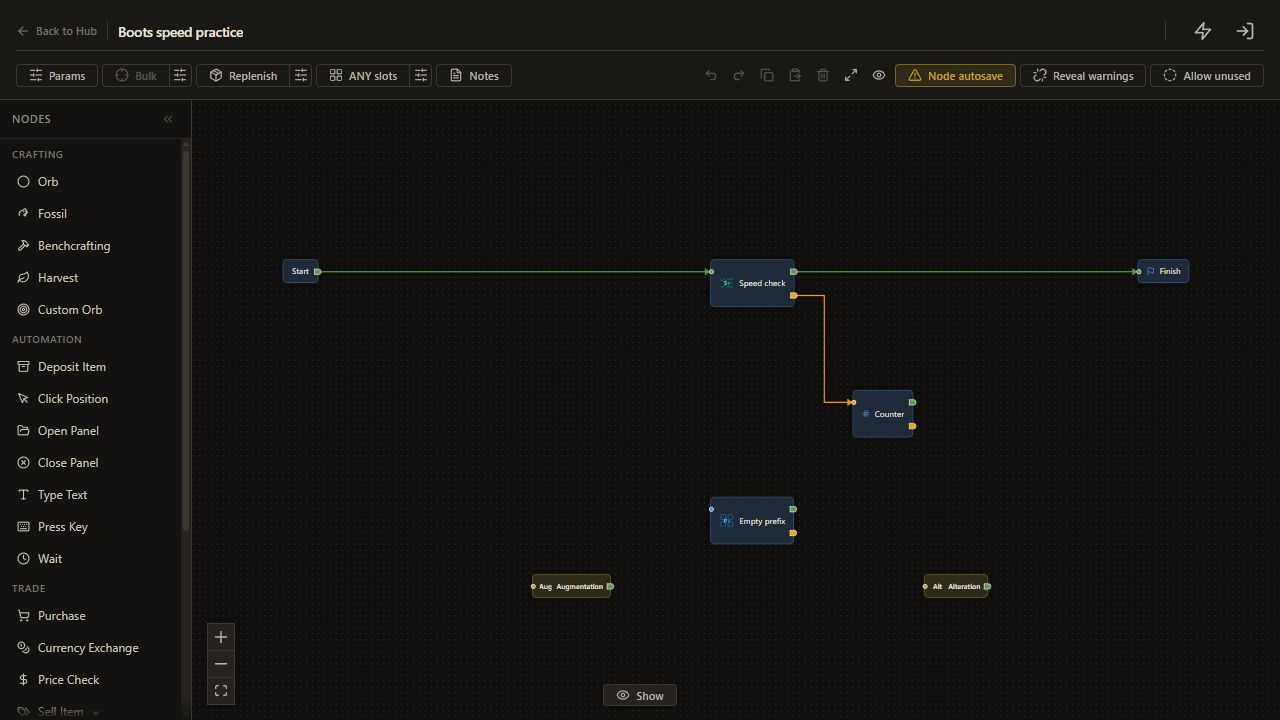
  42. 4. Bound the spending route

    42. Connect speed unmet to Counter

    Use the orange unmet output of the speed check. Drag from marker 1 to marker 2 in the app.

    An item that misses the target must pass the allowance check.

    Open full-size screenshot
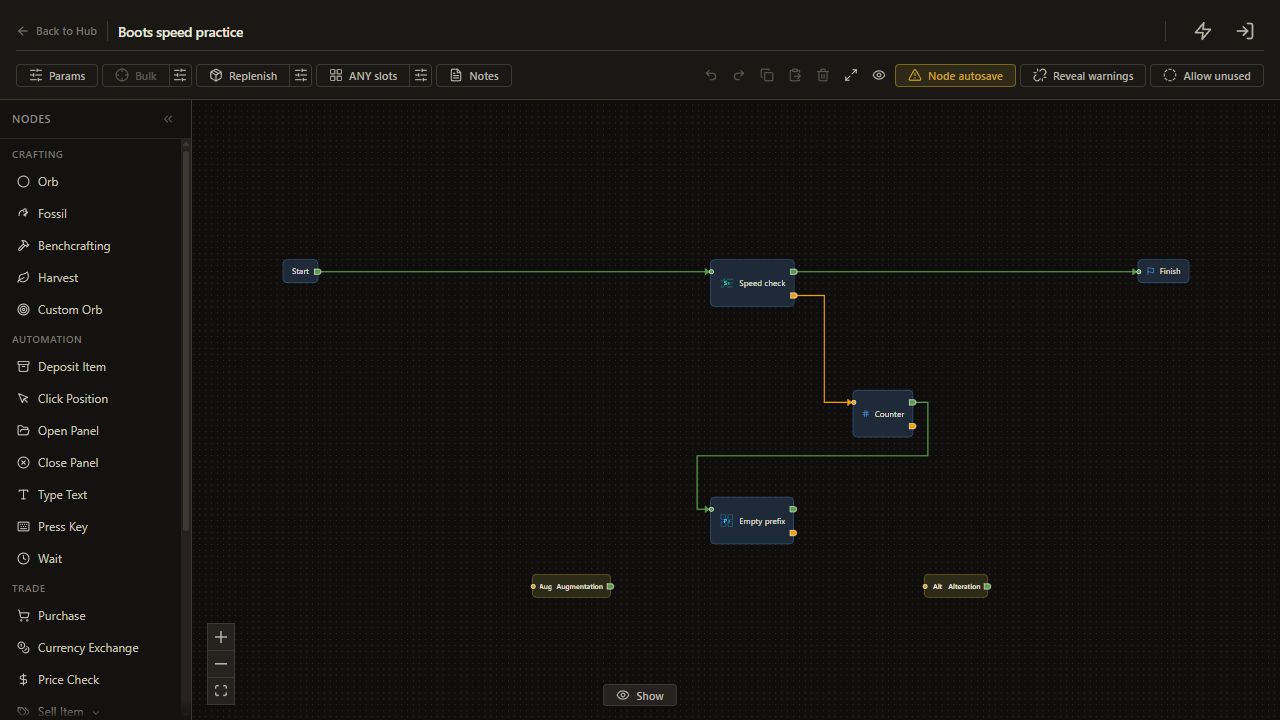
  43. 4. Bound the spending route

    43. Connect Counter met to the prefix check

    Use the green met output of Counter. Drag from marker 1 to marker 2 in the app.

    An available allowance permits one orb action.

    Open full-size screenshot
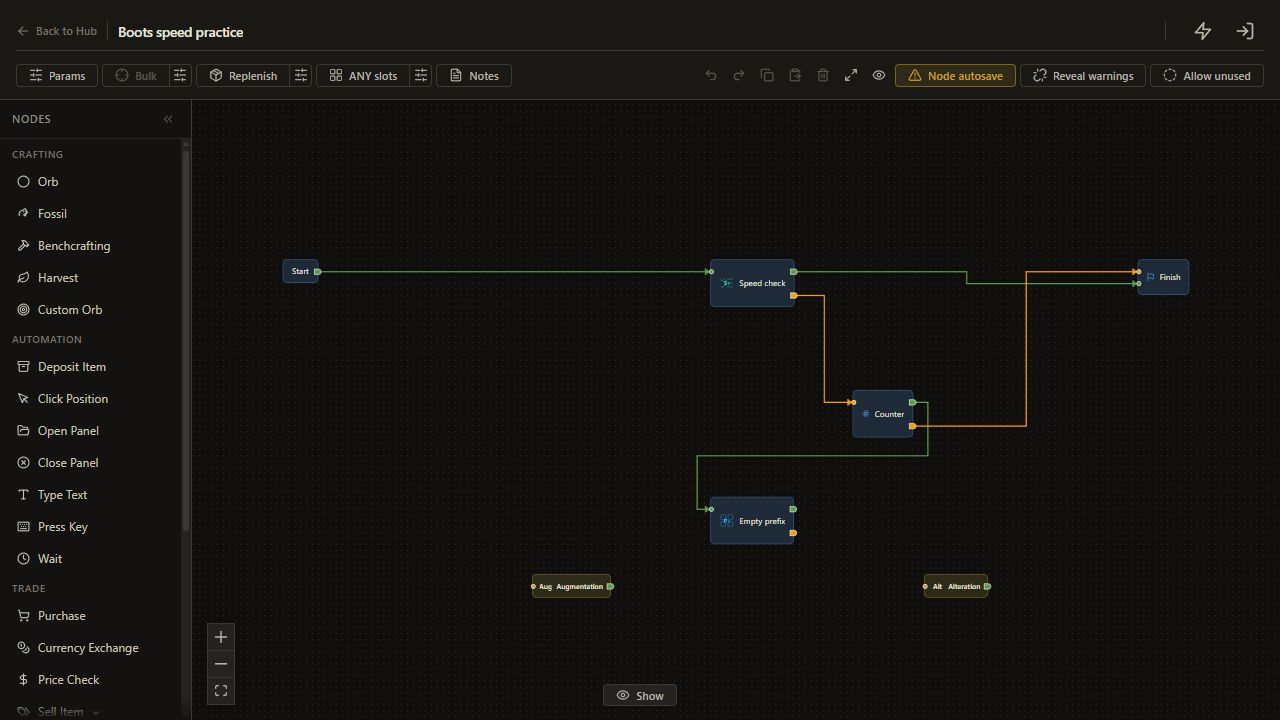
  44. 4. Bound the spending route

    44. Connect Counter unmet to Finish

    Use the orange unmet output of Counter. Drag from marker 1 to marker 2 in the app.

    When the allowance is exhausted, crafting stops.

    Open full-size screenshot
  45. 4. Bound the spending route

    45. Connect open prefix met to Augmentation

    Use the green met output of the empty-prefix check. Drag from marker 1 to marker 2 in the app.

    An open prefix takes the Augmentation route.

    Open full-size screenshot
  46. 4. Bound the spending route

    46. Connect open prefix unmet to Alteration

    Use the orange unmet output of the empty-prefix check. Drag from marker 1 to marker 2 in the app.

    An item without an open prefix takes the Alteration route.

    Open full-size screenshot
  47. 4. Bound the spending route

    47. Return Augmentation to the speed check

    Connect the Augmentation output back to the speed check input. Drag from marker 1 to marker 2 in the app.

    Every Augmentation result is checked before another action.

    Open full-size screenshot
  48. 4. Bound the spending route

    48. Return Alteration to the speed check

    Connect the Alteration output back to the same speed check input. Drag from marker 1 to marker 2 in the app.

    Both retry paths revisit the same target and allowance.

    Open full-size screenshot
  49. 5. Confirm the input and run

    49. Save and return to the Hub

    Check all nine connections against this layout. Press Back to Hub to commit the changes.

    Fix any incomplete node warnings before running.

    Open full-size screenshot
  50. 5. Confirm the input and run

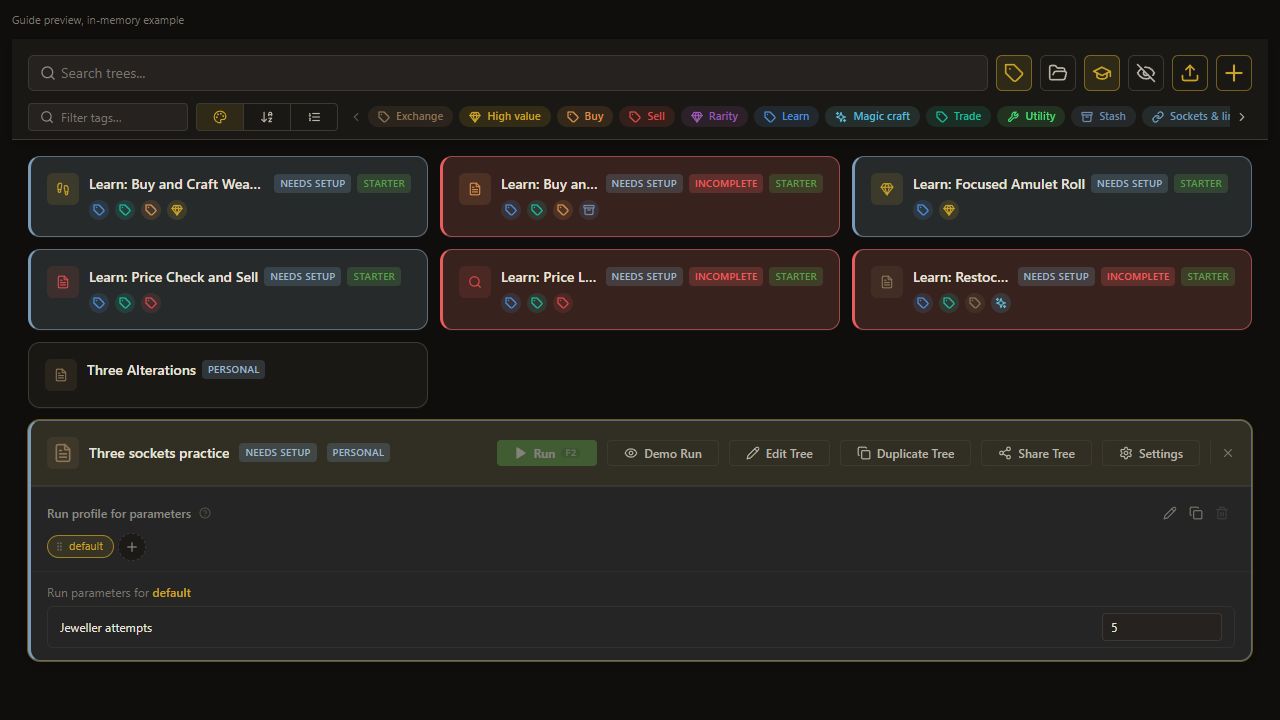
    50. Confirm the run allowance

    In the selected tree's Run Parameters on the Hub, set Orb actions to 5 and wait for Saved.

    The selected run profile uses five actions. This screenshot shows the input, not a recorded save or craft.

    Open full-size screenshot
  51. 5. Confirm the input and run

    51. Wait for Saved

    Wait for Saved after saving Orb actions as 5.

    The five-action budget is persisted.

    Read and complete this step before continuing.

  52. 5. Confirm the input and run

    52. Prepare the magic boots

    Confirm identified, uncorrupted magic boots at the configured item location. Keep inventory and currency stash ready.

    The input meets this tree's prerequisite.

    Complete and verify this step in the stated app or game.

  53. 5. Confirm the input and run

    53. Run on your prepared magic boots

    Keep Current item selected. Confirm item copy works, your stash positions are ready, Orb stock guard is on, and you know Stop. Then press Run.

    Inspect Logs and the final item afterward. Five actions is a limit, not a guaranteed matching roll.

    Open full-size screenshot
  54. 6. Read the ending

    54. Read the ending

    Choose Logs.

    The speed or budget exit can be inspected.

    Open full-size screenshot
  55. 6. Read the ending

    55. Inspect movement speed

    Compare the actual boots with the configured minimum of 10.

    A target exit and a budget exit remain distinct.

    Complete and verify this step in the stated app or game.

  56. Check the result

    56. Open Logs

    Choose Logs.

    The actual sequence and exit can be inspected.

    Open full-size screenshot
  57. Check the result

    57. Inspect the actual result

    Compare movement speed with 10 and count combined Alteration/Augmentation actions in Logs.

    At most five permitted orb actions; no matching-roll guarantee.

    Complete and verify this step in the stated app or game.

  58. If it does not work

    58. Review if it does not work

    - **A low roll passes in the original sample:** inspect its separate opening check at minimum 0. - **Empty-prefix results look wrong:** verify advanced copied modifier labels using [Empty Mods](empty-mod-slots.md). - **Currency keeps spending:** stop and check that every retry passes through Counter.

    The section context and checks are preserved.

    Read and complete this step before continuing.

  59. Next guide

    59. Review next guide

    [Roll sockets with a fixed allowance](case-sockets.md).

    The section context and checks are preserved.

    Read and complete this step before continuing.

On this page

At a glance

The Learn sample Boots Magic Roll combines rarity conversion, an empty-prefix check, Augmentation and Alteration. This walkthrough builds a personal version for boots that are already magic, with one movement speed requirement and an explicit spending limit.

Follow the click-by-click slideshow to build this tree in the app. Each slide highlights the control or connection ports for that action. The images show configuration previews; select an image to open it at full size.

Before you start

Complete setup and item-copy checks. Prepare identified, uncorrupted magic boots you are willing to reroll. Configure Alteration and Augmentation stash locations, enable Orb stock guard, and know your Stop shortcut.

1. Create your practice version

On the Hub, press +, name the tree Boots speed practice, and open Edit Tree.

Click the sliders button beside Bulk in the editor toolbar, labeled Configure bulk / grid settings. Choose Current item, then click Save. The dialog closes and the tree uses one item.

Keep Current item selected.

The source example is Learn/Magic Crafting/Boots Magic Roll.json, titled Learn: Boots Magic Roll in its saved Hub metadata. Look under Learn if it is available on your installation. These instructions build an adapted personal tree; opening the sample alone does not apply the changes below.

2. Use one movement speed requirement

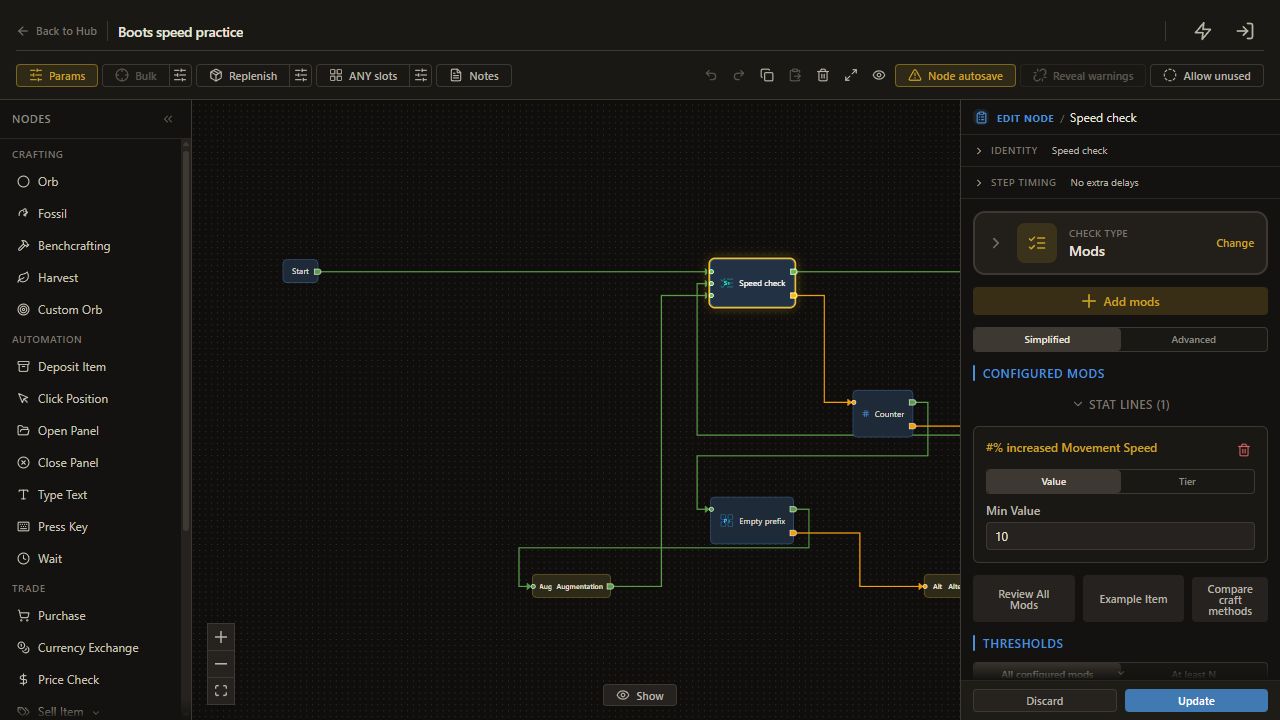
Add Check Item > Mods. Choose the appropriate boots item type and add #% increased Movement Speed. Set Min Value to 10 and require that one configured line. Call this the speed check.
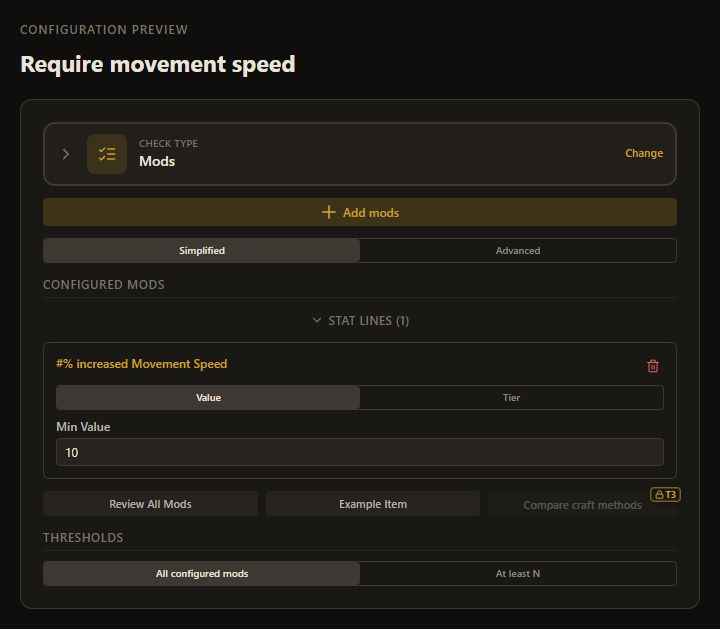
Check Item Mods with movement speed selected and Min Value set to 10

The saved sample has two checks: its first accepts the movement speed line at minimum 0, while its inner loop requires 10. An item can therefore exit through the first check before reaching the stricter one. This practice version uses the same 10 requirement at every visit.

3. Add the empty-prefix branch

Add Check Item > Empty Mods. Choose Empty prefix quantity and Minimum open slots: 1. Add an Augmentation orb node and an Alteration orb node.
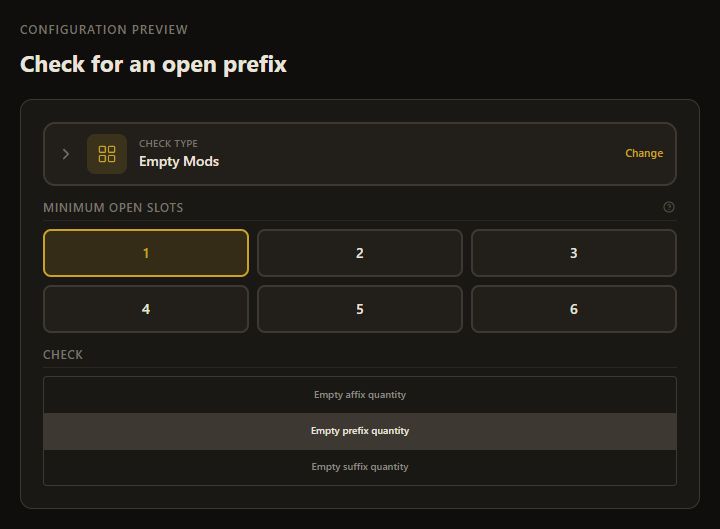
Check Item Empty Mods set to Empty prefix quantity with one minimum open slot

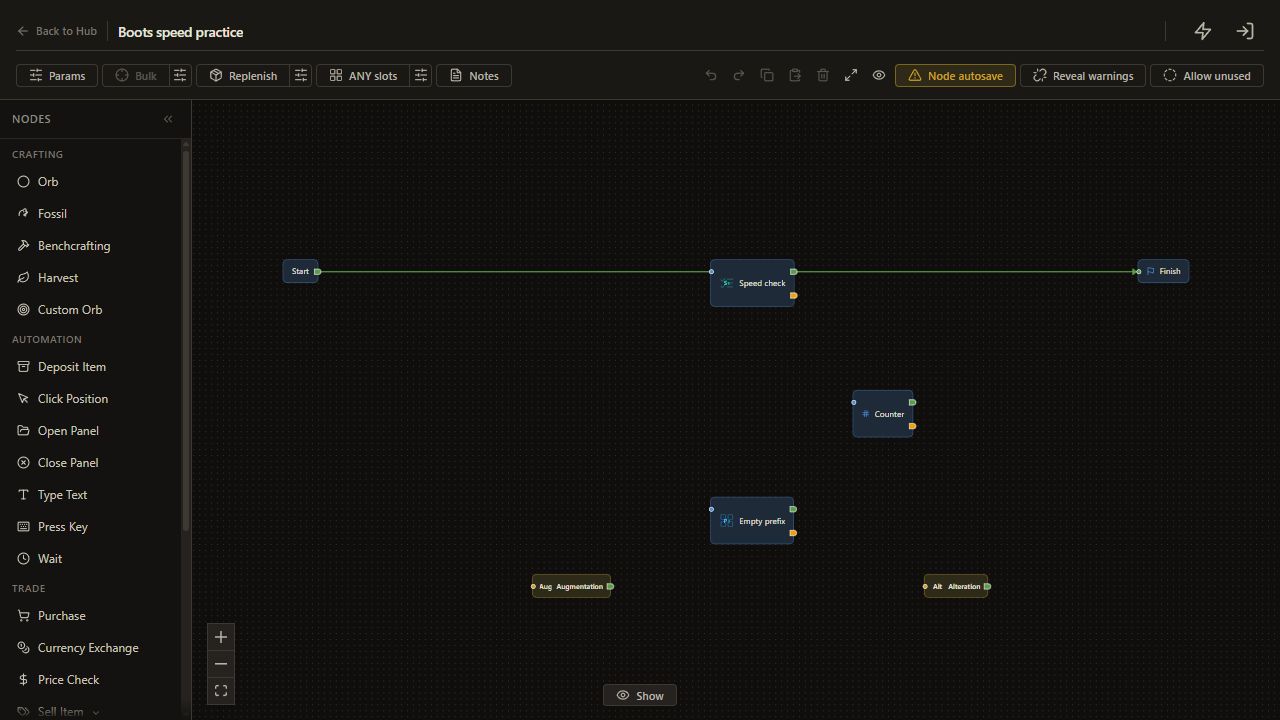
Connect Empty Mods met → Augmentation and unmet → Alteration. Connect both orb outputs back to the speed check. This follows the sample's prefix decision: an open prefix gets an Augmentation attempt; otherwise the item is rerolled.

4. Bound the spending route

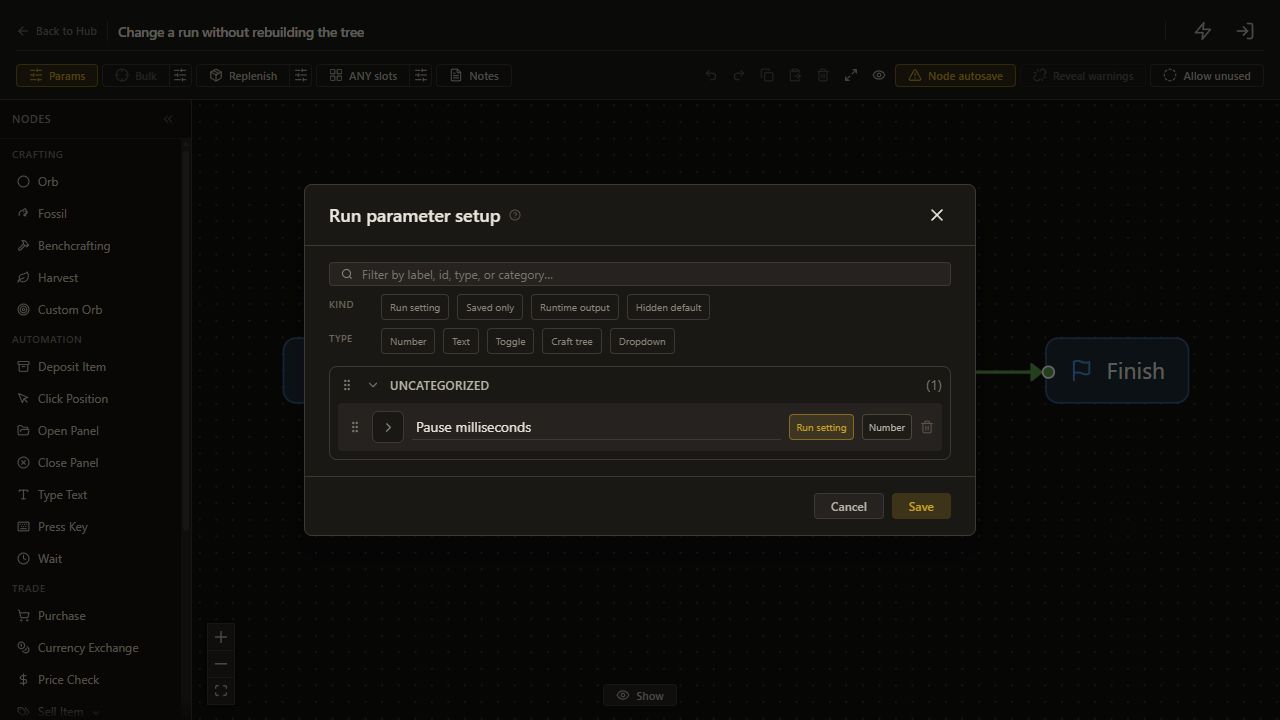
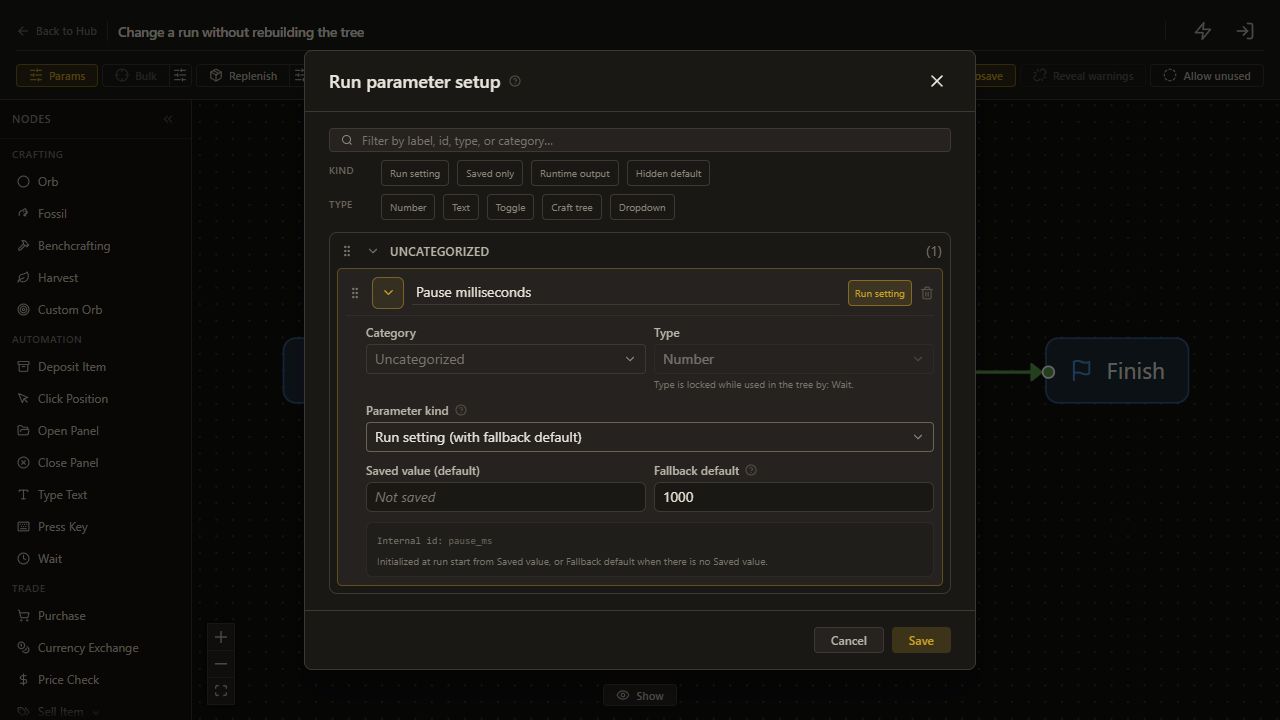
Add a Counter, create a Number parameter called Orb actions, and set its fallback default to 5, following Counter setup.
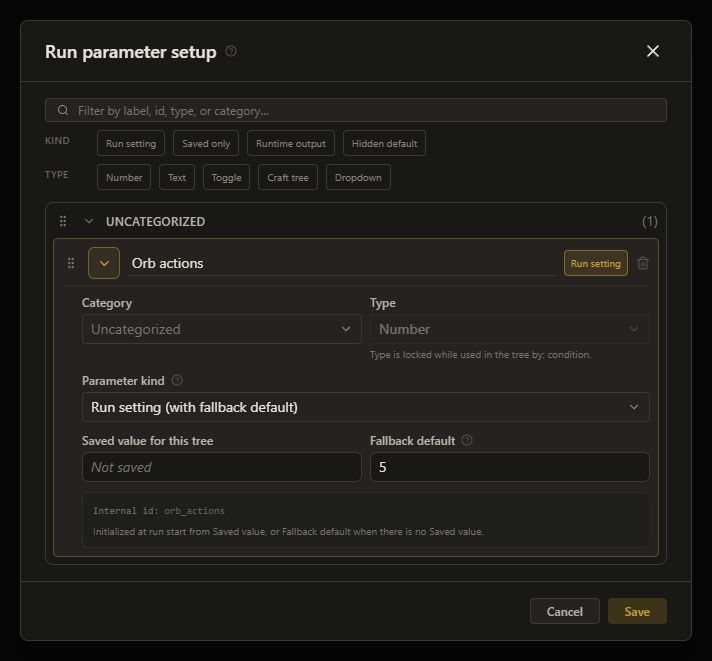
Run parameter setup showing Orb actions as a Number with fallback default 5

Select Orb actions in the Counter's Run Parameters counter field.
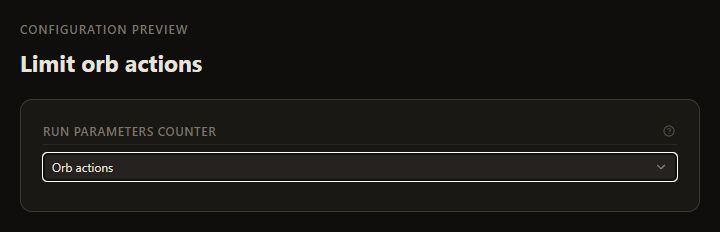
Counter bound to the Orb actions run parameter

Connect Start → speed check. Connect speed check met → Finish, and unmet → Counter. Connect Counter met → Empty Mods, and unmet → Finish. Every currency action now requires one counter pass. There is no direct route from the speed check to an orb.

In Counter, open Run Parameters counter, click Create new, enter Orb actions in Label, then click Add. Counter creates a Number parameter and selects it automatically. Open Params, expand Details for Orb actions, check Type: Number, keep Kind as Run setting (with fallback default), enter 5 in Fallback default, then click Save.

5. Confirm the input and run

Use Back to Hub, save Orb actions as 5, and wait for Saved. Confirm the boots are magic, keep the currency stash and inventory ready, then start on that item.

This version omits the sample's Scour and Transmutation branches. Prepare magic boots first; it has no rarity guard.

6. Read the ending

Open Logs and inspect the final boots. The tree ends when the speed check passes or the next Counter visit finds no allowance. The allowance covers at most five combined Alteration and Augmentation actions; it does not guarantee a matching roll.

Check the result

Compare movement speed with the saved minimum. Check whether the target branch or exhausted Counter ended the run.

If it does not work

  • A low roll passes in the original sample: inspect its separate opening check at minimum 0.
  • Empty-prefix results look wrong: verify advanced copied modifier labels using Empty Mods.
  • Currency keeps spending: stop and check that every retry passes through Counter.

Next guide

Roll sockets with a fixed allowance.

Keep learning

Browse all guides

For setup help, the installer or license keys, join the official Discord. Sales and key issues: DM PathOfRolling. Check the account before paying; watch for impostors.